Deploying Typebot: A Self-Hosted Conversational Form Builder
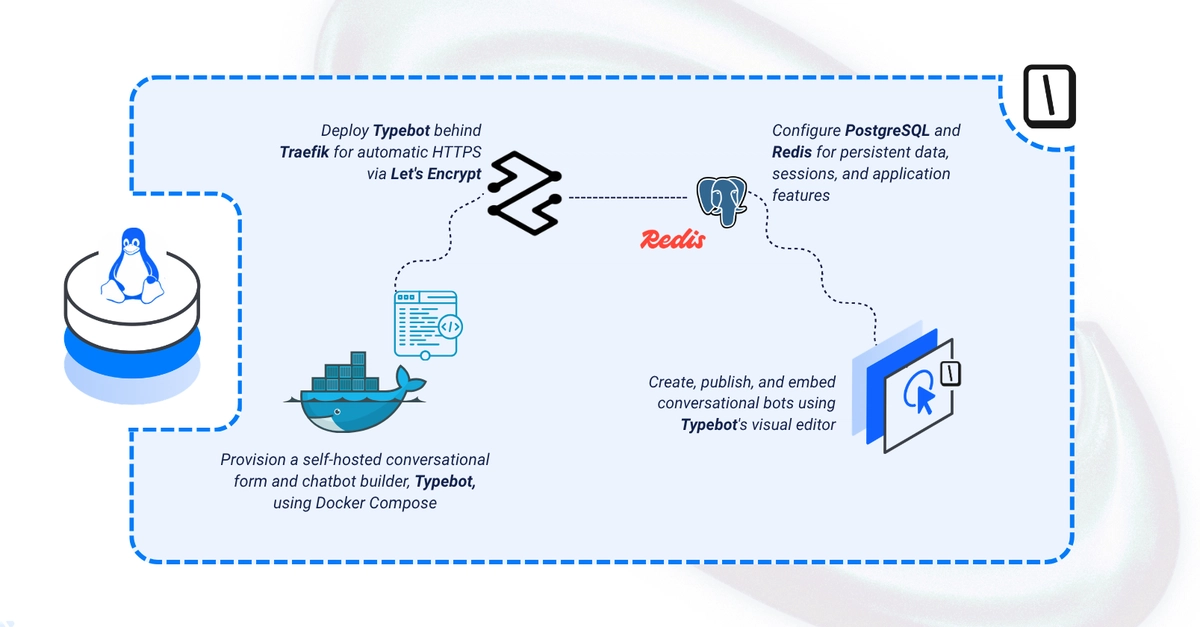
Typebot offers a compelling alternative to hosted conversational form and chatbot builders. Its open-source nature and visual builder provide granular control over data, integrations, and embedding. This guide details the deployment of Typebot on a Linux server, leveraging Docker Compose for a streamlined setup. The stack includes PostgreSQL for data persistence, Redis for caching, and Traefik as a robust reverse proxy with automatic TLS termination via Let's Encrypt. By following these steps, you will establish a fully functional Typebot instance capable of hosting and serving your custom chatbots.

Prerequisites for Deployment
Before initiating the Typebot deployment, ensure you have the following in place:
- A Linux-based server accessible via SSH as a non-root user with
sudoprivileges. - Docker and Docker Compose installed and configured on the server.
- Two distinct domain A records pointing to your server's IP address. These will be used for accessing the Typebot builder interface and potentially for bot viewing endpoints. Examples include
builder.yourdomain.comandviewer.yourdomain.com. - A valid email address. This is required for Let's Encrypt to register and manage TLS certificates for your domains, ensuring secure HTTPS connections.
Setting Up the Docker Compose Environment
The core of the Typebot deployment relies on a docker-compose.yml file. This file orchestrates the necessary services: Typebot itself, a PostgreSQL database, and a Redis instance. Traefik will be configured separately to manage inbound traffic and SSL.
Create a new directory for your Typebot deployment, for instance, ~/typebot. Navigate into this directory and create the docker-compose.yml file. The configuration will define the services, their images, volumes, networks, and environment variables.
Typebot Service Configuration
The Typebot service will use the official syncpoint/typebot-ce Docker image. Key configurations include:
- Image:
syncpoint/typebot-ce:latest(or a specific version for stability). - Ports: Map a host port (e.g.,
3000) to the container's port3000. - Environment Variables: Crucially, you will need to set
DATABASE_URLto connect to your PostgreSQL instance andREDIS_URLfor Redis. - Depends On: Specify that Typebot depends on the database and Redis services to ensure they start first.
- Restart Policy: Set to
unless-stoppedto ensure Typebot restarts automatically if it crashes or the server reboots.
PostgreSQL Database Service
A PostgreSQL database is essential for storing Typebot's data, including bot configurations and user information. The configuration will involve:
- Image:
postgres:15(or another suitable version). - Volumes: A named volume (e.g.,
postgres_data) to persist database data across container restarts. - Environment Variables: Set
POSTGRES_DB,POSTGRES_USER, andPOSTGRES_PASSWORD. These credentials must match those used in the Typebot'sDATABASE_URL.
Redis Service
Redis is used for caching and potentially other background tasks. Its configuration is straightforward:
- Image:
redis:latest. - Volumes: A named volume (e.g.,
redis_data) for persistence, though often Redis persistence is optional for caching layers. - Command:
redis-server --save 60 1 --loglevel warning --requirepass YOUR_REDIS_PASSWORD. It is highly recommended to set a password for Redis.
Docker Compose File Structure
Your docker-compose.yml file will look something like this:
version: "3.8"

services:
  typebot:
    image: syncpoint/typebot-ce:latest
    container_name: typebot
    ports:
      - "3000:3000"
    environment:
      - DATABASE_URL=postgresql://typebot_user:typebot_password@db:5432/typebot_db
      - REDIS_URL=redis://:YOUR_REDIS_PASSWORD@redis:6379
    depends_on:
      - db
      - redis
    networks:
      - typebot_network
    restart: unless-stopped

  db:
    image: postgres:15
    container_name: typebot_db
    volumes:
      - postgres_data:/var/lib/postgresql/data
    environment:
      - POSTGRES_DB=typebot_db
      - POSTGRES_USER=typebot_user
      - POSTGRES_PASSWORD=typebot_password
    networks:
      - typebot_network
    restart: unless-stopped

  redis:
    image: redis:latest
    container_name: typebot_redis
    command: redis-server --save 60 1 --loglevel warning --requirepass YOUR_REDIS_PASSWORD
    volumes:
      - redis_data:/data
    networks:
      - typebot_network
    restart: unless-stopped

volumes:
  postgres_data:
  redis_data:

networks:
  typebot_network:
    driver: bridge
Remember to replace typebot_user, typebot_password, YOUR_REDIS_PASSWORD, and the database name with your chosen secure credentials. Also, update the domain names in the Traefik configuration.
Configuring Traefik for Reverse Proxy and TLS
Traefik acts as the entry point to your Typebot instance, handling incoming requests, routing them to the correct container, and managing SSL certificates. This is crucial for secure, HTTPS-enabled access.
You will need a separate traefik.yml configuration file and a docker-compose.traefik.yml file to define the Traefik service. The Traefik configuration should enable the Docker provider, define entry points for HTTP (port 80) and HTTPS (port 443), and configure Let's Encrypt for automatic certificate generation.
Traefik Static Configuration (traefik.yml)
This file sets up Traefik's core settings:
log:
  level: INFO

api:
  dashboard: true
  insecure: true # Set to false in production and use auth

entryPoints:
  web:
    address: ":80"
  websecure:
    address: ":443"

providers:
  docker:
    exposedByDefault: false

certificatesResolvers:
  letsencrypt:
    acme:
      email: "your-email@example.com"
      storage: "/letsencrypt/acme.json"
      httpChallenge:
        entryPoint: "web"
Replace your-email@example.com with your actual email address. The api.dashboard can be useful for monitoring but should be secured in a production environment.
Traefik Docker Compose Service (docker-compose.traefik.yml)
This file defines the Traefik container and its configuration:
version: "3.8"

services:
  traefik:
    image: traefik:v2.10
    container_name: traefik
    ports:
      - "80:80"
      - "443:443"
      - "8080:8080" # For Traefik dashboard
    volumes:
      - /var/run/docker.sock:/var/run/docker.sock:ro
      - ./traefik.yml:/etc/traefik/traefik.yml:ro
      - letsencrypt_data:/letsencrypt
    networks:
      - typebot_network
    labels:
      - "traefik.enable=true"
      - "traefik.http.routers.traefik.rule=Host:traefik.yourdomain.com"
      - "traefik.http.routers.traefik.entrypoints=websecure"
      - "traefik.http.routers.traefik.tls.certresolver=letsencrypt"
      - "traefik.http.services.traefik.loadbalancer.server.port=8080"
    restart: unless-stopped

volumes:
  letsencrypt_data:

networks:
  typebot_network:
    external: true
Ensure traefik.yourdomain.com is one of your configured domain names and that the typebot_network is shared with your main Typebot compose file.
Running the Deployment
With your docker-compose.yml and Traefik configuration in place, you can start the services. First, ensure your Traefik compose file is in the same directory or adjust paths accordingly. Then, run:
docker compose up -d
This command will download the necessary Docker images, create the containers, and start them in detached mode. Docker Compose will automatically create the network and volumes defined in your files.
Accessing Typebot and Embedding Bots
Once the containers are running, you should be able to access the Typebot builder interface by navigating to your configured builder domain (e.g., https://builder.yourdomain.com) in a web browser. Traefik will automatically provision an SSL certificate from Let's Encrypt for this domain.
Inside the Typebot interface, you can create new conversational flows. After designing a bot, Typebot provides an embed code (typically an iframe) that you can copy and paste into your website or application. This allows you to seamlessly integrate your custom chatbots anywhere.
Security Considerations
Securing your Typebot instance is paramount. This includes:
- Strong Passwords: Use strong, unique passwords for your PostgreSQL and Redis instances.
- Environment Variables: Never hardcode sensitive credentials directly in the
docker-compose.ymlfile. Use environment files (.env) for better security. - Traefik Dashboard: Secure the Traefik dashboard with authentication in a production environment.
- Server Security: Ensure your Linux server is regularly updated and secured with a firewall.
- Domain Configuration: Verify that your domain records are correctly pointing to your server's IP.
By following this comprehensive guide, you can successfully deploy and manage your own instance of Typebot, gaining full control over your conversational data and user interactions.