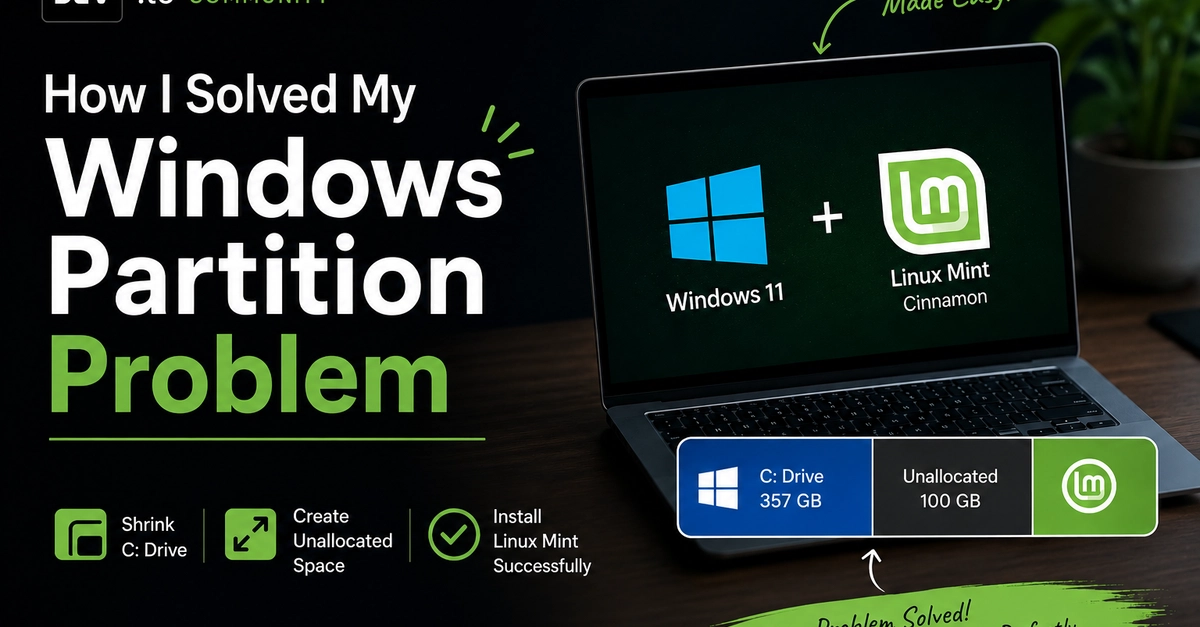
The Common Windows Partition Shrinking Roadblock
Installing a secondary operating system like Linux Mint alongside Windows 11 often requires partitioning your primary drive. For users with a single C: drive, this typically involves shrinking the existing Windows partition to create unallocated space. The goal is usually to carve out a dedicated segment for the new OS, often around 100 GB or more, depending on user needs.
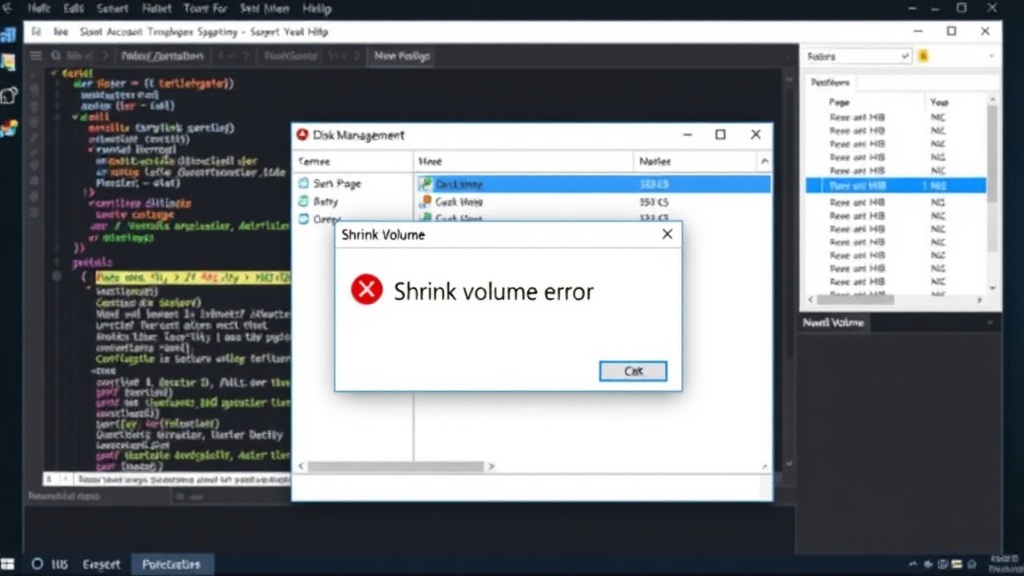
The built-in Windows Disk Management tool is the first port of call for many. However, it frequently presents a frustrating obstacle: the error message stating, "You cannot shrink a volume beyond the starting point of unmovable files." This cryptic message means that certain system files, like the page file or hibernation file, are located too close to the end of the partition to be moved by Windows' native tools. Consequently, the shrink operation is halted, leaving users unable to proceed with their dual-boot plans.
This is a particularly common issue on modern laptops, especially those shipping with Windows 11 and a single SSD, such as the Samsung Galaxy Book2 Pro 360. The default configuration leaves little room for manual partitioning without specialized software.
AOMEI Partition Assistant: The Workaround
When Windows Disk Management fails, third-party tools become essential. AOMEI Partition Assistant is a popular choice that addresses this specific limitation. Its advanced algorithms can identify and manage these unmovable files more effectively, allowing for a successful partition shrink operation.
The process using AOMEI Partition Assistant typically involves the following steps:
- Download and Install: Obtain AOMEI Partition Assistant from its official website. The free version is often sufficient for basic partitioning tasks like shrinking volumes.
- Launch the Software: Open AOMEI Partition Assistant. The main interface displays all connected drives and their partitions.
- Select the Target Partition: Right-click on the C: drive (or the partition you wish to shrink) and select the "Resize/Move Partition" option.
- Adjust the Partition Size: A graphical slider or input fields will appear. Drag the right edge of the partition bar towards the left, or enter the desired size for the shrunk partition. Crucially, AOMEI allows you to specify the amount of free space you want to create, effectively defining the unallocated space. The software intelligently handles the positioning of system files to enable this shrinkage.
- Execute the Operation: After setting the new partition size, click "Apply" in the toolbar. AOMEI will present a list of pending operations. Confirm the changes.
- Reboot Required: Since system files are involved, AOMEI Partition Assistant will likely prompt a reboot to perform the operation in a pre-boot environment. This ensures that the Windows operating system is not actively using the files it needs to move, guaranteeing a smoother and safer process. The computer will restart and complete the partition resizing before Windows fully loads.
Once the computer boots back into Windows, the C: drive will be smaller, and a contiguous block of unallocated space will be available for creating new partitions or installing other operating systems.
Creating Space for Linux Mint
With the unallocated space successfully created using AOMEI Partition Assistant, the next step is to install Linux Mint Cinnamon. During the Linux Mint installation process, the installer will detect the unallocated space.
Users can then choose the "Install Linux Mint alongside Windows" option if available and straightforward, or opt for the "Something else" manual partitioning scheme. The latter provides more control and is recommended for users who want to define specific partitions for Linux (e.g., root `/`, swap, and home `/home`).
The 100 GB of unallocated space is typically sufficient for a comfortable Linux Mint installation, including the Cinnamon desktop environment, essential applications, and user data. This dual-boot setup allows users to switch between Windows 11 and Linux Mint at startup, leveraging the strengths of both operating systems.
Why Windows Disk Management Fails
The fundamental reason Windows Disk Management struggles with shrinking volumes is its inability to move certain critical system files. These include the page file (used as virtual RAM), the hibernation file (which stores the system state when hibernating), and other essential boot-related files. These files are often locked by the operating system and cannot be relocated by standard partitioning utilities.
AOMEI Partition Assistant, and similar advanced disk management tools, employ more sophisticated methods. They can often temporarily disable these services or move the files during a pre-boot environment where Windows is not running, thereby circumventing the restrictions imposed by the live operating system.
The surprising detail here is not that a third-party tool is needed, but that Windows' own utility, designed for disk management, has such a fundamental limitation that requires external software for a common dual-booting scenario. It highlights a gap in native OS functionality for users who want flexible drive management beyond simple volume expansion or deletion.
Conclusion: A Practical Solution for Dual-Booting
For anyone facing the "unmovable files" error when trying to shrink a Windows partition, AOMEI Partition Assistant provides a reliable and effective solution. It bypasses the limitations of Windows Disk Management, enabling users to create the necessary unallocated space for installing Linux distributions or other operating systems. This empowers users to achieve flexible dual-boot configurations without resorting to complex or risky methods.