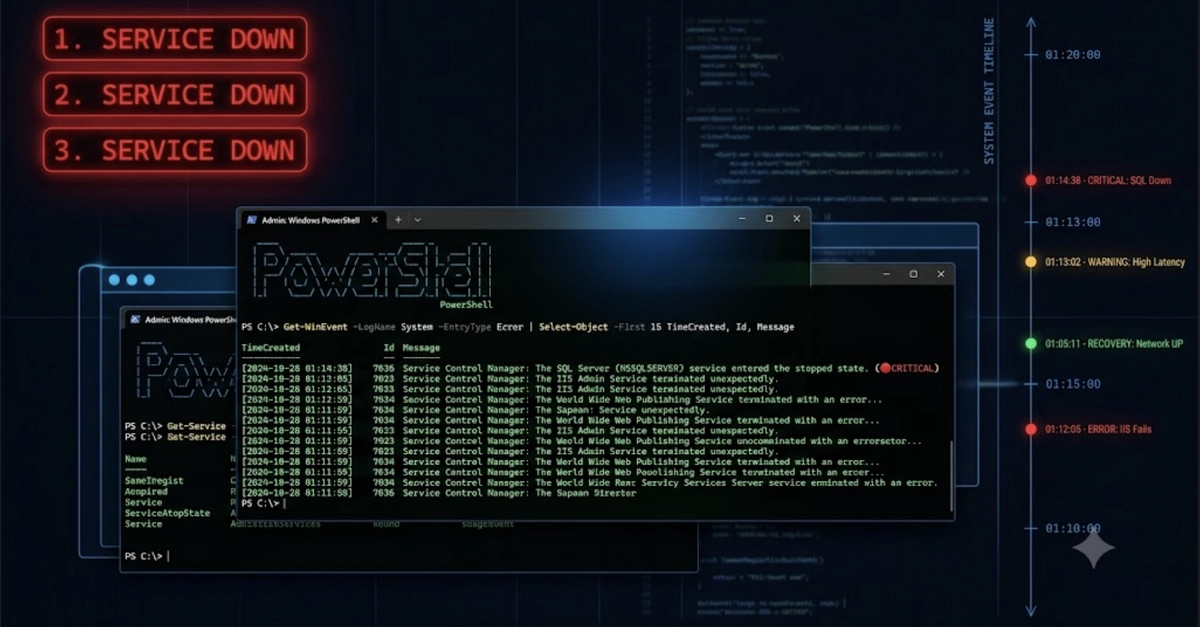
Don't Restart First: The Critical First Step
When a critical Windows service unexpectedly stops – be it SQL Server, IIS, a background agent, or a proprietary application – the immediate impulse is often to restart it. However, this is precisely the wrong first move. Restarting a service without understanding why it stopped can mask deeper issues. A failing update, an overloaded host, or an external automation script could be the culprit, and simply restarting allows the problem to recur unnoticed. The golden rule: spend five minutes gathering evidence before you touch the service.
This methodical approach applies universally, regardless of the service's function. By learning this pattern once, you can apply it to any Windows service outage, saving time and preventing recurring problems.
Step 01: Confirm the Current State
Your initial question shouldn't be "Why did it stop?" but rather "Is it still stopped?" Monitoring systems operate on polling intervals. By the time an alert reaches you, the service might have already self-corrected or been restarted by another process. It's crucial to establish the ground truth of the service's current status before taking any action. This prevents you from troubleshooting a problem that no longer exists or has already been resolved by an automated process.
To do this, open PowerShell as an administrator and use the Get-Service cmdlet. Specify the exact name of the service you are investigating. For example, if the service is named MyCustomService, you would run:
Get-Service "MyCustomService"This command will immediately show you the service's current status (e.g., Running, Stopped, Paused) and its startup type (Automatic, Manual, Disabled). If the service is indeed stopped, proceed to the next step.
Step 02: Check the Event Logs
Windows logs critical events related to service startup, shutdown, and errors. These logs are your primary source for understanding why a service stopped. The two most important logs to check are the Application and System logs in the Event Viewer.
To access Event Viewer:
- Press
Win + R, typeeventvwr.msc, and press Enter. - Navigate to Windows Logs > Application.
- Navigate to Windows Logs > System.
Filter these logs for events related to the problematic service. Look for events with a level of Error or Warning that occurred around the time the service stopped. Common indicators include:
- Application Errors: These often point to issues within the service's code, such as unhandled exceptions, configuration file problems, or dependency failures.
- System Errors: These can indicate underlying operating system issues, such as driver problems, resource exhaustion (memory, disk space), or network connectivity failures that prevent the service from starting or running.
- Service Control Manager Events: The Service Control Manager (SCM) logs events when it tries to start, stop, or query a service. Look for Event ID 7000 (service failed to start) or 7034 (unexpected termination).
Pay close attention to the details within these event entries. They often contain specific error codes, messages, and sometimes even stack traces that can pinpoint the exact cause. If you find an error code, search for it online for more specific troubleshooting guidance.
Step 03: Examine Resource Utilization
Services can stop due to a lack of system resources. High CPU usage, depleted memory, or a full disk can prevent a service from functioning correctly or even cause the operating system to terminate it to maintain stability.
Use the Task Manager (Ctrl + Shift + Esc) or Resource Monitor (resmon.exe) to assess the system's current resource load. Focus on:
- CPU Usage: Is a specific process consuming an unusually high percentage of CPU? This could be the service itself, or another process interfering with it.
- Memory (RAM): Is the system running low on available memory? Services, especially those that manage large datasets or handle many connections, can be memory-intensive. A memory leak in the service or another application can exhaust available RAM.
- Disk I/O and Space: Is the disk drive where the service resides or where it writes logs/data nearly full? High disk I/O could indicate a runaway process or a bottleneck. Services often require sufficient disk space for operation and temporary file creation.
- Network: If the service relies on network connectivity, check if there are any network-related errors in the event logs or if the server can reach other network resources.
If you identify a resource bottleneck, investigate the process consuming the most resources. It might be the service in question, or it could be another application that is indirectly impacting the service's stability. Understanding this relationship is key. For instance, a memory leak in a web application might starve a database service running on the same server.
Step 04: Review Recent Changes and Dependencies
Services don't typically stop without a reason. The most common trigger for unexpected service failures is a recent change to the system or its environment. Think about what has happened since the service was last known to be working correctly.
Consider these potential change vectors:
- Windows Updates: Have any Windows updates been installed recently? Updates can sometimes introduce compatibility issues or require services to be reconfigured.
- Application Updates: Was the service itself or any related application updated? A faulty update is a frequent cause of service failure.
- Configuration Changes: Were there any manual changes to the service's configuration files, registry settings, or related application settings?
- New Software Installations: Was any new software installed on the server that might conflict with the service or consume critical resources?
- Network Changes: Were there any changes to firewall rules, network configurations, or DNS settings that could affect a service's ability to communicate?
- Dependency Failures: Does the service rely on other services or external resources (like a database, message queue, or network share)? If a dependency has failed, the service that relies on it may also stop. Check the status of these dependencies.
This step requires detective work. Correlate the timeline of changes with the timeline of the service outage. If a change was made just before the outage, it is a prime suspect.
Step 05: Consult Service-Specific Logs and Documentation
While Windows Event Logs provide a system-level view, many applications and services maintain their own detailed log files. These application-specific logs often contain more granular information about errors and operational details than the general Windows logs.
Locate the log files for the service. Their location varies widely but can often be found in:
- The service's installation directory.
- A dedicated logging directory (e.g.,
C:\ProgramData\).\Logs - The user profile of the account under which the service runs.
If you cannot find them, consult the service's official documentation or search online for "
Additionally, review the service's documentation for known issues, troubleshooting guides, or recommended configurations. Sometimes, a service stops because it's misconfigured according to its own specifications.
When to Restart
Only after you have completed these five steps and gathered evidence should you consider restarting the service. If you found a clear, actionable cause (e.g., a configuration error, a temporary resource spike that has since cleared), you can attempt a restart. If the service starts and remains stable, your initial investigation has likely identified the root cause. However, if the service stops again shortly after restarting, or if you found no clear cause, you must escalate the issue or continue deeper troubleshooting. The evidence gathered in these five steps will be invaluable for further analysis or for providing to support teams.