Mastering VeraCrypt: Beyond Basic Encryption

VeraCrypt is a potent tool for encrypting data, but its power comes with complexity. Many users encounter issues not due to cryptographic weaknesses, but due to poor implementation and operational errors. These range from selecting overly complex cipher cascades to mismanaging keyfiles, or failing to test recovery media. This guide provides practical advice to ensure your VeraCrypt setup is secure, accessible, and resilient, referencing VeraCrypt 1.26.29 released in June 2026.

Defensible Decisions for Passwords and Key Derivation

Choosing the right password and understanding key derivation is fundamental. VeraCrypt uses a Password-Based Key Derivation Function (PBKDF) to generate encryption keys from your password. While older versions relied on RIPEMD-160, newer versions offer stronger algorithms. The significant update in 1.26.29 is the addition of Argon2id for non-system volumes. Argon2id is the current gold standard, offering superior resistance against GPU-accelerated attacks and side-channel analysis compared to older algorithms like SHA-512. When setting up a volume, always opt for Argon2id if available. This means configuring your volume to use Argon2id as the KDF, alongside a strong, unique password. Avoid simple, common passwords or reusing passwords from other services. Consider using a password manager to generate and store long, random passphrases. A custom PIM (Personal Iterations Multiplier) can add another layer of security, but it must be remembered. If you forget your PIM, your data is inaccessible, even with the correct password and keyfiles. Documenting the PIM securely and separately from your primary password is a critical step.

Container Formats, Filesystems, and Storage Media

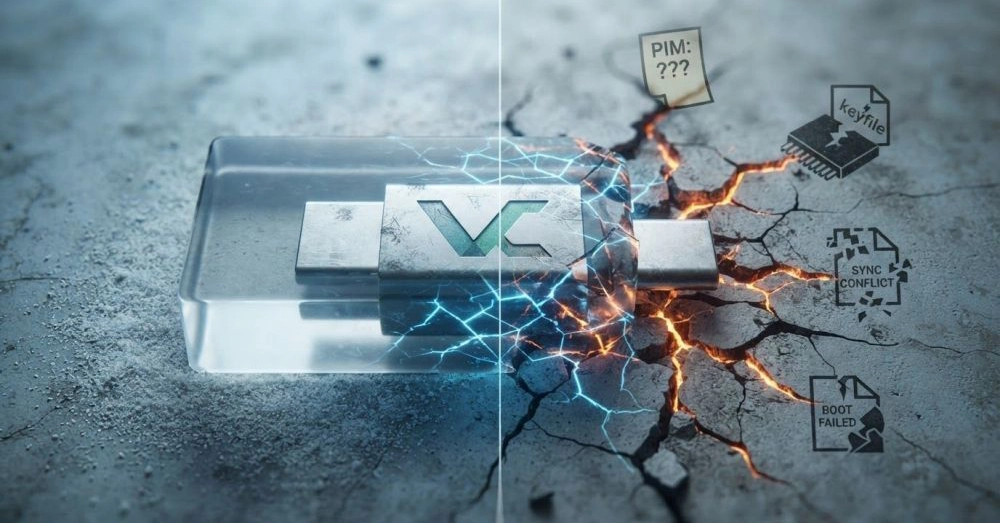
VeraCrypt allows you to create encrypted containers (files or partitions) that function as virtual encrypted disks. The choice of filesystem within the container is crucial. For general use, NTFS or exFAT are common choices for Windows and cross-platform compatibility, respectively. For Linux systems, ext4 is a robust option. When creating containers, be mindful of the storage media. Storing a container file on a single, unreliable USB drive is a recipe for disaster. If that drive fails, your encrypted data is gone. Best practice involves storing container files on reliable storage, ideally with redundancy. For system encryption, VeraCrypt encrypts the entire operating system drive. This provides strong protection against physical theft but requires careful handling of recovery media. A boot failure could render your system inaccessible if the recovery media is faulty or missing.
VeraCrypt volume creation wizard showing Argon2id KDF selection

Keyfiles: The Double-Edged Sword of Security

Keyfiles add a significant layer of security by requiring not just a password, but also a specific file to unlock a volume. This provides a second factor of authentication. However, keyfiles introduce several potential failure points. Never store your only copy of a keyfile on the same device as the VeraCrypt container or on a device prone to failure, such as an older USB stick. Cloud sync services can also be problematic: syncing a mounted VeraCrypt container through services like Dropbox or Google Drive can lead to data corruption or security breaches if not managed carefully. If you sync encrypted containers, ensure that the sync process does not interfere with the mounted volume and that the sync target is itself secured. Always keep at least one secure backup of your keyfiles, stored separately from your main data and ideally in a different physical location.

Hidden Volumes: Plausible Deniability and Pitfalls

VeraCrypt supports hidden volumes, which offer plausible deniability by concealing a second, encrypted volume within a seemingly normal VeraCrypt volume. This feature is powerful but has historically had subtle implementation issues. VeraCrypt 1.26.29 includes fixes for a plausible-deniability issue that affected hidden volumes created in versions 1.26.6 through 1.26.29. When creating hidden volumes, it is paramount to follow the official documentation meticulously. The process requires careful attention to detail regarding the outer volume's structure and the inner volume's creation. Misconfiguration can lead to data loss or render the hidden volume inaccessible. It is essential to test your hidden volume setup thoroughly after creation, ensuring you can unlock both the outer and inner volumes with their respective passwords and keyfiles.

SSDs and System Encryption: Considerations and Best Practices

Encrypting Solid State Drives (SSDs) with VeraCrypt requires understanding their unique characteristics. SSDs use wear-leveling algorithms and garbage collection, which can sometimes make data recovery more complex and potentially interfere with certain encryption operations if not handled correctly. VeraCrypt's system encryption is designed to work with SSDs, but users should be aware that frequent TRIM commands might, in some theoretical scenarios, expose patterns if not properly managed by the OS and VeraCrypt. The primary concern with system encryption remains the recovery media. A boot failure, OS corruption, or hardware issue could prevent access to your system drive. Therefore, creating and testing bootable recovery media (e.g., a USB drive or CD/DVD containing the VeraCrypt rescue disk) is non-negotiable. Ensure the recovery media is up-to-date with your VeraCrypt version and tested in a non-critical situation before relying on it.

Testing, Backups, and Avoiding False Confidence

The most common failure point with any robust security system, including VeraCrypt, is the lack of testing. Users often assume their setup works perfectly until a critical failure occurs. Regularly test your ability to mount all your VeraCrypt volumes using your passwords and keyfiles. Crucially, test your recovery media by simulating a boot failure scenario (e.g., by temporarily renaming the bootloader or simulating disk corruption in a virtual machine). If your recovery media doesn't work, update it and test again. Furthermore, VeraCrypt is not a backup solution. While it protects data from unauthorized access, it does not protect against accidental deletion, hardware failure, or ransomware that targets unmounted files. Maintain a separate, robust backup strategy for your critical data, which may include encrypted backups if necessary.