
Introduction
Connecting to a database sounds like a singular skill, but it often bifurcates into two distinct challenges: establishing a link to a local database residing on your own machine versus connecting to a cloud-hosted instance. The latter typically involves navigating authentication layers, SSL certificates, and specific network configurations. This week, we tackle both scenarios using Power BI to connect to a PostgreSQL database, first in a local setup and then with Aiven's cloud-managed PostgreSQL service. The process highlights the nuanced differences in approach required for each environment.
While the goal is the same—ingesting data for analysis—the journey from local development to cloud deployment involves different considerations for accessibility, security, and configuration. This walkthrough provides a practical, side-by-side comparison, complete with visual cues, to demystify the process for developers and analysts alike.
Part 1: Local PostgreSQL to Power BI
Connecting Power BI to a PostgreSQL database running directly on your local machine is generally the more straightforward of the two scenarios. It bypasses many of the network and security complexities associated with cloud services.
Step 1: Create a Schema
Before importing data, it's good practice to organize your tables within a dedicated schema. This provides a logical namespace and helps manage different sets of data within a single database. If you don't have a schema already, you can create one using a simple SQL command.
CREATE SCHEMA powerbi;
Step 2: Install PostgreSQL Data Provider
Power BI requires a specific data provider to communicate with PostgreSQL. While Power BI has a built-in connector for PostgreSQL, it's often recommended to ensure you have the necessary drivers installed on your system. For most setups, the PostgreSQL ODBC driver or the native Npgsql provider (if using .NET) will suffice. When using Power BI Desktop, it typically prompts you if a driver is missing or suggests installing the appropriate one.
Step 3: Configure Power BI Connection
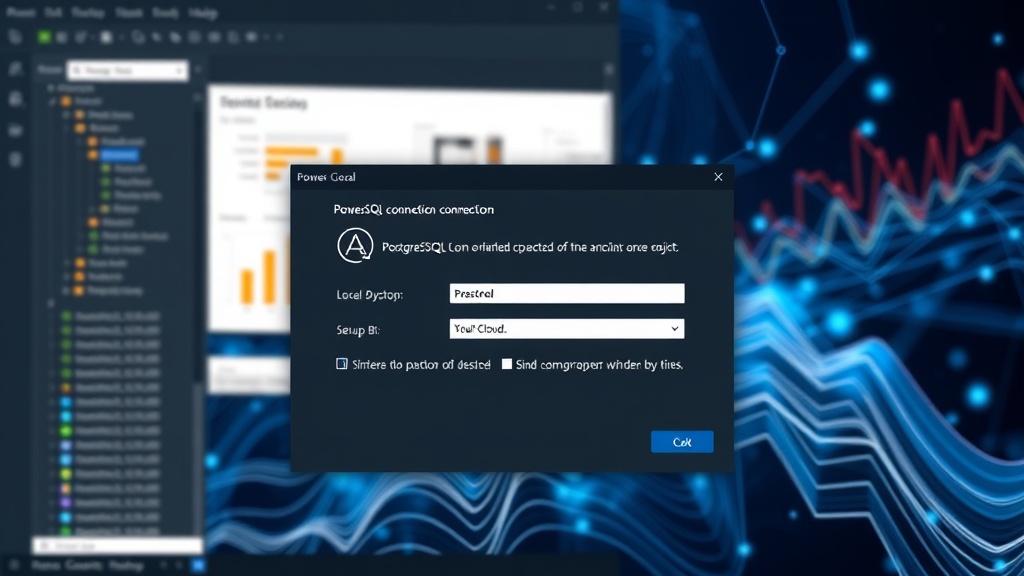
Open Power BI Desktop. Navigate to 'Get Data' and select 'PostgreSQL database'. You will be prompted to enter the server name (usually 'localhost' for a local instance), the database name, and optionally, the port number (default is 5432). You'll also need to provide your PostgreSQL username and password.
For local connections, authentication is typically handled by your PostgreSQL user credentials. Ensure the user you are connecting with has the necessary permissions to access the database and the schema you created.
Step 4: Data Import and Transformation
Once connected, Power BI will display a navigator window showing available schemas and tables. Select the tables you wish to import. Power BI's Power Query Editor then allows you to clean, transform, and shape your data before loading it into your report. This step is crucial for preparing data for analysis, handling missing values, changing data types, and merging or appending tables.
Part 2: Cloud PostgreSQL (Aiven) → Power BI
Connecting Power BI to a cloud-managed PostgreSQL instance, such as one hosted on Aiven, introduces additional layers of security and network configuration. Aiven provides a managed service that handles much of the database administration, but requires careful setup for external access.
Step 1: Obtain Aiven Connection Details
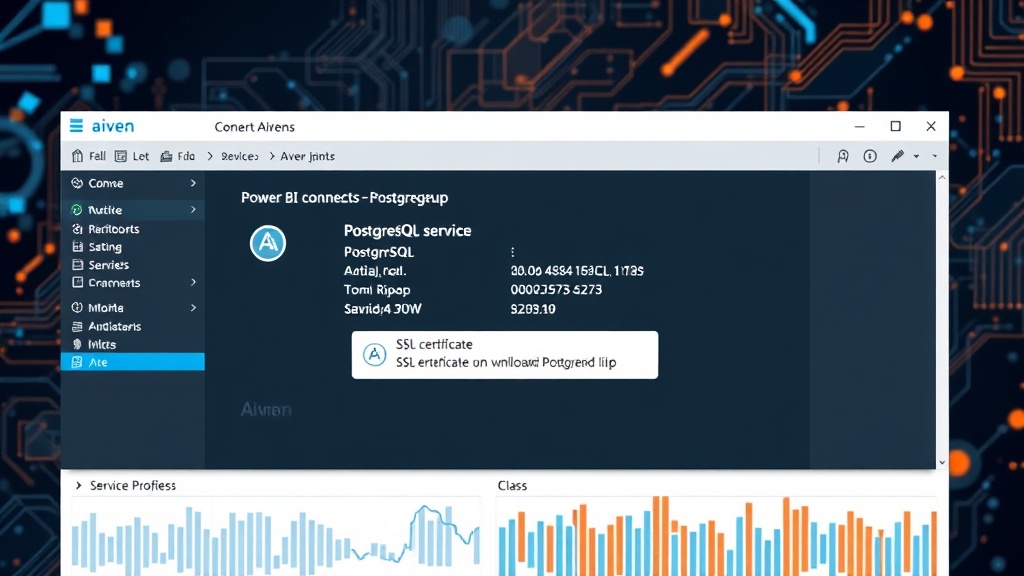
After setting up your PostgreSQL service on Aiven, you will receive connection details. This typically includes a hostname, port, database name, username, and password. Crucially, Aiven instances often require SSL/TLS encryption for all connections. You will also need to download the Aiven SSL certificate bundle, which includes the Certificate Authority (CA) certificate.
Step 2: Configure Network Access (Allowlisting)
Cloud services like Aiven implement strict network security. For Power BI to connect, you must configure your Aiven service to allow connections from the IP addresses where Power BI Desktop is running. This often involves updating firewall rules or access control lists within the Aiven console. For Power BI Service (the cloud version), you would need to allowlist the specific IP ranges used by Power BI, which can be dynamic and requires ongoing management or using a gateway.
A common approach for Power BI Desktop is to temporarily allow your current public IP address. For Power BI Service, a dedicated on-premises data gateway or Aiven's private connection options might be necessary for secure, persistent access without exposing your database publicly.
Step 3: Configure Power BI Connection with SSL
In Power BI Desktop, select 'Get Data' and choose 'PostgreSQL database'. Enter the Aiven-provided hostname, port, and database name. For authentication, use the Aiven username and password. The critical difference here is enabling SSL/TLS. Power BI's PostgreSQL connector has an option to specify SSL mode. You'll typically set this to 'Require' or 'Verify-CA'.
You will also need to provide the path to the downloaded Aiven CA certificate file. Power BI uses this certificate to verify the identity of the Aiven PostgreSQL server, ensuring you are connecting to the legitimate service and that the connection is encrypted. This step is paramount for security when connecting to cloud databases.
Step 4: Data Import and Transformation
Similar to the local setup, once authenticated and connected, you will see your database objects. Select the required tables and proceed to the Power Query Editor for data cleaning and transformation. The principles of data preparation remain the same, regardless of whether the data originates from a local or cloud source.
Key Differences and Considerations
The primary distinctions between connecting to a local PostgreSQL instance and a cloud-hosted Aiven instance boil down to security and network accessibility.
- Security: Local connections rely on standard user credentials and network configurations on your machine. Cloud connections, especially with services like Aiven, mandate SSL/TLS encryption and often require IP allowlisting or gateway configurations.
- Accessibility: Local databases are only accessible from your machine unless explicitly shared. Cloud databases are accessible from anywhere with proper credentials and network permissions, making them suitable for distributed teams and Power BI Service.
- Management: Aiven handles the underlying infrastructure, backups, and updates, abstracting away much of the database administration. With a local instance, you are responsible for all maintenance.
- Performance: Network latency can be a factor when connecting Power BI to a cloud database. For large datasets or real-time analysis, consider performance optimizations like data gateways, direct query modes, or pre-aggregating data.
The choice between a local and cloud PostgreSQL setup for Power BI depends on your specific use case, security requirements, and team collaboration needs. For development and testing, a local instance is often sufficient. For production environments, collaborative projects, or integration with Power BI Service, a cloud-managed solution like Aiven offers scalability, reliability, and enhanced security, albeit with a more complex initial setup.