
The Bottleneck: PHP in the WordPress Request Chain
For many WordPress sites, even with caching plugins like WP Rocket, the default request flow remains a performance bottleneck. A visitor's request typically hits the web server (Apache or Nginx), which then passes it to PHP. PHP executes WordPress, queries the database, and generates the HTML. Finally, this HTML is sent back through the web server to the visitor. This entire process, while functional, adds significant overhead. It means that even when a static HTML cache file exists, every request is still routed through the PHP interpreter and the full WordPress stack. This unnecessarily consumes CPU resources and increases the workload on PHP-FPM, directly impacting the Time to First Byte (TTFB) – a critical metric for user experience and SEO.
The inefficiency lies in not leveraging the web server's capability to serve static files directly. Apache and Nginx are highly optimized for this task. By configuring them to serve cached HTML files bypassing PHP, we can dramatically improve performance.
Serving Static Cache Directly: The Optimized Flow
The goal of this optimization is to enable Apache or Nginx to serve WP Rocket's static HTML cache files directly to the visitor. The ideal request flow looks like this:
Visitor
│
▼
Apache/Nginx (Serves cached HTML directly)
│
▼
Visitor
In this optimized scenario, when a cached HTML file is available, the web server identifies it and serves it straight away. PHP and WordPress are completely bypassed. This significantly reduces CPU usage, lowers the PHP-FPM workload, and results in a much faster server response time. This is not about replacing caching plugins; it's about making the web server the primary delivery mechanism for cached content, enhancing the effectiveness of plugins like WP Rocket.
Optimizing Apache (.htaccess)
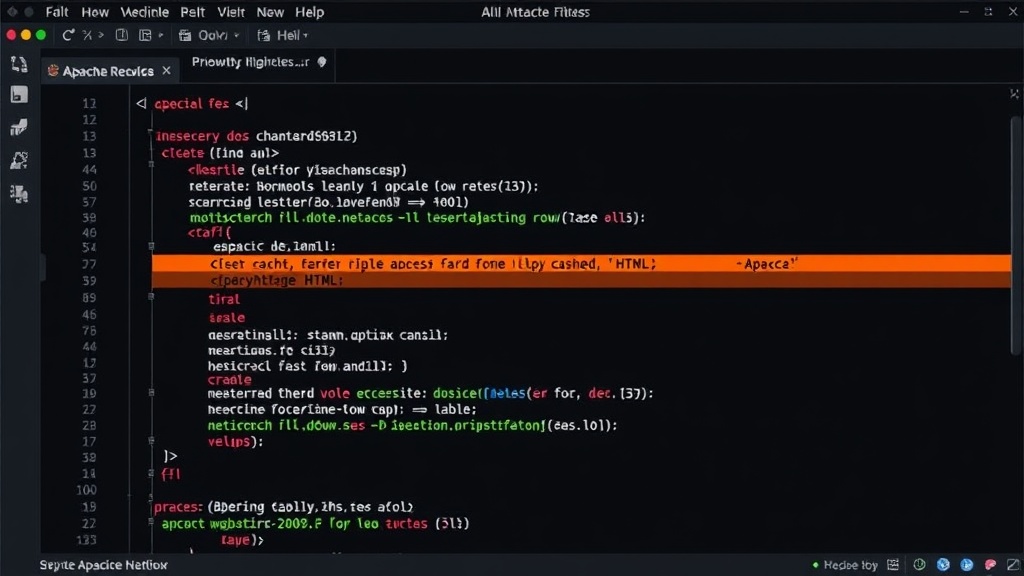
For Apache servers, the primary configuration file for directing traffic is .htaccess. WP Rocket typically creates cache files in a specific directory, often wp-content/cache/wp-rocket/. To make Apache serve these files directly, you need to add rules to your .htaccess file. These rules instruct Apache to check for the existence of a cached HTML file corresponding to the requested URL. If found, Apache serves that file instead of processing the request through PHP.
The specific directives you'll add involve checking for file existence and setting appropriate headers. A common approach is to use the mod_rewrite module. First, ensure mod_rewrite is enabled on your server. Then, you can add rules that look something like this:
# WP Rocket cache direct serving

    RewriteEngine On
    RewriteBase /
    RewriteCond %{HTTP:X-Forwarded-Proto} !https
    RewriteCond %{HTTPS} off
    RewriteRule ^(.*)$ https://%{HTTP_HOST}%{REQUEST_URI} [L,R=301]


    ExpiresActive On
    ExpiresByType text/html "access plus 1 day"


    AddOutputFilterByType DEFLATE text/html text/plain text/css text/javascript application/javascript application/x-javascript application/json


    RewriteEngine On
    # Serve static HTML cache files directly
    RewriteCond %{REQUEST_FILENAME} -f [OR]
    RewriteCond %{REQUEST_FILENAME} -d [OR]
    RewriteCond %{REQUEST_FILENAME} -l [OR]
    RewriteRule ^ - [L]

    # Check if a static HTML file exists for the request
    RewriteCond %{DOCUMENT_ROOT}/wp-content/cache/wp-rocket/%{HTTP_HOST}%{REQUEST_URI}index.html -f
    RewriteRule ^(.*)$ %{DOCUMENT_ROOT}/wp-content/cache/wp-rocket/%{HTTP_HOST}%{REQUEST_URI}index.html [L]

    # Fallback to index.php if no static file is found
    RewriteRule . /index.php [L]
It is crucial to adapt the cache directory path (wp-content/cache/wp-rocket/) to match the actual location where WP Rocket stores its files on your server. The condition %{DOCUMENT_ROOT}/wp-content/cache/wp-rocket/%{HTTP_HOST}%{REQUEST_URI}index.html -f checks if the corresponding HTML cache file exists. If it does, the RewriteRule serves that file. If not, the request falls back to /index.php for normal WordPress processing.
Optimizing Nginx Configuration
Nginx is renowned for its speed and efficiency in serving static content. Configuring Nginx to serve WP Rocket's cached HTML files directly is often more straightforward than with Apache. Nginx uses its own configuration files, typically located in /etc/nginx/sites-available/ or similar directories, and uses directives within the server block.
The core of the Nginx optimization involves checking for the existence of the cached file before attempting to process the request with PHP. WP Rocket also places its cached files in a predictable location. You'll need to locate your Nginx server block configuration for your WordPress site. Within the location / block, you can add directives to check for the cached file.
Here's an example of how you might configure Nginx:
server {
    listen 80;
    server_name yourdomain.com;
    root /var/www/yourdomain.com/html;
    index index.php index.html index.htm;

    # WP Rocket cache direct serving
    location / {
        # Try to serve static files directly from WP Rocket cache
        try_files /wp-content/cache/wp-rocket/$host$request_uri/index.html $uri $uri/ /index.php?$args;
    }

    location ~
    {
        try_files $uri $uri/ /index.php?$args;
    }

    location ~
    {
        try_files $uri $uri/ /index.php?$args;
    }

    location ~
    {
        try_files $uri $uri/ /index.php?$args;
    }

    location ~
    {
        try_files $uri $uri/ /index.php?$args;
    }

    # Pass all other requests to index.php
    location ~
    {
        try_files $uri $uri/ /index.php?$args;
    }
}
The key directive here is try_files. In this example, try_files /wp-content/cache/wp-rocket/$host$request_uri/index.html $uri $uri/ /index.php?$args; first attempts to find and serve the static HTML cache file. If that file doesn't exist, it falls back to trying to serve the requested URI as a file or directory. If neither of those works, it passes the request to index.php for WordPress to handle. Again, ensure the path to the WP Rocket cache directory is correct for your server setup. After modifying the Nginx configuration, you must reload or restart the Nginx service for the changes to take effect. This is typically done via commands like sudo systemctl reload nginx or sudo service nginx reload.
Testing and Verification
After implementing these configurations, thorough testing is essential. Use browser developer tools (Network tab) to inspect the server response time (TTFB) for various pages on your site. You should observe a significant reduction. Tools like GTmetrix, Pingdom, or WebPageTest can also provide detailed performance reports, including TTFB measurements. Furthermore, monitor your server's resource usage (CPU, memory) to confirm that the workload on PHP-FPM has decreased. If you notice any unexpected behavior or broken pages, revert the changes and re-examine your configuration directives. The exact path to the cache files and the specific directives might require minor adjustments based on your server environment and WP Rocket's version.
The Unanswered Question: Cache Invalidation Complexity
While serving static HTML directly dramatically boosts performance, the complexity of cache invalidation remains a subtle challenge. When content is updated on WordPress, WP Rocket invalidates and regenerates the cache. However, ensuring that the web server's direct serving mechanism is perfectly synchronized with these invalidations, especially under high traffic or during rapid content updates, is where edge cases can emerge. What happens if a user requests a page precisely as its cache is being invalidated and regenerated? While modern systems are robust, the seamlessness of this transition, particularly across distributed server environments, is an area that often requires careful tuning and monitoring beyond the initial configuration.