Debugging the Meta Pixel: A Structured Approach
The dreaded "Meta Pixel isn't firing" is a common call for help. Marketers and developers often see a green checkmark in their dashboards, indicating a connection, but events never actually reach Meta's servers. This disconnect leads to wasted ad spend and inaccurate campaign data. The key to solving this lies in a systematic debugging process, starting with the most probable and easiest-to-check causes.
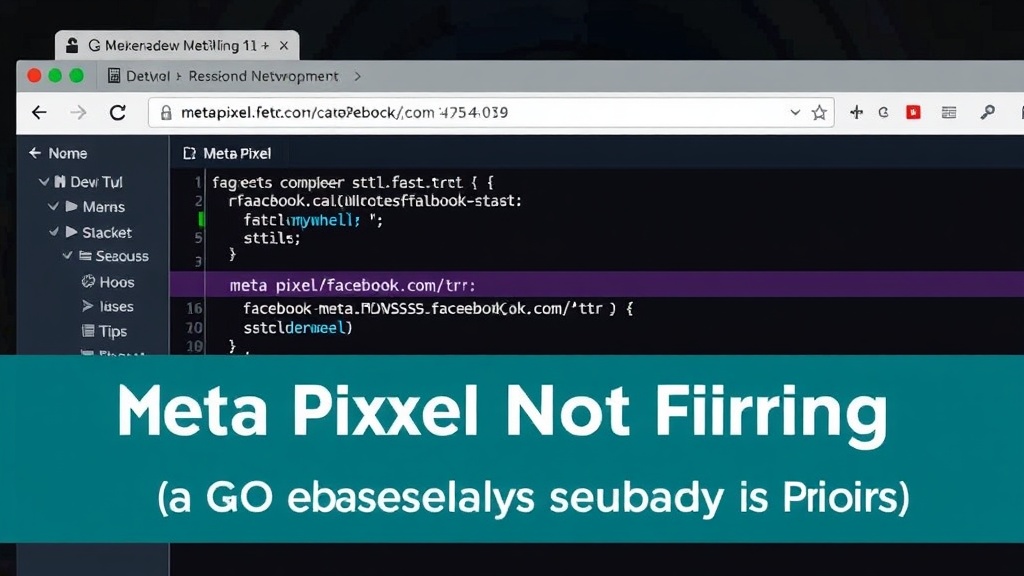
Before diving into specific issues, establish a baseline: a firing pixel sends network requests to facebook.com/tr. Open your browser's DevTools, navigate to the Network tab, and filter for tr while interacting with the website. If you see no requests, the pixel is not firing, regardless of what your tag manager reports.
1. Consent Banner Blocking
For websites operating in regions with strict privacy regulations, particularly the EU, a Consent Management Platform (CMP) like Cookiebot or OneTrust is mandatory. These platforms are designed to prevent tracking scripts, including the Meta Pixel, from firing until the user explicitly grants consent. The common failure point isn't the initial blocking, but rather the pixel tag failing to activate after consent is given. Often, the tag manager configuration (like Google Tag Manager - GTM) isn't correctly set up to trigger the Meta Pixel only upon explicit user acceptance of tracking cookies.
Verification: Navigate to your site as a new visitor. Do not accept any cookies. Check DevTools Network tab for facebook.com/tr requests. Then, accept the necessary tracking cookies via the banner. Refresh the page and immediately check the Network tab again. A successful firing will show requests to facebook.com/tr after consent.
2. Incorrect GTM Trigger Configuration
Google Tag Manager is the most common deployment method for the Meta Pixel. A misconfigured trigger is a frequent culprit. This could range from a trigger set to fire on the wrong page view (e.g., a thank-you page instead of the homepage) to a trigger that relies on a variable that isn't present or correctly evaluated on the site. Sometimes, custom JavaScript triggers fail due to syntax errors or conflicts with other scripts on the page.
Verification: In GTM, examine the Meta Pixel tag's triggers. Ensure the trigger conditions accurately reflect when you want the pixel to fire (e.g., 'All Pages' for page views, or a specific event like 'Purchase Completion'). Test this by previewing your GTM container in a staging environment or live site. Use GTM's preview mode to step through the tag firing logic and identify any discrepancies.
3. Meta Pixel Tag Not Firing Due to GTM Variables
Beyond trigger configuration, the Meta Pixel tag itself might be dependent on specific GTM variables that are not being populated correctly. This is especially true for e-commerce events that require dynamic data, such as `value` or `currency` for a purchase event. If these variables are undefined, null, or incorrectly formatted, the tag might not fire, or it might fire with incomplete data. This is often seen with custom data layer pushes that are either missing or malformed.
Verification: Within GTM preview mode, inspect the variables panel when the page loads and when an event occurs. Check if the data layer variables expected by your Meta Pixel tag (e.g., `purchase_value`, `product_ids`) are present and populated with the correct data types and values. If not, you'll need to debug the data layer push from your website's backend or frontend code.
4. Conflicts with Other Marketing Scripts or Ad Blockers
The digital marketing landscape is crowded with scripts. Other tracking codes, analytics platforms, or even custom JavaScript snippets can interfere with the Meta Pixel's ability to execute. These conflicts can manifest in various ways, from outright blocking of the pixel's network requests to corrupting the data it tries to send. Furthermore, aggressive ad blockers used by visitors can silently prevent the pixel from firing, leading to data gaps that are hard to attribute to a specific cause.
Verification: Use browser extensions that simulate different user environments, including disabling JavaScript or enabling ad-blocking. Test the site with common ad blockers (uBlock Origin, AdBlock Plus) enabled and disabled. Also, systematically disable other GTM tags or site scripts one by one to isolate any conflicting elements. A clean browser profile or incognito window can also help identify issues caused by browser extensions.
5. Incorrect Pixel ID or Event Setup
A surprisingly simple yet common error is using the wrong Pixel ID. This can happen during initial setup or when migrating between ad accounts. The Pixel ID is a unique identifier for your Meta Pixel, and if it's incorrect, any events sent will go to the wrong destination or simply be rejected. Similarly, custom event names might be misspelled or not configured correctly within Meta's event manager, preventing them from being recognized or tracked properly.
Verification: Double-check the Pixel ID entered in your GTM tag configuration against the ID displayed in your Meta Business Suite or Events Manager. For custom events, verify the exact naming convention in both GTM and Meta's setup. Ensure capitalization and spelling match precisely.
6. Website Changes and Technical Debt
Websites are dynamic. Updates to themes, plugins, CMS platforms (like WordPress, Shopify), or custom code can inadvertently break existing tracking implementations. JavaScript errors introduced by these changes can halt the execution of GTM or the pixel script itself. Legacy code or poorly implemented integrations can also create a fragile tracking environment. This technical debt accumulates, making the site more susceptible to such failures.
Verification: Review recent website updates or code deployments. Use browser DevTools' Console tab to check for JavaScript errors that coincide with page loads or user interactions. If a recent deployment correlates with the pixel stopping firing, revert the changes temporarily to confirm the source of the problem. Ongoing technical audits can help prevent this.
When the Meta Pixel stops firing, systematic debugging is crucial. By following this ordered checklist, you can efficiently diagnose and resolve the most common issues, ensuring your marketing data remains accurate and your ad campaigns effective.