The Setup Blueprint: Anchoring Your Python Environment
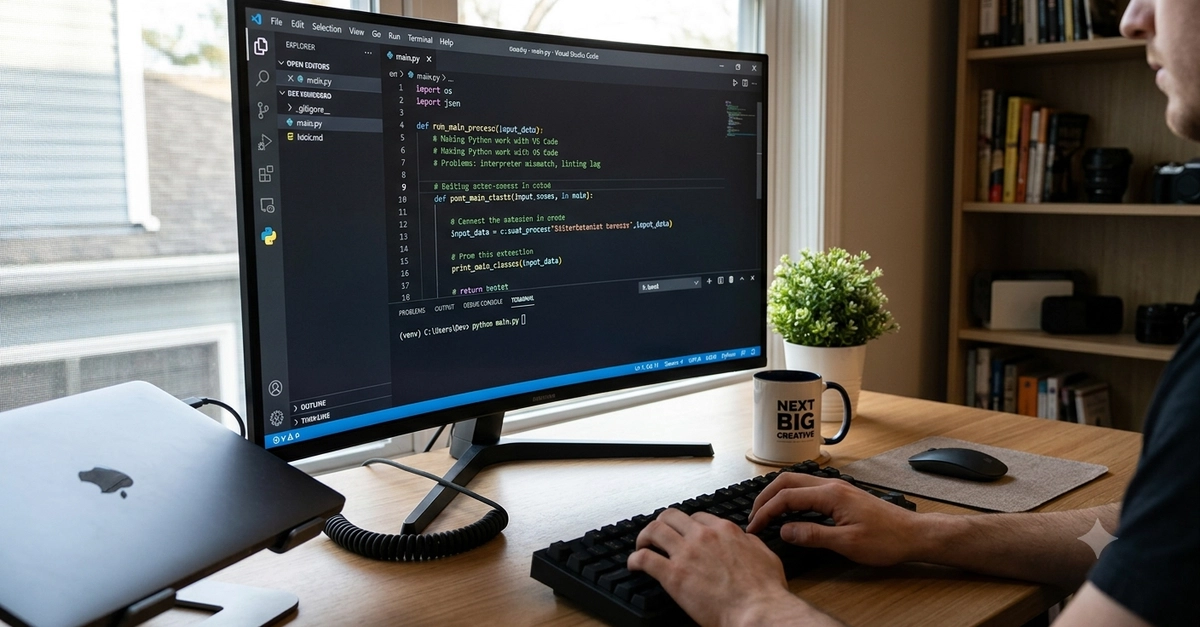
Developing robust Python applications within Visual Studio Code hinges on establishing isolated, predictable environments. This isn't merely about installing VS Code and essential extensions. The true stability comes from constructing distinct environment layers that reliably initialize with your workspace. Linking your terminal profile to automatically activate this specific environment upon opening the workspace is key to a tight, efficient development loop. Without this, the development experience quickly degrades.
Common Pitfalls in Python Workspaces
The most insidious issues often arise from a breakdown in environment inheritance. Developers can face significant frustration when their carefully configured workspace settings fail to propagate correctly. This leads to a cascade of problems that erode productivity and introduce subtle bugs.
Silent Package Drifting
One of the most common failures is silent package drifting. This occurs when the Python interpreter, or more accurately, the package manager (like pip), installs dependencies globally instead of within the project's intended virtual environment. This happens because the active terminal session within VS Code failed to correctly inherit the workspace's context, leading it to default to the system-wide Python installation. Over time, this creates a divergence between what your project explicitly requires and what is actually available, making deployments unpredictable.
Debugger Configuration Conflicts
Another significant hurdle is debugger configuration conflicts. When the launch.json file, which dictates how VS Code starts and attaches the debugger, points to generic entry files or incorrect Python interpreters, the debugger won't function as expected. Instead of targeting the specific active workspace module or script, it might try to launch a default interpreter, leading to errors or the debugger failing to hit breakpoints altogether. This is especially problematic in projects with multiple entry points or complex module structures.
Formatter Clashes
Code formatting is crucial for maintainability. However, conflicts can arise when multiple auto-formatting tools are enabled and configured to run on save. For instance, if both Black and Yapf are installed and active, they may attempt to format the same file simultaneously. This can lead to unpredictable formatting results, Git merge conflicts, and a general sense of chaos as the editor fights itself over how code should look. Managing formatter settings to ensure only one tool is active per file type or project is essential.
Environment Variable Leakage
Managing sensitive information and configuration settings via environment variables is standard practice. However, a common frustration is when local .env files, which are supposed to load these variables into the environment, are ignored by the built-in debugging terminal in VS Code. This means that when you run your application or tests via the debugger, it doesn't have access to the necessary API keys, database credentials, or configuration flags defined in your local environment file, leading to runtime errors or incorrect behavior.
Restoring System Stability: A Practical Approach
Fixing these active environment issues requires a systematic approach focused on ensuring the workspace context is correctly inherited and maintained across all VS Code features, especially the integrated terminal and debugger.
Terminal Integration and Activation
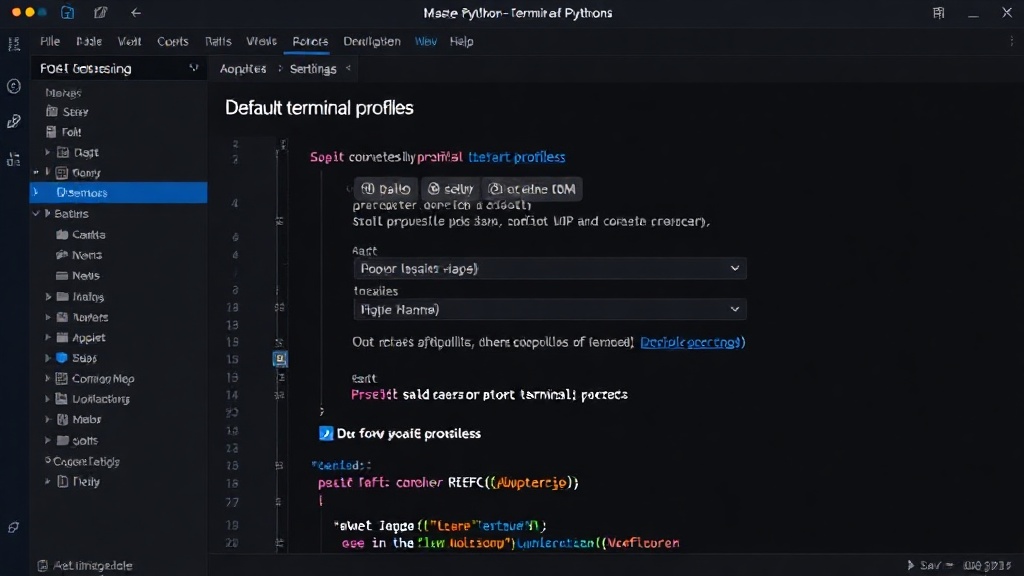
The first line of defense is ensuring your VS Code terminal correctly activates your virtual environment. This is often achieved by configuring the terminal profile to run a specific activation script when it starts. For example, if you're using venv, you might configure the default terminal to run source .venv/bin/activate (on Linux/macOS) or .venv\Scripts\activate.bat (on Windows) automatically. VS Code's settings allow you to specify default terminal profiles, ensuring that every new terminal instance within your workspace is properly scoped.
Debugger Configuration Best Practices
To avoid debugger configuration conflicts, always tailor your launch.json specifically to your project structure. Instead of generic settings, specify the exact Python interpreter path associated with your virtual environment. Furthermore, configure the debugger to launch your application's main entry point script. If your project uses a specific module as its primary execution target, configure program in launch.json to point to that module, ensuring the debugger understands the correct execution context. For projects with multiple entry points or complex setups, consider using tasks to orchestrate the environment setup before launching the debugger.
Managing Formatters and Linters
The key to preventing formatter clashes is explicit configuration. Within VS Code's settings, you can define which formatter is used for Python files. It's best practice to disable all formatters except for your preferred one (e.g., Black) in the user settings and then re-enable only that specific formatter at the workspace level. This ensures that the workspace configuration overrides global settings and prevents conflicts. You can also configure format-on-save behavior to be selective, perhaps only applying it to specific file types or directories. If you need multiple tools, consider using a pre-commit hook manager like pre-commit to orchestrate their execution consistently, both within the IDE and in CI/CD pipelines.
Environment Variable Management
For environment variable leakage, leverage VS Code extensions designed for this purpose. Extensions like Python Environment Manager or the built-in Python extension's debugging capabilities can be configured to load variables from a .env file before launching the debugger. Ensure that the .env file is correctly placed at the root of your workspace or in a location specified by the extension. In your launch.json, you can often specify an envFile property that points to your .env file, ensuring the debugger process inherits these variables. Always verify that the debugger is indeed picking up these variables by adding print statements or using debugger inspection tools.
The Payoff: A Predictable Development Workflow
By diligently applying these principles—anchoring environments, configuring terminals, refining debugger settings, managing formatters, and securing environment variables—you transform your VS Code Python workspace from a source of frustration into a highly productive, predictable development environment. This disciplined approach not only saves time but also significantly reduces the likelihood of elusive bugs stemming from environmental inconsistencies. The investment in a well-configured workspace pays dividends in faster development cycles and more reliable deployments.