The macOS RDP Dilemma
Transitioning from Windows to macOS while maintaining access to Windows servers or desktops presents an immediate challenge: remote access. Unlike Windows, which includes a native Remote Desktop Protocol (RDP) client (mstsc), macOS does not have a built-in solution. This forces users to explore third-party options, and the best choice hinges entirely on your specific usage patterns. Are you occasionally connecting to a single machine, or are you managing a fleet of servers and diverse protocols? The answer dictates your path.
Microsoft's Official Client: A Familiar Starting Point
Microsoft offers its own Remote Desktop client for macOS, available through the Windows App Store. For users primarily focused on pure RDP connections, this client serves as a logical and often sufficient starting point. It reliably connects to Windows desktops and servers, supports standard RDP features, and offers a user experience that aligns with the broader Microsoft ecosystem. If your needs are straightforward – connecting to one or two Windows machines for standard tasks – this client is a strong contender.
However, its limitations become apparent when complexity increases. It's primarily designed for RDP and doesn't natively support other remote access protocols like VNC or SSH. This means if you need to manage a mixed environment that includes Linux servers or older systems relying on VNC, you'll need separate tools. The interface, while familiar to Windows users, can feel somewhat basic compared to more feature-rich third-party clients, especially for power users who demand extensive customization or advanced management capabilities.
Third-Party Clients: Expanding Horizons
When Microsoft's client falls short, the macOS App Store and third-party developers offer a wide array of alternatives. These clients often go beyond basic RDP, integrating support for multiple protocols and offering advanced features that cater to IT professionals, developers, and power users managing complex infrastructures.
Royal TSX: The Powerhouse for Multi-Protocol Management
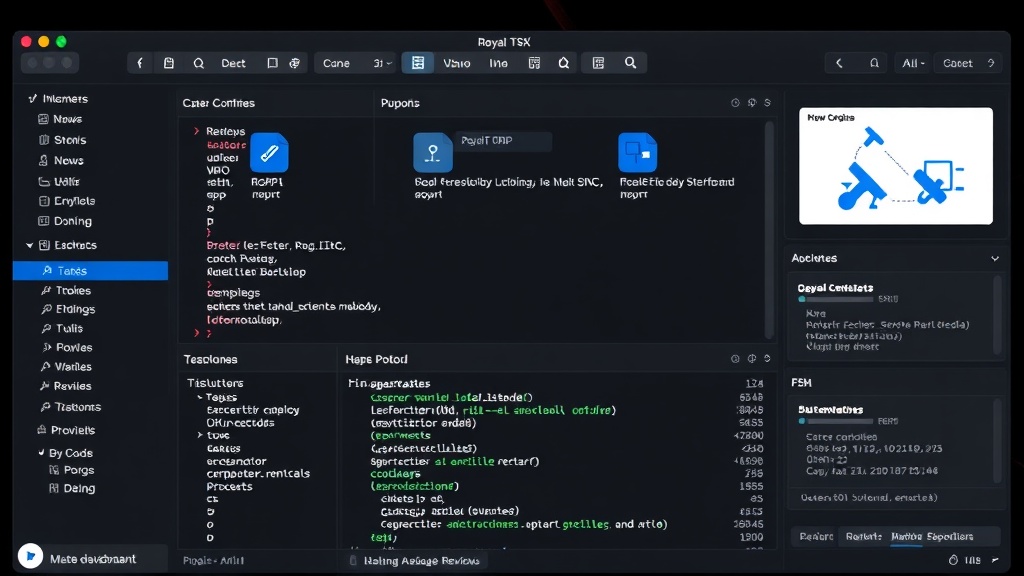
For those managing numerous servers across different platforms, Royal TSX emerges as a leading solution. This client is not just an RDP tool; it's a comprehensive remote connection manager. It supports RDP, VNC, SSH, and even Telnet, allowing you to consolidate all your remote access needs into a single application. Its strength lies in its organization capabilities. You can create credential sets, use templates, and group connections logically, making it far easier to navigate and manage dozens or even hundreds of remote machines. The interface is highly customizable, with advanced features like built-in credential management, secure storage of sensitive information, and the ability to run tasks or scripts directly from within the application.
Royal TSX's dashboard view provides an at-a-glance overview of your connections, and its robust search functionality ensures you can find any machine quickly. For professionals who spend significant time remotely managing diverse systems, the investment in Royal TSX pays dividends in efficiency and reduced cognitive load. The learning curve is steeper than simpler clients, but the payoff in managing complexity is substantial.
Microsoft Remote Desktop (via Mac App Store) vs. Alternatives
It's crucial to distinguish between Microsoft's official client and other RDP-focused applications. While Microsoft's offering is adequate for basic RDP, other clients often provide superior performance and user experience features. For instance, some clients offer better handling of high-resolution displays, multi-monitor setups, and improved network resilience for unstable connections. Features like automatic reconnection, clipboard synchronization across different protocols, and advanced audio/video redirection can significantly enhance the remote work experience.
Consider clients like Jump Desktop. It offers a polished interface and strong performance for RDP and VNC. It also includes features like Wake-on-LAN and excellent mobile app support, making it a versatile choice for users who need to manage machines from various devices. Another option is AnyDesk, which, while not purely an RDP client, provides a fast and efficient remote desktop experience that can be an alternative for certain use cases, especially when ease of setup and cross-platform compatibility are paramount.
Key Considerations for Choosing Your Client
When selecting an RDP client on macOS, several factors should guide your decision:
- Protocols Supported: Do you only need RDP, or will you also connect via VNC, SSH, or other protocols? A multi-protocol client consolidates your tools.
- Number of Connections: Managing one server is different from managing fifty. Look for organizational features like grouping, tagging, and powerful search for larger inventories.
- Security Features: How does the client handle credentials? Does it support multi-factor authentication integration? Look for secure storage and robust encryption.
- Performance and Reliability: For demanding tasks, high-resolution displays, and unstable networks, client performance is critical. Features like auto-reconnect and optimized data transfer matter.
- User Interface and Customization: A clean, intuitive interface can save time. The ability to customize toolbars, shortcuts, and display settings can significantly improve productivity.
- Cost: Many powerful clients are paid, while basic ones are free. Evaluate the features against the price to determine the best value for your needs.
The Unanswered Question: Seamlessness Across Ecosystems
What remains to be seen is whether Microsoft will ever integrate a more robust, native RDP experience directly into macOS, or if third-party developers will continue to lead the charge in providing the most flexible and powerful remote management tools. For now, users must navigate the existing landscape, balancing the familiarity of Microsoft's tools with the advanced capabilities offered by the vibrant third-party ecosystem.
Ultimately, the ideal RDP client on macOS is not a one-size-fits-all solution. It's a tool that must align with your daily workflow, the complexity of your infrastructure, and your specific technical requirements. By carefully evaluating the options against these criteria, you can find a client that makes managing Windows machines from your Mac not just possible, but efficient.