
The Symptom: A Familiar, Frustrating Error
You've cloned a repository, perhaps months ago. It has worked flawlessly. You can navigate to the repository in your web browser, confirm it exists, and verify its contents. Yet, when you run git pull or git fetch, you're met with a cryptic error message:
$ git pull
remote: Repository not found.
fatal: repository 'https://github.com//.git/' not found
This error looks like a typo in the remote URL, or perhaps the repository was deleted or renamed. Typically, it's none of these. You haven't changed the remote URL (git remote -v confirms this), and the repository is accessible via your browser. The problem isn't the repository's address but your machine's identity when it tries to access it.
GitHub's Error: Misdirection, Not Malfunction
GitHub's error message, "Repository not found," is deliberately vague, especially for private repositories. If an unauthorized user tries to access a private repository, GitHub's security protocol dictates that it should neither confirm nor deny the repository's existence. This prevents attackers from enumerating private repositories. However, this security measure backfires when the issue is an authentication or identity problem, not an access rights issue.
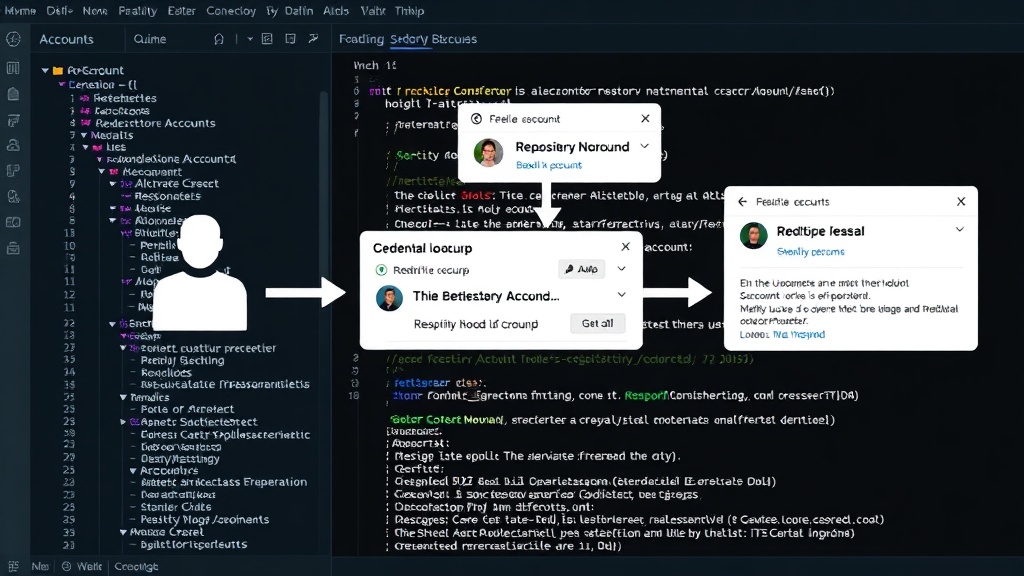
The crucial detail here is that the error isn't about the repository's existence but about your credentials failing to authenticate with GitHub. When you have multiple GitHub accounts configured on your local machine, Git might be presenting the wrong identity to GitHub during the pull operation. This often happens when your Git client is configured to use an SSH key or a Personal Access Token (PAT) associated with one account, but the repository you're trying to access is linked to a different account.
The Root Cause: Conflicting GitHub Identities
The most common scenario leading to this error involves a machine used by multiple developers, or a single developer managing multiple GitHub accounts (e.g., a personal account and a work account). Git, by default, uses a global configuration for credentials. If you've previously authenticated with GitHub using one account, Git might continue to use those credentials even when you're trying to interact with a repository owned by a different account.
Consider this: You clone a repository using your personal GitHub account. Later, you need to work on a project hosted by your company, which uses a different GitHub account. If you haven't properly configured Git to distinguish between these accounts for different repositories, Git will likely attempt to use the credentials from your personal account when you try to pull from the company repository. GitHub, seeing an unrecognized or unauthorized identity, responds with the "Repository not found" error. It's like trying to use your library card at a private club; the club doesn't say "You're not a member," it says "This card is not valid here," which can be misinterpreted as the club itself not existing.
Resolving the "Repository Not Found" Error
The solution involves ensuring Git uses the correct credentials for the specific repository. Here are the primary methods:
1. Verify and Correct Remote URL Protocol
Ensure your remote URL is using the correct protocol. For HTTPS, it should look like https://github.com/. For SSH, it should be git@github.com:. Sometimes, a mixed-up protocol can cause authentication issues.
2. Update Git Credentials
If you're using HTTPS, your credentials might be cached incorrectly. The Git Credential Manager (or equivalent on your OS) stores these. You can often clear and re-enter them:
- Windows: Search for "Credential Manager," go to "Windows Credentials," find the entry for "GitHub" and edit or remove it.
- macOS: Use Keychain Access. Search for "GitHub" and remove the relevant entries.
- Linux: This depends on your credential helper. Often, you can unset it with
git config --global --unset credential.helperand then re-run the Git command, which will prompt you for credentials again.
When prompted again, ensure you enter the username and password (or PAT) for the *correct* GitHub account associated with the repository.
3. Configure SSH Keys for Multiple Accounts
If you use SSH, managing multiple accounts requires a specific configuration file. Create or edit ~/.ssh/config (on Linux/macOS) or %USERPROFILE%\.ssh
config (on Windows). Add entries for each GitHub account:
# Personal GitHub account
Host github.com-personal
  HostName github.com
  User git
  IdentityFile ~/.ssh/id_rsa_personal

# Work GitHub account
Host github.com-work
  HostName github.com
  User git
  IdentityFile ~/.ssh/id_rsa_work
Then, for each repository, you must use the corresponding host alias in your remote URL. For example, if your work repository is cloned, its remote might need to be updated:
$ git remote set-url origin git@github.com-work:/.git
If you're cloning a new repository and want to assign it to your work account, you would clone it using the alias:
$ git clone git@github.com-work:/.git
This method explicitly tells SSH which private key to use for connections to specific GitHub hosts, resolving the identity confusion.
4. Use Per-Repository Git Configuration
For more granular control, you can override global Git settings for specific repositories. You can set the user email and name within the repository's local configuration (.git/config) which can sometimes indirectly influence how authentication is handled, especially if coupled with specific credential helpers.
However, the most direct per-repository authentication configuration is often achieved by setting up SSH aliases as described above and ensuring the remote URL uses the correct alias.
The Unanswered Question: Future-Proofing Git Authentication
While these methods effectively resolve the immediate "Repository not found" error, they highlight a persistent challenge: Git's authentication model, especially when dealing with multiple accounts or complex credential management, can feel brittle. What nobody has fully addressed yet is a more integrated, user-friendly way for Git clients and platforms like GitHub to manage and present multiple identities seamlessly without requiring manual configuration file edits or frequent credential resets. As developers increasingly juggle personal projects, open-source contributions, and multiple client engagements, a more robust, context-aware authentication system within Git itself would be a significant improvement.