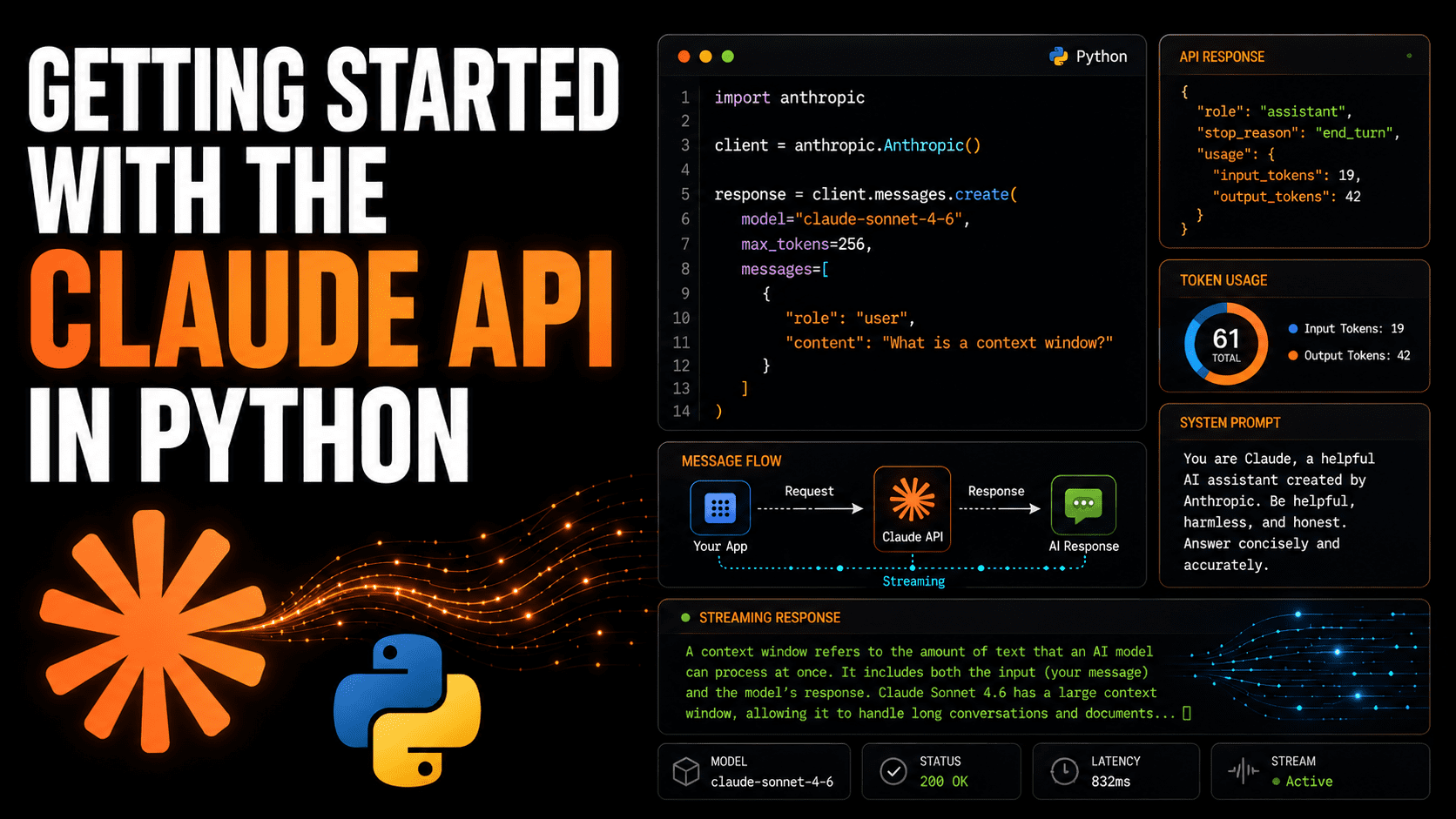
Introduction to the Claude API
Anthropic's Claude represents a significant advancement in large language models, offering powerful natural language processing capabilities. For developers looking to leverage these capabilities within their Python applications, the Claude API provides a direct interface. This guide will walk you through setting up your environment, making your first API call, and understanding the responses.
The Claude API is designed for ease of use, allowing developers to quickly integrate sophisticated AI features like text generation, summarization, and conversational AI into their products. Whether you're building a chatbot, a content creation tool, or an analytical assistant, Claude can be a valuable component.
Setting Up Your Environment
Before you can start making requests, you need to install the necessary Python library and obtain an API key from Anthropic. The official SDK simplifies the process of interacting with the API.
Install the Anthropic SDK
Open your terminal or command prompt and run the following command to install the Python package:
pip install anthropic
Obtain Your API Key
You will need an API key from Anthropic to authenticate your requests. If you do not have one, you can sign up on the Anthropic website and generate a key from your account dashboard. Treat your API key like a password; do not share it or embed it directly in your code, especially if you plan to share your code or deploy it publicly. It's best practice to use environment variables to store sensitive information like API keys.
Configure Environment Variables
Set your Anthropic API key as an environment variable. On Linux/macOS, you can do this in your terminal:
export ANTHROPIC_API_KEY='your-api-key-here'
On Windows, you would typically set it through system properties or use a command like:
$env:ANTHROPIC_API_KEY='your-api-key-here'
Your Python script can then access this key using the os module.
Making Your First API Request
With the SDK installed and your API key configured, you're ready to send your first request to the Claude API. The primary interaction point is the AnthropicClient class.
Instantiate the Client
In your Python script, import the necessary libraries and instantiate the client. The SDK will automatically pick up the API key from the environment variable.
import os
from anthropic import Anthropic

# The client will automatically pick up the ANTHROPIC_API_KEY environment variable.
client = Anthropic()
Send a Message
The core of the API interaction involves sending a message and receiving a response. The messages.create method is used for this purpose. You need to specify the model, the messages (which include the user's prompt and any system instructions), and optionally other parameters like max_tokens and temperature.
Here's an example of a simple request:
response = client.messages.create(
    model="claude-3-opus-20240229",  # Or another Claude model like "claude-3-sonnet-20240229"
    max_tokens=1024,
    messages=[
        {"role": "user", "content": "Hello, Claude. What is the weather like today?"}
    ]
)

print(response)
The model parameter specifies which version of Claude you want to use. Anthropic offers several models, each with different capabilities and cost profiles. claude-3-opus-20240229 is one of the most powerful models, while claude-3-sonnet-20240229 offers a good balance of performance and speed.
max_tokens controls the maximum length of the response generated by the model. The messages parameter is a list of message objects, where each object has a role (either user or assistant) and content (the text of the message). For a simple prompt, you'll have a single user message.
Handling API Responses
The API response is a structured object containing the model's output. You'll typically want to extract the actual text content from this response.
Extracting the Content
The response object from the messages.create call contains a content attribute, which is a list of content blocks. For text responses, you'll usually find a single block of type text.
# Assuming 'response' is the object returned from client.messages.create()
if response.content:
    for content_block in response.content:
        if content_block.type == "text":
            print(f"Claude says: {content_block.text}")
else:
    print("Claude did not provide a text response.")
This code iterates through the content blocks and prints any text found. This is crucial for parsing the model's output to use it in your application.
Understanding Response Structure
The full response object contains more than just the text. It includes metadata such as the ID of the request, the model used, the stop reason (e.g., end_turn, max_tokens), the usage statistics (token counts for input and output), and more. Understanding these fields can help you debug issues, optimize costs, and implement advanced features.
Advanced Usage and Best Practices
Once you've mastered the basic request, you can explore more advanced features and adhere to best practices for efficient and effective use of the Claude API.
System Prompts
You can guide the model's behavior by providing a system prompt. This is a special message that sets the context or persona for the AI. It’s particularly useful for defining the AI's role, tone, or specific constraints.
system_prompt = "You are a helpful assistant that explains complex topics in simple terms."

response = client.messages.create(
    model="claude-3-sonnet-20240229",
    system=system_prompt,
    max_tokens=1024,
    messages=[
        {"role": "user", "content": "Explain quantum entanglement to a 5-year-old."}
    ]
)

if response.content:
    for content_block in response.content:
        if content_block.type == "text":
            print(f"Explanation: {content_block.text}")
The system prompt is passed as a separate argument to the client.messages.create method.
Controlling Response Creativity (Temperature)
The temperature parameter influences the randomness of the model's output. A lower temperature (e.g., 0.2) makes the output more deterministic and focused, suitable for tasks requiring factual accuracy. A higher temperature (e.g., 0.8) increases randomness, leading to more creative and diverse responses, ideal for brainstorming or creative writing.
# For more deterministic output
response_focused = client.messages.create(
    model="claude-3-sonnet-20240229",
    temperature=0.2,
    max_tokens=1024,
    messages=[
        {"role": "user", "content": "List three common programming languages."}
    ]
)

# For more creative output
response_creative = client.messages.create(
    model="claude-3-sonnet-20240229",
    temperature=0.8,
    max_tokens=1024,
    messages=[
        {"role": "user", "content": "Write a short poem about the internet."}
    ]
)
Managing Conversation History
For conversational applications, you need to maintain the context of the dialogue. This involves sending the previous user and assistant messages back to the API with each new user turn. The messages list should accumulate the turn-by-turn interaction.
conversation_history = [
    {"role": "user", "content": "What is the capital of France?"},
    {"role": "assistant", "content": "The capital of France is Paris."}
]

new_user_message = "And what is its population?"
conversation_history.append({"role": "user", "content": new_user_message})

response = client.messages.create(
    model="claude-3-sonnet-20240229",
    max_tokens=1024,
    messages=conversation_history
)

# Append the assistant's response to the history for the next turn
if response.content and response.content[0].type == "text":
    conversation_history.append({"role": "assistant", "content": response.content[0].text})

print(f"Claude says: {response.content[0].text}")
Carefully managing the length of conversation_history is important to stay within token limits and manage costs.
Conclusion
Integrating the Claude API into your Python projects is straightforward with the official SDK. By following these steps, you can quickly begin experimenting with and deploying powerful AI-driven features. Remember to handle your API keys securely and to explore the various models and parameters to fine-tune Claude's behavior for your specific use case.