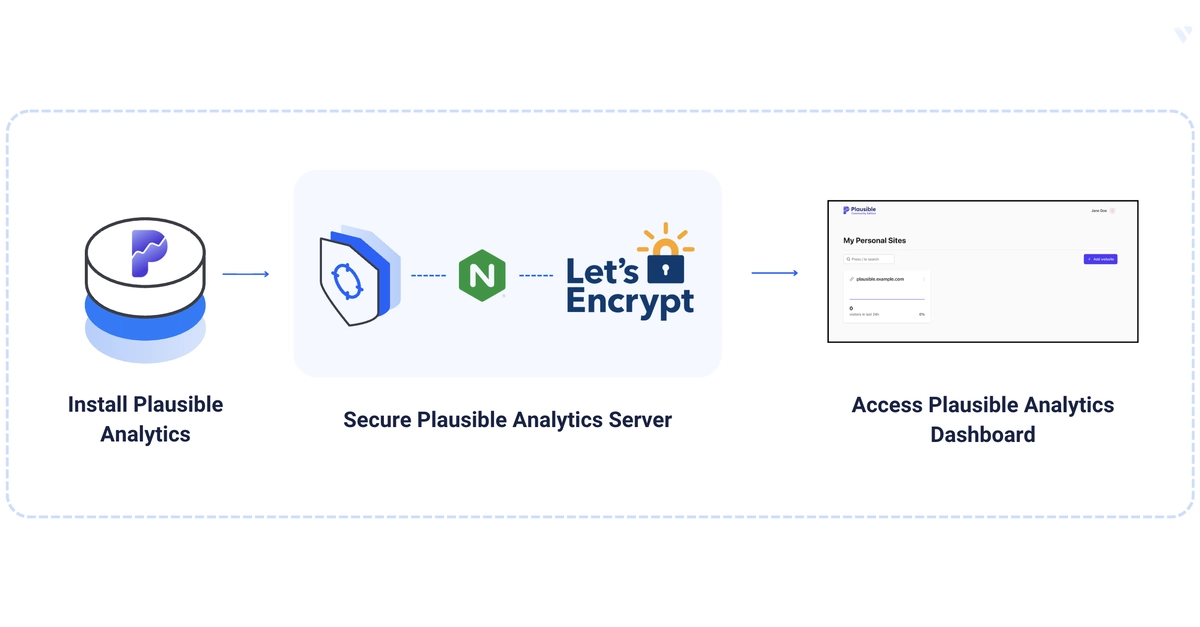
Introduction to Plausible Analytics
In an era where user privacy is paramount, traditional web analytics tools often fall short. Google Analytics, while powerful, relies on cookies and collects extensive user data, raising privacy concerns and sometimes clashing with regulations like GDPR. Plausible Analytics emerges as a compelling, open-source, and self-hosted alternative. It provides essential website traffic insights without compromising user privacy, operating entirely without cookies and avoiding the collection of personally identifiable information. This guide details the process of deploying Plausible Community Edition, ensuring your analytics are both effective and privacy-compliant.
The core philosophy of Plausible is simple: provide actionable analytics data while respecting user privacy. Unlike its more intrusive counterparts, Plausible focuses on aggregate data, such as page views, referrers, bounce rates, and top performing content. This approach not only aligns with growing privacy expectations but also simplifies data management, as there's no need to handle sensitive personal information.
Environment Setup and Repository Cloning
To begin the deployment, you need a server environment ready to host Plausible. This guide assumes a Linux-based server with Docker and Docker Compose installed. The first step involves cloning the Plausible Community Edition repository. This edition is specifically designed for self-hosting and provides all the necessary components to get started.
Navigate to your desired directory on the server. A common practice is to create a dedicated directory for your self-hosted applications. For instance, you can use mkdir ~/plausible and then change into it with cd ~/plausible.
$ mkdir ~/plausible
$ cd ~/plausible
$ git clone https://github.com/plausible/community-edition.git
$ cd community-edition
This command sequence clones the official repository containing the Docker Compose files and configuration templates for the Community Edition. It places the project files within the ~/plausible/community-edition directory. From here, you will configure Plausible and its dependencies.
Docker Compose Configuration
Plausible leverages Docker Compose for orchestrating its various services, including the Plausible application itself, a database (typically PostgreSQL), and potentially other supporting services. The docker-compose.yml file in the cloned repository is the central configuration file.
Before running Docker Compose, you will need to create an .env file to store your specific configuration variables. This file is usually created by copying a template, such as plausible-local.env or plausible-template.env, and renaming it to .env. This file will contain critical settings like database connection strings, secrets for session management, and the base URL where Plausible will be accessible.
Key variables to configure in the .env file include:
ADMIN_USER_EMAILandADMIN_USER_PASSWORD: For creating the initial administrator account.DATABASE_URL: The connection string for your PostgreSQL database. If you are using the default Docker Compose setup, this will point to the service defined within the compose file.SECRET_KEY_BASE: A randomly generated secret key for securing sessions and other sensitive operations. It's crucial to generate a strong, unique key for this.PLAIUSBLE_URL: The public URL where your Plausible instance will be accessible (e.g.,https://analytics.yourdomain.com).
Once the .env file is properly configured, you can start the Plausible services using Docker Compose:
$ docker-compose up -d
The -d flag runs the containers in detached mode, meaning they will run in the background. Docker Compose will pull the necessary images (Plausible, PostgreSQL, etc.) and start them according to the configuration in docker-compose.yml and your .env file.
Frontend with Nginx and SSL (Let's Encrypt)
While Docker Compose handles the backend services, Plausible is typically accessed via a web server that acts as a reverse proxy. Nginx is a popular choice for this role due to its performance and flexibility. It will handle incoming requests, route them to the Plausible Docker container, and serve static assets.
A separate Nginx configuration file is needed. This configuration will define a server block listening on port 80 (for HTTP) and port 443 (for HTTPS). It will proxy requests to the Plausible service, typically running on an internal Docker network port (e.g., 8000).
To secure the connection with HTTPS, Let's Encrypt provides free SSL/TLS certificates. The deployment process involves obtaining a certificate for your chosen domain (e.g., analytics.yourdomain.com) and configuring Nginx to use it. Certbot is the recommended tool for automating the acquisition and renewal of Let's Encrypt certificates.
The typical workflow involves:
- Installing Certbot and its Nginx plugin.
- Running Certbot to obtain a certificate for your domain, which will also automatically configure Nginx.
- Ensuring Nginx is configured to redirect HTTP traffic to HTTPS for enhanced security.
The Nginx configuration will look something like this (simplified):
server {
    listen 80;
    server_name analytics.yourdomain.com;

    # Redirect HTTP to HTTPS
    return 301 https://$host$request_uri;
}

server {
    listen 443 ssl http2;
    server_name analytics.yourdomain.com;

    ssl_certificate /etc/letsencrypt/live/analytics.yourdomain.com/fullchain.pem;
    ssl_certificate_key /etc/letsencrypt/live/analytics.yourdomain.com/privkey.pem;

    location / {
        proxy_pass http://plausible:8000;
        proxy_set_header Host $host;
        proxy_set_header X-Real-IP $remote_addr;
        proxy_set_header X-Forwarded-For $proxy_add_x_forwarded_for;
        proxy_set_header X-Forwarded-Proto $scheme;
    }
}
Tracking Your Website
With Plausible Analytics deployed and accessible via your domain, the final step is to integrate it with your website. Plausible provides a lightweight JavaScript snippet that you need to add to the HTML of every page you wish to track.
After logging into your Plausible instance, navigate to the 'Settings' or 'Sites' section. You will find an option to add a new website and generate the tracking code. This snippet is typically very small, often under 1KB, ensuring minimal impact on your website's loading performance.
The snippet should be placed in the <head> section of your website's HTML. Once added, Plausible will automatically start collecting anonymized data about your visitors. You can then view detailed reports directly within your Plausible dashboard.
The surprising detail here is not the complexity of the setup, which is relatively straightforward for those familiar with Docker and Nginx, but the immediate shift in data ownership and privacy control. You are no longer sending potentially sensitive behavioral data to a third party; instead, you are hosting and managing it yourself, giving you complete control.
Conclusion: Self-Hosting for Privacy and Control
Deploying Plausible Analytics offers a powerful way to gain insights into website traffic while adhering to strict privacy standards. By following this guide, you can establish a secure, self-hosted analytics solution that respects user privacy and provides you with full control over your data. This approach is particularly valuable for businesses and individuals who prioritize data privacy and wish to move away from the data-gathering practices of larger analytics providers.