Understanding the Docker Crash Loop
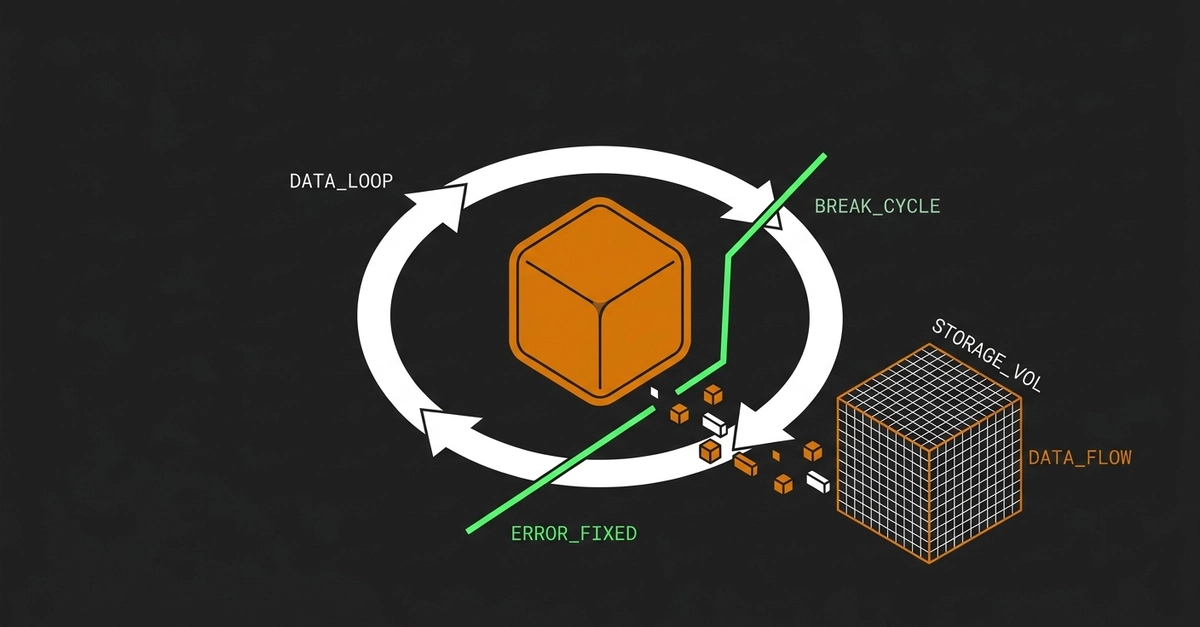
A Docker crash loop is a familiar, frustrating scenario for many developers. It occurs when a container's primary process (PID 1) exits with a non-zero status code, signaling an error. Docker, by default, interprets this as a failure and automatically attempts to restart the container. This cycle repeats indefinitely, akin to Doctor Strange trapping Dormammu in an infinite time loop, hence the apt analogy. The core issue lies in the container's ephemeral nature: when a container restarts, its filesystem is reset, wiping out any logs or temporary files that could pinpoint the cause of the crash.
The default behavior of Docker is to treat each container instance as disposable. When the main process dies, the container stops. If the Docker daemon is configured to always restart containers on failure (a common default for development environments or certain orchestration setups), it will spin up a new instance. This new instance starts with a clean slate, meaning any error messages, stack traces, or intermediate data that existed in the previous, crashed instance are lost forever. This makes debugging a game of whack-a-mole, where you might fix one symptom only for the container to crash for a different, unrecorded reason.
The Root Cause: PID 1 and Non-Zero Exit Codes
The lifecycle of a Docker container is intrinsically linked to its main process, designated as PID 1. When this process terminates, the container stops. A non-zero exit code is the universal signal for an abnormal termination. In Unix-like systems, an exit code of 0 traditionally signifies success, while any other number indicates an error. Common non-zero codes include 1 (general error), 127 (command not found), or 137 (killed by SIGKILL, often due to out-of-memory errors). Understanding which non-zero code your container is exiting with provides an initial clue, but it rarely tells the whole story without access to the logs generated just before the crash.
This fundamental mechanism means that simply running an application inside a container doesn't magically make it resilient. The application itself must be robust enough to handle its environment and exit gracefully with a zero exit code. If the application encounters an unhandled exception, a configuration error, a missing dependency, or resource exhaustion, it will likely terminate with a non-zero code, triggering the crash loop. The challenge for developers is to capture the diagnostic information produced during these brief, error-prone moments before the container is reset.
Breaking the Loop: The Power of Volume Mounts
The most effective strategy to debug these persistent crash loops is to ensure that diagnostic information survives container restarts. This is where Docker's volume mounts become indispensable. By mounting a directory from your host machine into the container, you create a persistent storage location. Any files written to this mounted directory within the container will be saved on your host, even after the container terminates and is restarted.
Consider this scenario: your application logs errors to /app/logs/error.log inside the container. If you restart the container without persistence, this log file vanishes. However, if you mount a host directory, say ~/my-app-logs, to /app/logs within the container, the error.log file will be written to ~/my-app-logs/error.log on your host. When the container crashes and restarts, the new instance can still access and write to the same persistent log file. This allows you to inspect the exact state of the logs leading up to the crash, providing the crucial context needed for debugging.
Practical Debugging Steps
To implement this strategy, first identify where your application writes its logs or generates crash dumps. This might be a specific directory like /var/log/app, /tmp, or a custom path defined in your application's configuration. Next, modify your docker run command or your docker-compose.yml file to include a volume mount for this directory. For example, using docker run:
docker run -d --name my-app -v ~/my-app-logs:/app/logs my-imageThis command mounts the local directory ~/my-app-logs to the container's /app/logs directory. The -d flag runs the container in detached mode, and --name assigns a name for easier management. If you're using Docker Compose, the equivalent in your docker-compose.yml would look like this:
services:
  my-app:
    image: my-image
    container_name: my-app
    volumes:
      - ~/my-app-logs:/app/logs
    # ... other configurations ...
Once the volume is mounted, start your container. Let it crash a few times. Then, stop the container (if it's still looping) and inspect the contents of your host's log directory (~/my-app-logs in this example). You should find log files containing the error messages, stack traces, or core dumps that occurred just before each crash. Analyze these files to understand the root cause. Common culprits include incorrect environment variables, misconfigured application settings, missing external dependencies (like databases or APIs), or resource limitations (CPU, memory).
Beyond Logs: Inspecting Container State
While log persistence is the primary weapon against crash loops, sometimes you need to inspect the container's filesystem at the moment of failure. If your application isn't configured to log extensively, or if the crash happens before logging occurs, you might need a more direct approach. One technique is to modify the container's entrypoint or command to keep it alive after an expected crash point, allowing you to exec into it.
For instance, if you suspect a specific command is causing the crash, you can override the default command to run a shell instead. For a more targeted approach, you can wrap your application's startup command in a script that, upon detecting a non-zero exit code from the main application, executes a debugging command or simply sleeps indefinitely, preventing the container from exiting. This allows you to attach to the container using docker exec -it <container_name> sh and manually explore the filesystem, check configuration files, or run diagnostic commands.
Another advanced technique involves using tools like strace or gdb within the container (if available in your image) to trace system calls or debug the application process directly. This requires a more specialized image, often built with debugging symbols or tools included. The key is to gain a window into the container's environment and process state at the critical moment of failure, which persistent volumes or live inspection techniques facilitate.
What Nobody Has Addressed Yet: The Cost of Frequent Restarts
While the technical solutions for debugging crash loops are well-established, what remains largely unaddressed is the significant cumulative cost these loops impose on development workflows and infrastructure. Beyond the immediate frustration of a non-functional service, each crash and restart consumes compute resources. For applications that have complex initialization sequences, persistent database connections, or require external service handshakes, repeated restarts can lead to significant delays, race conditions, and even data corruption if not handled carefully. Furthermore, the time spent by developers deciphering obscure crash logs or manually attaching to misbehaving containers detracts from productive feature development. The sheer volume of logs generated by a container stuck in a rapid crash loop can also strain storage and monitoring systems. This invisible operational tax is a critical, yet often overlooked, aspect of containerized application health.
Conclusion: Achieving Stability
Breaking a Docker crash loop hinges on understanding that containers are not inherently stateful by default. By leveraging volume mounts to persist logs and critical data, developers gain the visibility needed to diagnose and fix the underlying application errors. The goal is always to achieve a clean exit code of 0, signifying a successful process termination. While the debugging process can be iterative, the ability to inspect historical logs across restarts transforms a frustrating cycle into a solvable problem. For production environments, robust error handling, health checks, and carefully managed restart policies are crucial to prevent crash loops from impacting service availability.