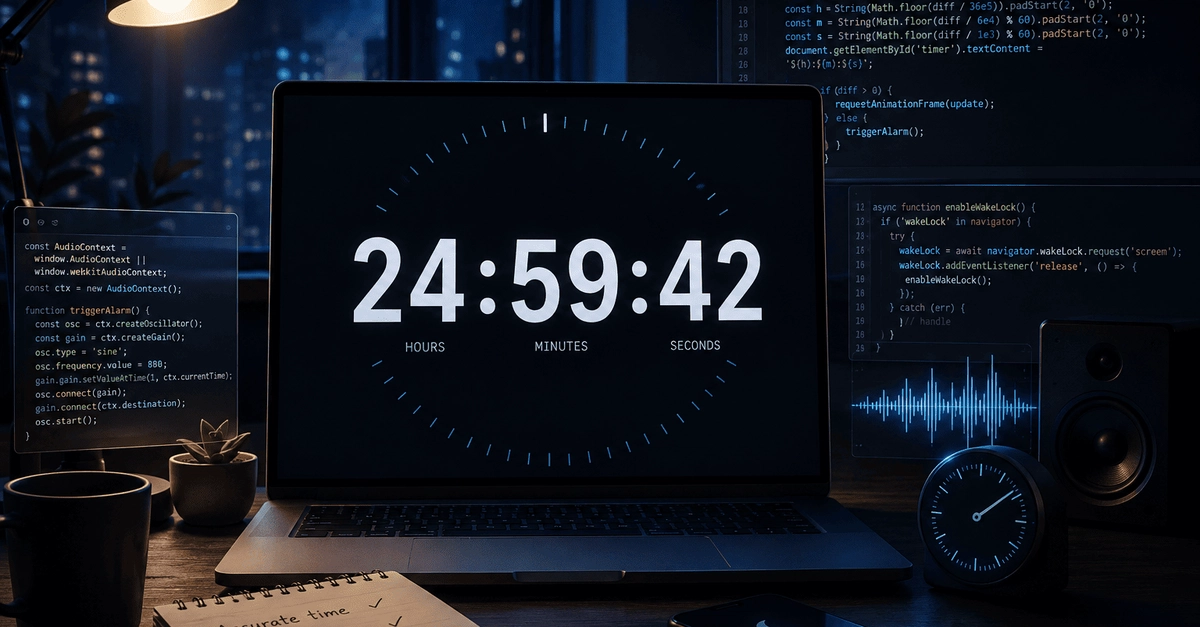
Don't Trust setInterval for Accurate Timing
Building a reliable countdown timer seems deceptively simple. Most developers reach for setInterval, expecting it to tick down precisely. However, this approach quickly reveals its flaws: time drift, dormancy when tabs sleep, and a silent failure at zero. For a timer that people can truly depend on, like the one powering blankscreen.io, a more robust method is essential. This involves addressing three key areas: maintaining accurate time, preventing screen sleep during operation, and generating a clear alarm sound without external files.
Accurate Timekeeping Without Drift
The common approach using setInterval is fundamentally flawed for long-running, accurate timers. The browser's rendering loop and other background processes can cause setInterval callbacks to fire inconsistently. This leads to noticeable drift over time. A more accurate method involves using requestAnimationFrame, which is synchronized with the browser's repaint cycle. Instead of setting a fixed interval, we calculate the elapsed time since the last frame and adjust our timer accordingly.
Consider this naive implementation:
let timeLeft = 10;
const timerDisplay = document.getElementById('timer');

const intervalId = setInterval(() => {
  timeLeft--;
  timerDisplay.textContent = timeLeft;
  if (timeLeft === 0) {
    clearInterval(intervalId);
    // Trigger alarm
  }
}, 1000);
This works for short durations, but over minutes or hours, the accumulated delay becomes significant. The browser might also throttle setInterval in inactive tabs, causing the timer to freeze.
Implementing a Precise Countdown with requestAnimationFrame
A better approach uses requestAnimationFrame. This API tells the browser you wish to perform an animation and requests that the browser schedule a repaint of the window for the next repaint. The callback function receives a high-resolution timestamp representing the time at which the callback is executed. By tracking the time elapsed between frames, we can achieve much greater accuracy.
Here's the core idea:
let startTime = null;
let remainingTime = 10 * 1000; // 10 seconds in milliseconds
let animationFrameId = null;

function timerLoop(timestamp) {
  if (!startTime) {
    startTime = timestamp;
  }

  const elapsed = timestamp - startTime;
  const newRemainingTime = Math.max(0, remainingTime - elapsed);
  const seconds = Math.ceil(newRemainingTime / 1000);

  // Update display logic here
  document.getElementById('timer').textContent = seconds;

  if (newRemainingTime === 0) {
    // Trigger alarm
    cancelAnimationFrame(animationFrameId);
    return;
  }

  animationFrameId = requestAnimationFrame(timerLoop);
}

// To start the timer:
animationFrameId = requestAnimationFrame(timerLoop);
This method synchronizes updates with the browser's rendering, making it far less susceptible to drift. It also behaves more predictably when the tab is in the background, though it doesn't prevent the screen from sleeping.
Preventing Screen Sleep with the Wake Lock API
A critical requirement for any long-running timer is that the screen doesn't turn off. In mobile browsers, and even on desktops with power-saving settings, the screen will dim and eventually lock after a period of inactivity. This can interrupt a countdown at a crucial moment. The Screen Wake Lock API provides a solution.
The Wake Lock API allows web applications to request that the device screen remains on. This is essential for applications like timers, maps, or presentations where continuous display is necessary. It's a power-intensive feature, so browsers implement it carefully, often requiring user activation or specific permissions.
Implementing a screen wake lock is straightforward:
let wakeLock = null;

async function requestWakeLock() {
  if (!('wakeLock' in navigator)) {
    console.warn('Screen Wake Lock API not supported.');
    return;
  }

  try {
    wakeLock = await navigator.wakeLock.request('screen');
    console.log('Screen Wake Lock acquired');
    wakeLock.addEventListener('release', () => {
      console.log('Screen Wake Lock released');
      // Optionally re-request if needed, or handle user intent
    });
  } catch (err) {
    console.error(`${err.name}, ${err.message}`);
  }
}

async function releaseWakeLock() {
  if (wakeLock) {
    await wakeLock.release();
    wakeLock = null;
    console.log('Screen Wake Lock released');
  }
}

// To acquire the lock, typically called when the timer starts:
// requestWakeLock();

// To release the lock, when the timer finishes or is stopped:
// releaseWakeLock();
This API ensures that the user's screen remains active for the duration of the countdown, preventing accidental interruptions. It's a vital component for any timer application intended for user-facing, uninterrupted operation.
Creating Alarms with Web Audio API
A timer is incomplete without an audible alert when time expires. Relying on the browser's default notification sounds can be inconsistent or easily missed. The Web Audio API offers a powerful, file-less way to generate custom sounds directly in the browser.
This API allows for the creation and manipulation of audio graphs. We can generate simple tones, like a beep, by creating an oscillator node and connecting it to the audio context's destination (the speakers). This avoids the need to bundle audio files, reducing the application's footprint and simplifying deployment.
Here's how to create a simple alarm sound:
const audioContext = new (window.AudioContext || window.webkitAudioContext)();

function playAlarmSound() {
  // Create oscillator node (generates the tone)
  const oscillator = audioContext.createOscillator();
  oscillator.type = 'sine'; // 'sine', 'square', 'sawtooth', 'triangle'
  oscillator.frequency.setValueAtTime(440, audioContext.currentTime); // A4 note (440 Hz)

  // Create gain node (controls volume)
  const gainNode = audioContext.createGain();
  gainNode.gain.setValueAtTime(0.5, audioContext.currentTime); // Set volume to 50%

  // Connect nodes: oscillator -> gainNode -> audioContext destination
  oscillator.connect(gainNode);
  gainNode.connect(audioContext.destination);

  // Start the oscillator, let it play for a short duration, then stop
  const startTime = audioContext.currentTime;
  const duration = 0.5; // seconds
  oscillator.start(startTime);
  oscillator.stop(startTime + duration);

  // Optional: Add a slight delay before stopping to ensure sound plays
  // oscillator.stop(audioContext.currentTime + duration);

  // Clean up the oscillator node after it has finished playing
  oscillator.onended = () => {
    oscillator.disconnect();
    gainNode.disconnect();
  };
}

// To play the alarm, call this function when timeLeft reaches 0:
// playAlarmSound();
This approach provides a clean, programmatic way to signal the end of the countdown. It's efficient and offers flexibility in sound design, should more complex alarms be desired.
Fullscreen and Styling
For a true fullscreen experience, the Fullscreen API is employed. This allows the timer to occupy the entire display, removing browser chrome and distractions. Combined with CSS for styling, it creates an immersive countdown interface.
The basic structure involves an HTML element for the timer display and JavaScript to manage the logic. CSS handles the visual presentation, including making the element fullscreen.
Fullscreen request:
const fullscreenButton = document.getElementById('fullscreen-button');

fullscreenButton.addEventListener('click', () => {
  if (!document.fullscreenElement) {
    document.documentElement.requestFullscreen();
  } else {
    document.exitFullscreen();
  }
});
Styling for fullscreen typically involves setting width: 100vw; height: 100vh; and centering content appropriately.
Conclusion: Reliability Through Deliberate Design
Building a truly reliable countdown timer requires moving beyond simple `setInterval`. By leveraging `requestAnimationFrame` for accurate timekeeping, the Screen Wake Lock API to prevent interruptions, and the Web Audio API for crisp alarms, developers can create robust and user-friendly timer applications. These techniques ensure that the timer functions as expected, even under challenging browser conditions, providing a dependable experience for users who rely on precise timing.