Getting Your YouTube API Key and Playlist ID
With Spotify playlists managed, the next crucial step is integrating with YouTube. This chapter focuses on two essential tasks: acquiring a YouTube API key and identifying the specific YouTube playlist ID you intend to synchronize.
Understanding the YouTube Data API
The YouTube Data API, managed under Google's developer platform, is your gateway to YouTube's vast functionalities. You can access it using your existing Google account, eliminating the need for new credentials. The API offers a generous free tier, providing 10,000 units daily. For context, fetching a playlist with 100 songs consumes approximately 200 units. This means that unless you are performing an exceptionally high volume of playlist synchronizations, you will comfortably remain within the free usage limits. This makes it an accessible tool for most automation projects.
Step 1: Accessing the Google Cloud Console
Begin by navigating to the Google Cloud Console at console.cloud.google.com. Log in using your standard Google account credentials. If this is your first time using Google Cloud, you may need to agree to terms of service and potentially set up a new project. This process is straightforward and guides you through the initial setup.
Step 2: Creating a New Project (if necessary)
Upon entering the console, you'll likely be prompted to create a new project or select an existing one. For this automation task, creating a dedicated project is recommended to keep your API configurations organized. Give your project a descriptive name, such as "Playlist Automator." Once the project is created, ensure it is selected in the project dropdown menu at the top of the console.
Step 3: Enabling the YouTube Data API v3
With your project selected, you need to enable the specific API you'll be using. In the search bar at the top of the Google Cloud Console, type "YouTube Data API v3" and select it from the results. On the API's overview page, click the "Enable" button. This action makes the API available for use within your project. This step is critical as it grants your project permission to interact with YouTube's services.
Step 4: Creating API Credentials
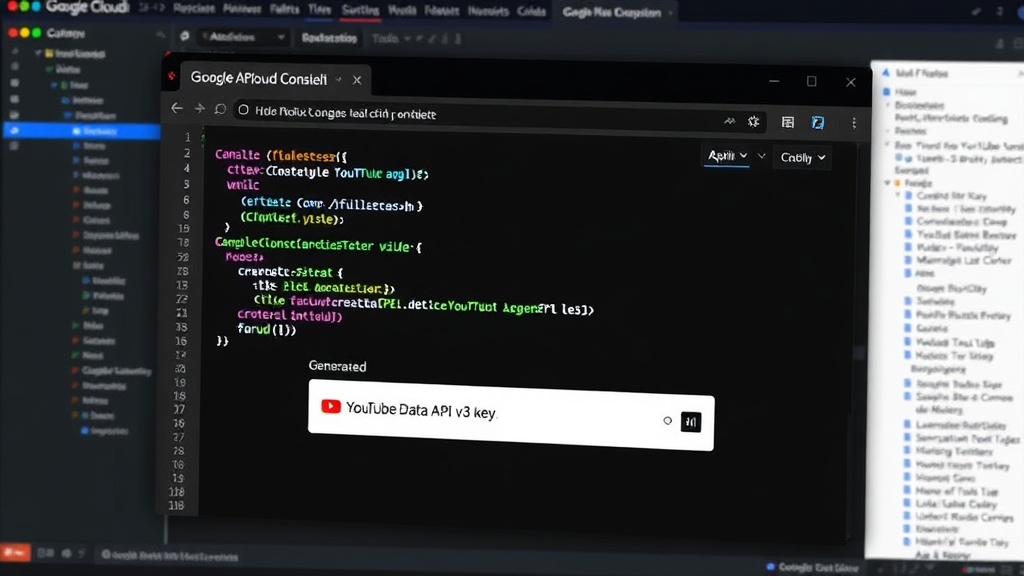
Now, you need to generate the credentials that will authenticate your application's requests to the YouTube API. Navigate to the "Credentials" section in the left-hand sidebar of the Google Cloud Console. Click on "Create Credentials" and select "API key." The system will generate a unique API key for you. It is crucial to treat this key like a password; do not share it publicly or embed it directly in client-side code. For security, you can restrict the API key to only allow access to the YouTube Data API v3 and, if applicable, by specific IP addresses or HTTP referrers.
Step 5: Securing Your API Key
After obtaining your API key, it's essential to secure it. Click on the generated API key to access its details. Under "API restrictions," select "Restrict key." In the dropdown menu, choose "YouTube Data API v3." This ensures the key can only be used for YouTube-related operations, preventing unauthorized use for other Google Cloud services. If your automation script runs from a known server IP address, adding that IP to the "Application restrictions" can further enhance security. Save your changes.
Step 6: Finding Your YouTube Playlist ID
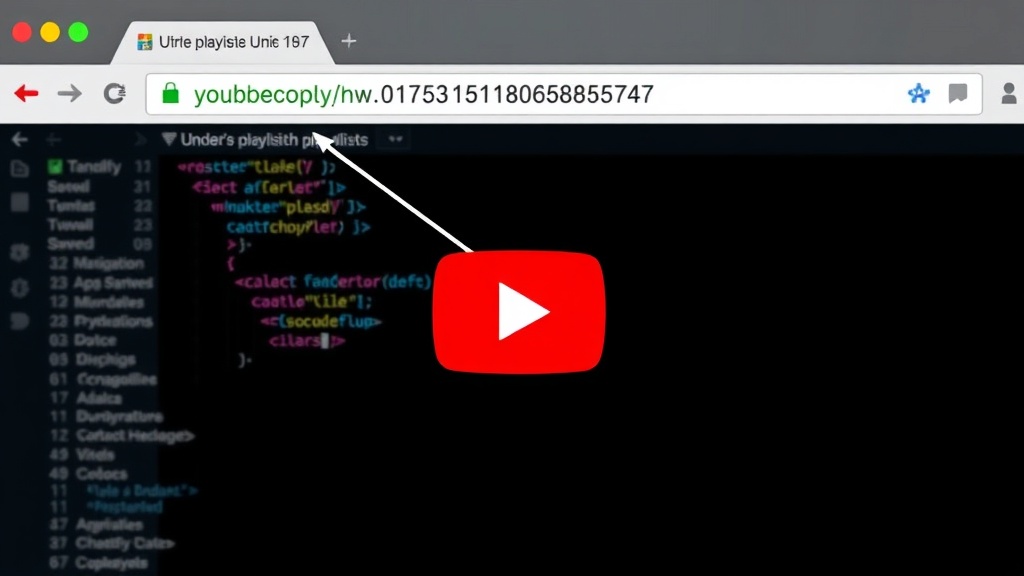
The final piece of the puzzle is identifying the ID of the YouTube playlist you want to synchronize. Open your web browser and navigate to the YouTube playlist you wish to use. The playlist ID is a unique string of characters found in the URL. It typically appears after "list=" and before any other parameters like "&index=". For example, in the URL https://www.youtube.com/playlist?list=PLXyQ_95z0_2s5hQ31L3d7NqWp_w0Q4aZ, the playlist ID is PLXyQ_95z0_2s5hQ31L3d7NqWp_w0Q4aZ. Copy this ID; you will need it for your automation script to reference the correct playlist.
Next Steps
With your YouTube API key and playlist ID in hand, you are now fully equipped to begin building the automation logic. The next chapter will likely cover how to use these credentials within your chosen programming language to interact with the YouTube API, fetch playlist data, and potentially create or update playlists based on your Spotify data. Remember to store your API key securely and handle it with care.