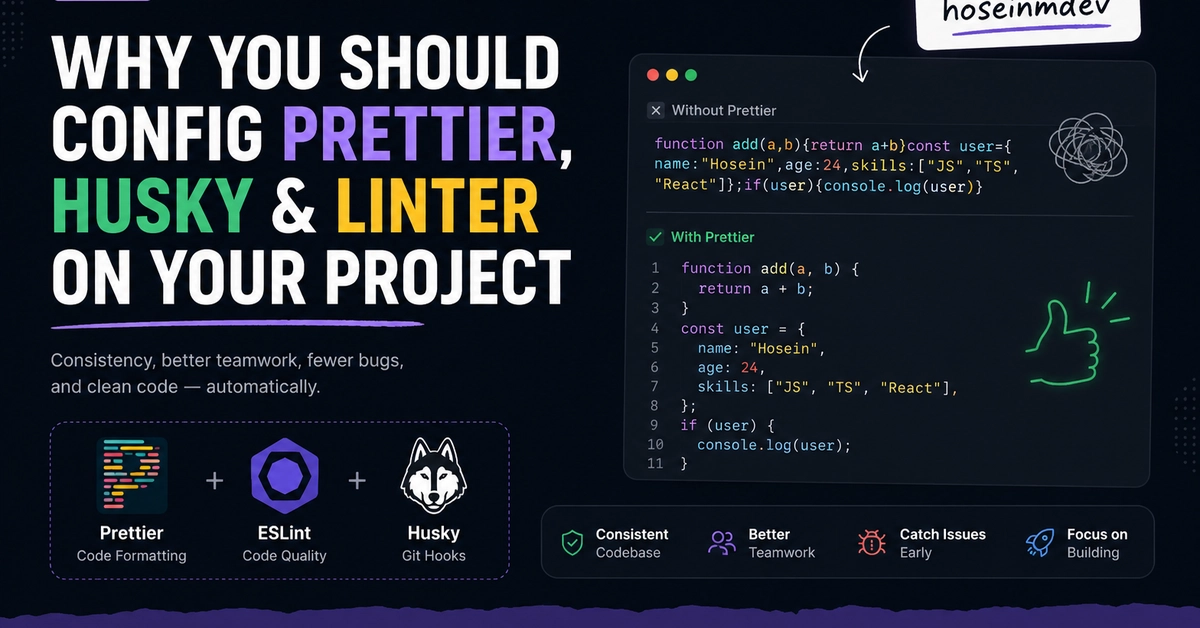
The Cost of Code Style Debates
Frontend projects often devolve into unproductive arguments over code style. Tabs versus spaces, semicolon usage, quote preferences—these debates consume valuable developer time and add no real value to the codebase. This isn't a matter of personal preference; it's a drain on efficiency. To combat this, a proactive approach is essential: implementing a robust tooling setup from the project's inception.
By integrating Prettier for code formatting, ESLint for code quality and rule enforcement, and Husky to automate checks before commits, teams can eliminate style discussions entirely. This setup ensures clean, consistent code automatically, freeing up developers and code reviewers to focus on critical logic and features rather than stylistic minutiae.
Understanding the Core Tools
Each tool in this powerful trio serves a distinct but complementary purpose:
- Prettier is an opinionated code formatter. It automatically rewrites your code to conform to a consistent style, handling aspects like indentation, line breaks, and spacing. Its primary goal is to remove subjective stylistic decisions from the development process.
- ESLint is a static code analysis tool. It identifies problematic patterns in JavaScript and TypeScript code, enforces coding standards, and flags potential bugs. While Prettier handles formatting, ESLint focuses on code quality, potential errors, and adherence to project-specific rules.
- Husky acts as a Git hooks manager. It allows you to run scripts automatically at various points in your Git workflow, most notably before commits or pushes. By integrating Prettier and ESLint with Husky, you ensure that code is formatted and linted before it even enters your version control history, preventing messy commits and pull requests.
When used together, these tools create a seamless workflow where code is automatically cleaned and validated, resulting in a highly consistent and readable codebase without manual intervention.
Step 1: Installing Dependencies
Begin by adding the necessary packages to your project's development dependencies. This typically involves using npm or yarn. For a React project, for instance, you would run commands like:
npm install --save-dev prettier eslint husky lint-staged
# or
yarn add --dev prettier eslint husky lint-staged
lint-staged is included here as it's commonly used with Husky to run linters and formatters only on the files staged for commit, improving performance.
Step 2: Configuring Prettier
Create a .prettierrc.js (or .prettierrc.json, .prettierrc.yaml) file in your project's root directory to define your Prettier configuration. While Prettier is opinionated, you can customize certain aspects. Here’s a basic example:
// .prettierrc.js
module.exports = {
  semi: true,
  trailingComma: 'all',
  singleQuote: true,
  printWidth: 100,
  tabWidth: 2,
  endOfLine: 'lf',
};
This configuration specifies using semicolons, trailing commas for multiline collections, single quotes, a maximum line width of 100 characters, a tab width of 2 spaces, and LF line endings. You can also create a .prettierignore file to exclude specific files or directories (like node_modules/ or build output) from formatting.
Step 3: Configuring ESLint
ESLint requires more extensive configuration, often starting with a base configuration and then extending it. You can initialize ESLint by running npx eslint --init in your project root. This command will ask you a series of questions to generate an appropriate .eslintrc.js (or .eslintrc.json) file.
For modern JavaScript/TypeScript projects, it's common to use configurations like eslint-config-react-app for React projects or eslint-config-airbnb. You'll also want to integrate ESLint with Prettier to avoid conflicts. Install the necessary plugin:
npm install --save-dev eslint-config-prettier eslint-plugin-prettier
# or
yarn add --dev eslint-config-prettier eslint-plugin-prettier
Then, extend your ESLint configuration to include the Prettier config and disable any ESLint rules that conflict with Prettier:
// .eslintrc.js
module.exports = {
  // ... other configurations
  extends: [
    'eslint:recommended',
    'plugin:react/recommended', // Example for React
    'plugin:@typescript-eslint/recommended', // Example for TypeScript
    'prettier', // Integrate Prettier
  ],
  plugins: [
    'react',
    '@typescript-eslint',
    'prettier', // Ensure this is last if using eslint-plugin-prettier
  ],
  rules: {
    'prettier/prettier': 'error',
    // ... other custom rules
  },
  // ... parser options, env, etc.
};
This setup ensures ESLint respects Prettier's formatting rules and flags any inconsistencies.
Step 4: Setting Up Husky and Lint-Staged
Husky simplifies the process of managing Git hooks. After installing Husky, you need to enable it:
npx husky install
npx husky add .husky/pre-commit "npx lint-staged"
This command installs Husky and creates a .husky/pre-commit file that runs lint-staged before each commit. lint-staged allows you to configure which linters and formatters run on which file types. Create a .lintstagedrc.js file in your project root:
// .lintstagedrc.js
module.exports = {
  '*.{js,jsx,ts,tsx}': [
    'eslint --fix',
    'prettier --write',
  ],
  '*.{json,css,scss,md}': [
    'prettier --write',
  ],
};
This configuration tells lint-staged to run ESLint with the --fix flag and Prettier with the --write flag on JavaScript and TypeScript files, and only Prettier on JSON, CSS, SCSS, and Markdown files. The --fix and --write flags attempt to automatically correct issues, ensuring that only compliant code can be committed.
Step 5: Adding Scripts to package.json
For convenience and integration into your workflow, add scripts to your package.json file:
{
  "scripts": {
    "format": "prettier --write 'src/**/*.{js,jsx,ts,tsx,json,css,scss,md}'",
    "lint": "eslint 'src/**/*.{js,jsx,ts,tsx}'",
    "lint:fix": "eslint --fix 'src/**/*.{js,jsx,ts,tsx}'",
    "prepare": "husky install" // Important for Husky to work after install
  }
}
The prepare script is crucial; it ensures Husky hooks are set up correctly when someone installs dependencies using npm install or yarn install.
Conclusion: Reclaiming Development Time
By investing a small amount of time upfront to configure Prettier, ESLint, and Husky, development teams can eliminate a significant source of friction and wasted time. Code reviews become more productive, code quality improves, and the overall development experience is enhanced. This automated approach to code style ensures consistency across the entire project, allowing developers to focus on building features and solving complex problems, not debating minor stylistic choices.