Decoupling Analytics from Site Builds
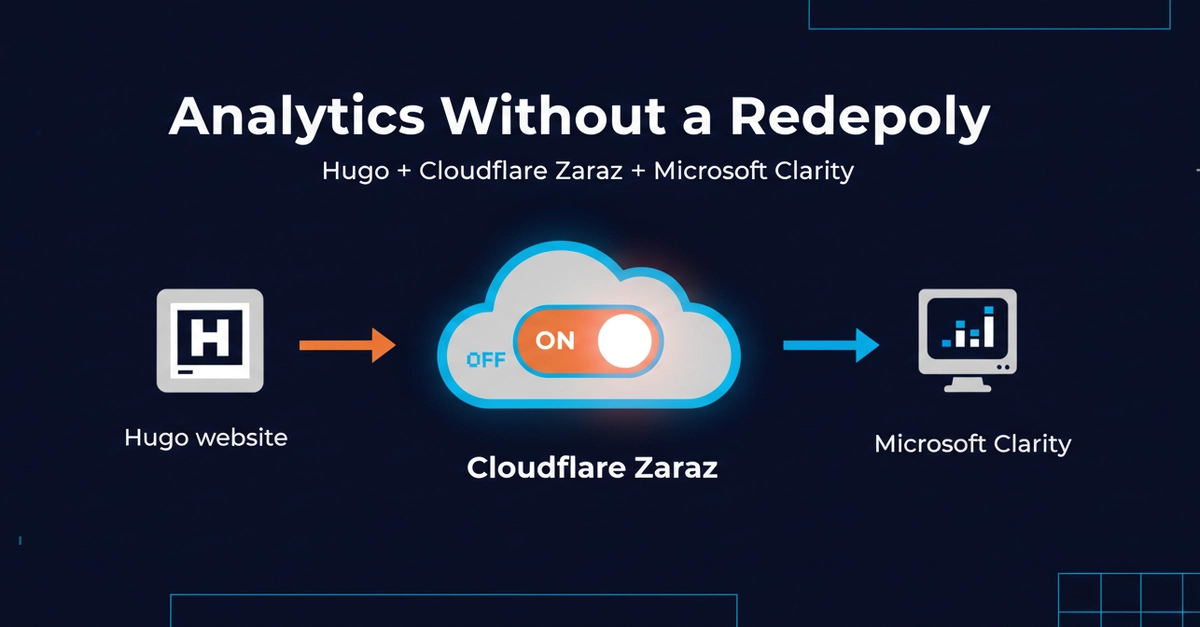
Traditionally, integrating a tool like Microsoft Clarity into a Hugo static site requires embedding its JavaScript tracking script directly into your site's base template. This means every time you need to add, remove, or reconfigure Clarity, you must perform a full site rebuild and then deploy the updated code. This process tightly couples your analytics configuration with your release cycle, which can be inconvenient and inefficient, especially for frequent adjustments.
For developers hosting static sites on platforms like Cloudflare Pages, there's a more agile approach. Cloudflare Zaraz, a third-party tool management service, offers a way to handle external scripts like Clarity without modifying your Hugo codebase. By managing Clarity through Cloudflare, you gain the flexibility to enable, disable, or adjust its settings without needing to trigger a new Hugo build or a Cloudflare Pages deployment. This separation of concerns streamlines your workflow and allows for faster iteration on analytics setup.
Understanding the Zaraz Integration
The core idea behind using Cloudflare Zaraz for Microsoft Clarity is to offload the script management from your Hugo project. Instead of hardcoding the Clarity snippet, you configure Zaraz to load it dynamically. This means your Hugo site's repository remains cleaner, focused solely on content and structure, while operational aspects like analytics are handled externally.
Once configured, the benefits are immediate. Need to pause tracking during a sensitive content launch? Simply toggle Clarity off in Zaraz. Want to re-enable it later? Flip the switch back. This level of control, independent of your site's build and deployment pipeline, is a significant advantage for maintaining agility.
Key Considerations and Setup
While the process offers flexibility, there are two critical points to be aware of:
1. Custom HTML Integration
Microsoft Clarity might not appear as a pre-built, one-click integration within the Cloudflare Zaraz catalog. This means you'll likely need to add it using the Custom HTML option within Zaraz. This involves obtaining the Clarity tracking code snippet from Microsoft and pasting it into the appropriate field in the Zaraz configuration interface. Zaraz then takes this custom code and injects it into your site's pages as needed.
2. Content Security Policy (CSP) Management
A common hurdle with third-party scripts, especially in security-conscious environments, is the Content Security Policy (CSP). Zaraz does not automatically bypass your website's CSP. If your site employs a restrictive CSP, you must explicitly allow the domains associated with Microsoft Clarity. Failure to do so will result in the script being blocked by the browser, rendering the integration ineffective. You will need to identify the specific domains Clarity uses for its tracking and reporting and add them to your CSP directives, typically within the script-src and connect-src policies.
Step-by-Step Configuration
To implement this, follow these general steps:
- Obtain Microsoft Clarity Tracking Code: Sign up for Microsoft Clarity and create a project for your website. Navigate to the project settings and locate the JavaScript tracking code. Copy this snippet.
- Access Cloudflare Zaraz: Log in to your Cloudflare dashboard, navigate to the Zaraz section, and select your website.
- Add Custom Tool: Within Zaraz, go to the 'Tools' section and look for an option to add a 'Custom HTML' tool or a similar manual integration.
- Configure Custom HTML Tool: Paste the Microsoft Clarity tracking code into the provided HTML field. You may need to configure Zaraz to load this tool on all pages or specific pages, depending on your needs.
- Adjust Content Security Policy: If your site has a CSP, access your site's configuration (e.g., via Cloudflare Workers, HTTP headers, or your hosting provider's settings) and add the necessary domains for Microsoft Clarity to your CSP directives. Common domains include
clarity.msand potentially others related to data collection and reporting. - Save and Test: Save your Zaraz configuration. Visit your Hugo site and use your browser's developer tools (Network tab and Console) to verify that the Clarity script is loading correctly and that there are no CSP-related errors. Check the Microsoft Clarity dashboard to confirm that data is being received.
By following these steps, you can effectively integrate Microsoft Clarity into your Hugo site without touching your Hugo project's codebase, enabling dynamic control over your analytics tracking.