The Core Challenge: Separate Player Environments
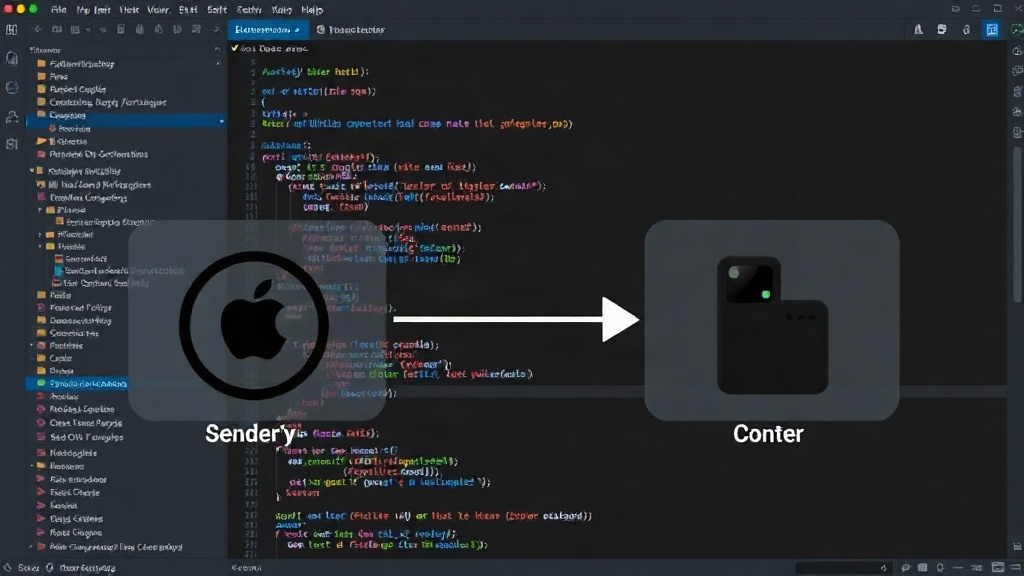
Adding casting functionality to a custom HTML5 video player requires understanding a fundamental limitation: the casting device (like a smart TV or Chromecast) does not run your player's JavaScript. Instead, it fetches the video stream URL and plays it using its own native media stack. This means any JavaScript logic embedded within your player—such as custom controls, quality adjustments, analytics tracking, or token refresh mechanisms—won't transfer to the casting receiver. The process is therefore twofold: wiring up the API to initiate casting and ensuring your video stream is accessible and playable by the receiver without the player's JavaScript context.
The Remote Playback API provides the mechanism for initiating a cast session from a web browser to compatible devices. For Apple devices, AirPlay serves as the analogous fallback. The complexity arises not just from the API integration, but from the subsequent debugging of issues that surface when the stream is played in a different environment.
Implementing Remote Playback API for Casting
The Remote Playback API, available in modern browsers like Chrome, allows a web page to discover and interact with compatible remote playback devices. The core element is the HTMLMediaElement.remote property, which exposes a RemotePlaybackRequest object. This object is used to prompt the user to select a device and then to control the playback on that device.
The process typically involves:
- Checking for Support: First, determine if the browser supports the Remote Playback API by checking for
HTMLMediaElement.remote. - Creating a Request: When a user clicks a cast button, instantiate a new
RemotePlaybackRequest, passing the video element. - Prompting the User: Call
request.prompt(). This displays a system-level prompt allowing the user to select a casting device from those available on the local network. - Handling Promises:
prompt()returns a Promise that resolves with the selected device or rejects if the user cancels or no devices are found. - Connecting and Playing: Once a device is selected, the browser establishes a connection. You can then use the media element's standard playback controls (like
play(),pause(),currentTime) to control the stream on the remote device. The browser translates these actions into commands sent to the receiver.
This initial setup provides the basic connection. However, this is where the real challenges begin, as the receiver's environment differs significantly from the browser.
Debugging Common Casting Pitfalls
Several issues commonly arise when trying to cast a stream from a custom player. Addressing these requires understanding how the receiver environment operates independently of the sender page.
1. Token Expiry and Authentication
Many video streams use time-limited tokens embedded in the URL for authentication and authorization. When casting, the receiver fetches the stream directly. If the token expires during playback and the receiver cannot automatically refresh it (because your player's JavaScript isn't running on it), playback will fail. The solution is to ensure your streaming server provides tokens with a sufficiently long lifespan, or to implement a mechanism where the sender page can push updated stream URLs with new tokens to the receiver. This often involves using the Cast Connect SDK or custom messaging channels if available for the specific receiver platform.
2. CORS on the Receiver
Cross-Origin Resource Sharing (CORS) policies are crucial for web security. When the receiver fetches the video stream, it makes an HTTP request. If the stream is hosted on a different domain than the web page initiating the cast, or if it requires specific headers, the server hosting the stream must be configured to send appropriate CORS headers (e.g., Access-Control-Allow-Origin). Without these, the receiver will be unable to load the stream, resulting in playback errors. This is a server-side configuration problem, not a client-side JavaScript issue.
3. Unreachable Hosts and Network Issues
The casting device must be able to directly access the video stream URL. If the stream is only accessible from the sender's local network and not from the public internet (or the network the casting device is on), playback will fail. Ensure your streaming server is publicly accessible or configured to be reachable by the casting devices on the same network. Firewalls or network segmentation can also block these connections. The receiver is essentially a separate client making an independent request, and it needs a clear path to the media source.
4. Misinterpreting prompt() as a Connection
A common mistake is treating the result of request.prompt() as a direct, established connection. The prompt() method initiates a user interaction to select a device; it does not, by itself, guarantee a successful connection or playback. The promise returned by prompt() resolves when the user makes a selection or cancels. Subsequent API calls to control playback will fail if the connection to the selected device is not established or if the device rejects the playback request for other reasons. Robust error handling around the prompt() promise and subsequent playback commands is essential.
AirPlay Fallback for Safari
Safari on Apple devices supports AirPlay, which can be leveraged as a fallback for casting. While not directly part of the Remote Playback API, Safari provides a mechanism to present an AirPlay button when compatible devices are available. This is typically handled by the browser's native media controls or can be integrated using specific WebKit APIs if building a fully custom player UI. The underlying principle is similar: the browser facilitates the transfer of the media playback to an AirPlay-compatible receiver. The same challenges regarding stream accessibility and authentication apply.
Conclusion: Beyond the API
Successfully integrating casting into a custom HTML5 video player extends beyond simply wiring up the Remote Playback API or AirPlay. It demands a holistic approach to media delivery. The stream must be reliably accessible, properly authenticated with long-lived credentials or refresh mechanisms, and served with correct CORS headers. The sender page acts as an orchestrator, initiating the session and sending commands, but the receiver performs the actual playback. Treating the receiver as a separate environment and ensuring the stream is ready for it, independent of the sender's JavaScript context, is the key to a seamless casting experience.