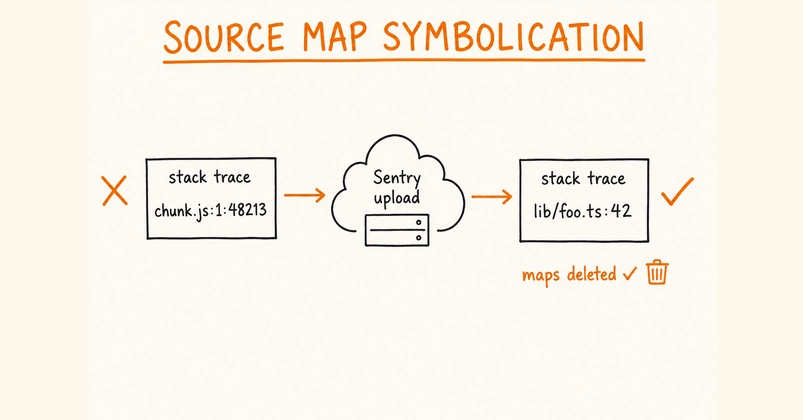
The Problem: Minified Stacks in Self-Hosted Next.js
When an error fires in production, Sentry is your first line of defense. But on a self-hosted Next.js standalone build, without automatic integrations like Vercel's, your stack traces can be useless. Instead of pointing to your original .ts file and line number, you see cryptic references like s at chunk-a1b2c3.js:1:48213. This leaves you blind to the root cause of production issues.
The core of the problem lies in the nature of Next.js standalone builds (configured with output: "standalone"). These builds are designed to be highly portable, copying only the necessary files to a new directory. This optimization, while great for deployment size, changes how source maps are handled. Unlike a standard build where source maps might be more readily available or handled by a platform integration, a standalone build requires explicit configuration to ensure Sentry can access them. If you don't manually wire up the source map upload process, these essential debugging artifacts are never sent to Sentry, resulting in those frustratingly minified stack traces.
The site powering this explanation runs on such a setup, deployed via Coolify. It eschews Vercel's integrated observability features, necessitating a custom solution. The goal is to have Sentry resolve production errors directly to the exact line within the original TypeScript file, all while preventing minified source maps from ever being shipped to the browser.
Understanding Standalone Builds and Source Maps
A standard Next.js build typically operates under the assumption that the build environment and the runtime environment are closely related, often the same machine or a managed platform. The output: "standalone" configuration fundamentally alters this paradigm. It instructs Next.js to create a minimal, self-contained output directory that includes only the essential application code and Node.js runtime dependencies needed to run the application. This significantly reduces the deployment artifact size, making it ideal for containerized or serverless deployments where every megabyte counts.
However, this isolation breaks the implicit link that might exist for source map generation and uploading in other setups. Source maps are crucial for debugging production JavaScript. They are files that map the minified, obfuscated code running in the browser back to the original source code (e.g., TypeScript or JavaScript). Without them, stack traces are nearly impossible to decipher.
In a self-hosted standalone build, the build process happens in one environment, and the deployment happens in another. If source maps are generated locally during the build, they need to be explicitly collected and uploaded to your error monitoring service (like Sentry) before the minified JavaScript is deployed. If this upload step is missed, Sentry only receives the minified code, and thus, can only display minified stack traces. The standalone output doesn't inherently include a mechanism for this upload; it's purely focused on packaging the runtime artifact.
Configuring Sentry for Standalone Builds
The solution involves a two-pronged approach: ensuring source maps are generated correctly during the build, and then reliably uploading them to Sentry before the application goes live. This typically involves modifying your build pipeline or deployment script.
Step 1: Ensure Source Map Generation
First, you need to configure Next.js to generate source maps. This is usually done within your next.config.js or next.config.ts file. Set the productionBrowserSourceMaps option to true.
// next.config.js

/** @type {import('next').NextConfig} */
const nextConfig = {
  reactStrictMode: true,
  // ... other configurations
  productionBrowserSourceMaps: true,
};

module.exports = nextConfig;
This setting tells Next.js to generate .map files alongside your JavaScript bundles when building for production. These map files are essential for Sentry to perform its de-minification magic.
Step 2: Integrate Sentry CLI for Upload
The key to solving the self-hosted standalone build problem is the Sentry CLI. This command-line tool allows you to upload source maps, code versions, and other artifacts to your Sentry project. You'll need to install it as a development dependency in your project.
npm install @sentry/cli --save-dev
# or
yarn add @sentry/cli --dev
# or
pnpm add @sentry/cli --save-dev
Next, you need to add a script to your package.json that executes the Sentry CLI command to upload the source maps generated by Next.js. This script must run after the Next.js build command (next build) and before the application is deployed or restarted.
The typical Sentry CLI command for uploading source maps looks like this:
sentry-cli " ما-projects-slug" " ما-org-slug" " ما-auth-token" --log-level info files replace --url-prefix "/_next/" --dist "$(sentry-cli releases commits $(git rev-parse HEAD) --json | jq -r '.[0].id')" "./.next/static/**/*.js" "./.next/static/**/*.js.map"
Let's break down this command:
sentry-cli " ما-projects-slug" " ما-org-slug" " ما-auth-token": This part authenticates the CLI with your Sentry project. You should replace" ما-projects-slug"and" ما-org-slug"with your actual Sentry project slug and organization slug, respectively. The" ما-auth-token"should be your Sentry Auth Token, ideally stored securely as an environment variable.files replace: This command tells Sentry CLI to upload files. Usingreplaceis often preferred in CI/CD scenarios as it ensures that if a release is rebuilt, the new artifacts overwrite the old ones for that specific release.--url-prefix "/_next/": This is critical. It tells Sentry that all the JavaScript files it finds (and their corresponding source maps) are served from the/_next/path in your web application. This is the default path Next.js uses for its static assets.--dist "$(sentry-cli releases commits $(git rev-parse HEAD) --json | jq -r '.[0].id')": This part is for associating the uploaded source maps with a specific release version. It dynamically determines the release version based on the current Git commit hash. You might need to adjust this based on how you manage releases in your CI/CD pipeline. Using a Git commit hash is a common and effective strategy for uniquely identifying builds."./.next/static/**/*.js" "./.next/static/**/*.js.map": These are the paths to the files you want to upload. We are targeting all JavaScript files and their corresponding source map files within the.next/staticdirectory, which is where Next.js places its built assets.
You would typically add this to your package.json scripts, perhaps in a dedicated deploy script that orchestrates the build, upload, and restart process.
{
  "scripts": {
    "build": "next build",
    "upload-source-maps": "sentry-cli ... your arguments ...",
    "deploy": "npm run build && npm run upload-source-maps && coolify deploy-app"
  }
}
The exact command and its arguments might need slight adjustments based on your Sentry setup, authentication methods, and release management strategy. Crucially, the --url-prefix must match where Next.js serves these assets. For standalone builds, these assets are typically found within the generated output directory, and Next.js serves them under /_next/ when the app is running.
The Result: Actionable Error Reports
By correctly implementing these steps, your Sentry integration will transform from a passive error logger into a powerful debugging tool. When an error occurs in your self-hosted Next.js standalone build, Sentry will now have the necessary source maps to de-minify the stack trace. This means you'll see the original file names, function names, and line numbers, allowing you to pinpoint issues with speed and accuracy. This setup ensures that development and debugging in a self-hosted environment are as robust as they are on managed platforms.
The surprising detail here is not the complexity of the setup, but how straightforward it becomes once you understand the interaction between Next.js standalone builds, source map generation, and the Sentry CLI. Many developers might assume that advanced debugging is only available on managed platforms, but this configuration proves otherwise. It's a testament to the power of well-configured tooling.