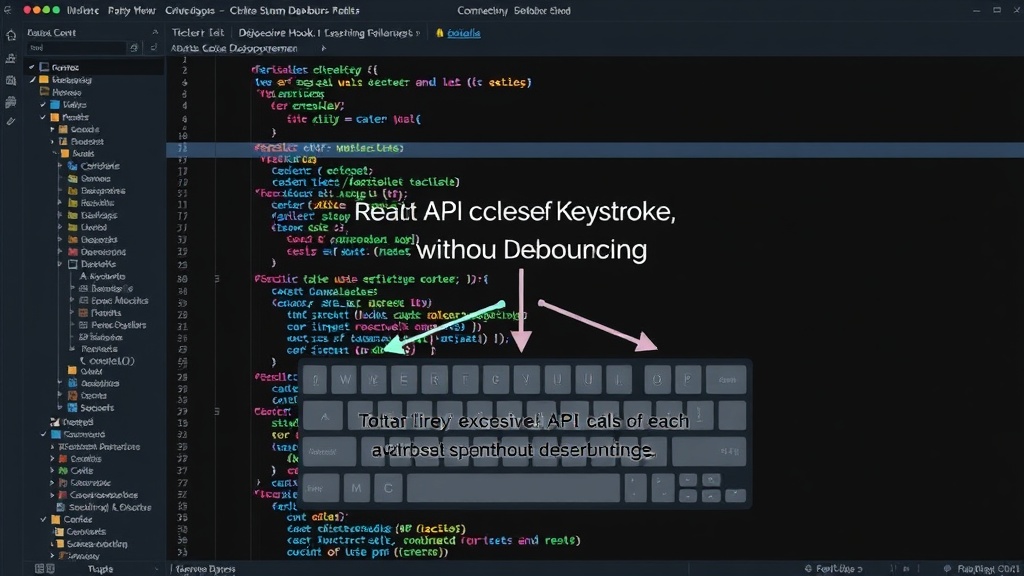
The Problem: Unoptimized API Calls in React
Modern React applications frequently integrate search functionalities where users type queries directly into input fields. A common pitfall is triggering an API request on every single keystroke. This approach is inefficient, leading to unnecessary network traffic, increased server load, and a degraded user experience due to potential lag and performance issues. Imagine a user typing a common phrase like "how to build a custom debounce hook in react". Without optimization, this single phrase could trigger five or more API calls, each fetching the same or similar data. This is akin to shouting every word of a sentence individually instead of waiting to speak the whole sentence.
Understanding Debouncing
Debouncing is a crucial optimization technique designed to limit the rate at which a function is executed. It ensures that a function is only called after a certain period of inactivity. In the context of user input, this means the function (e.g., an API call) will only run after the user has stopped typing for a predetermined duration, typically a few hundred milliseconds. If the user continues to type within that interval, the timer resets, and the function execution is delayed further. This effectively transforms a rapid sequence of events into a single, consolidated event after a pause.
Building the useDebounce Hook
Creating a custom React hook for debouncing is straightforward and highly beneficial for code reusability. The core idea is to manage a state variable that holds the debounced value and use setTimeout to implement the delay. We also need useRef to keep track of the timeout ID so we can clear it if the input changes again before the delay elapses.
Here’s a step-by-step implementation:
-
Initialize State: We need a state variable to hold the debounced value. This state will be updated only after the debounce delay has passed.
const [debouncedValue, setDebouncedValue] = useState(initialValue); -
Manage the Timer: Use
useRefto store thesetTimeoutID. This allows us to clear the timeout if the dependencies change before the timeout completes.const timerRef = useRef(null); -
Implement the Effect: The main logic resides in a
useEffecthook. This effect should run whenever the value we want to debounce changes. Inside the effect, we clear any existing timer and set a new one.useEffect(() => { // Clear the previous timeout if it exists if (timerRef.current) { clearTimeout(timerRef.current); } // Set a new timeout timerRef.current = setTimeout(() => { setDebouncedValue(value); }, delay); // Cleanup function to clear the timeout on unmount or dependency change return () => { if (timerRef.current) { clearTimeout(timerRef.current); } }; }, [value, delay]); // Re-run effect if value or delay changes -
Return the Debounced Value: The hook should return the
debouncedValuestate.return debouncedValue;
Putting it all together, a complete useDebounce hook looks like this:
import { useState, useEffect, useRef } from 'react';

function useDebounce(value, delay) {
  const [debouncedValue, setDebouncedValue] = useState(value);
  const timerRef = useRef(null);

  useEffect(() => {
    // Clear previous timeout
    if (timerRef.current) {
      clearTimeout(timerRef.current);
    }

    // Set new timeout
    timerRef.current = setTimeout(() => {
      setDebouncedValue(value);
    }, delay);

    // Cleanup function
    return () => {
      if (timerRef.current) {
        clearTimeout(timerRef.current);
      }
    };
  }, [value, delay]);

  return debouncedValue;
}

export default useDebounce;
Using the useDebounce Hook in a Component
Integrating the custom hook into a React component is straightforward. You’ll typically use it with an input field where you want to trigger an action (like an API call) after the user pauses typing.
Consider a search component:
import React, { useState, useEffect } from 'react';
import useDebounce from './useDebounce'; // Assuming useDebounce is in the same directory

function SearchComponent() {
  const [searchTerm, setSearchTerm] = useState('');
  const debouncedSearchTerm = useDebounce(searchTerm, 500); // 500ms delay

  useEffect(() => {
    if (debouncedSearchTerm) {
      // Perform API call with debouncedSearchTerm
      console.log('Searching for:', debouncedSearchTerm);
      // fetch(`/api/search?q=${debouncedSearchTerm}`)...
    } else {
      // Handle empty search term if necessary
      console.log('Search term cleared or empty.');
    }
  }, [debouncedSearchTerm]);

  const handleInputChange = (event) => {
    setSearchTerm(event.target.value);
  };

  return (


      {/* Display search results here */}

  );
}

export default SearchComponent;
In this example, setSearchTerm updates the component’s state on every keystroke. However, useDebounce takes this searchTerm and applies a 500ms delay. The debouncedSearchTerm variable will only update after the user has stopped typing for 500ms. The second useEffect hook then uses this debouncedSearchTerm to trigger the actual search logic, ensuring API calls are made only when necessary.
Common Mistakes and Best Practices
When implementing debouncing, a few common issues can arise:
- Incorrect Dependency Array: Ensure the
useEffectin youruseDebouncehook correctly includesvalueanddelayin its dependency array. Missing these can lead to stale closures or incorrect behavior. - Not Clearing Timers: Forgetting to clear the timeout on component unmount or before setting a new one is a common memory leak and logic error. The cleanup function in
useEffectis crucial for this. - Hardcoding Delay: Make the delay a parameter to your hook (as shown) rather than a hardcoded value. This makes the hook more flexible and reusable across different scenarios.
- Over-Debouncing: While debouncing is useful for search inputs and similar scenarios, it’s not suitable for all event handlers. For instance, debouncing a button click that triggers a critical action could lead to a poor user experience if the delay causes confusion.
- Accessibility: Ensure that users who rely on assistive technologies can still effectively interact with debounced elements. Provide clear visual feedback when actions are pending or have been triggered.
By following these guidelines, you can effectively leverage debouncing to build more performant and user-friendly React applications. The custom useDebounce hook provides a clean, reusable, and declarative way to manage this common optimization pattern.