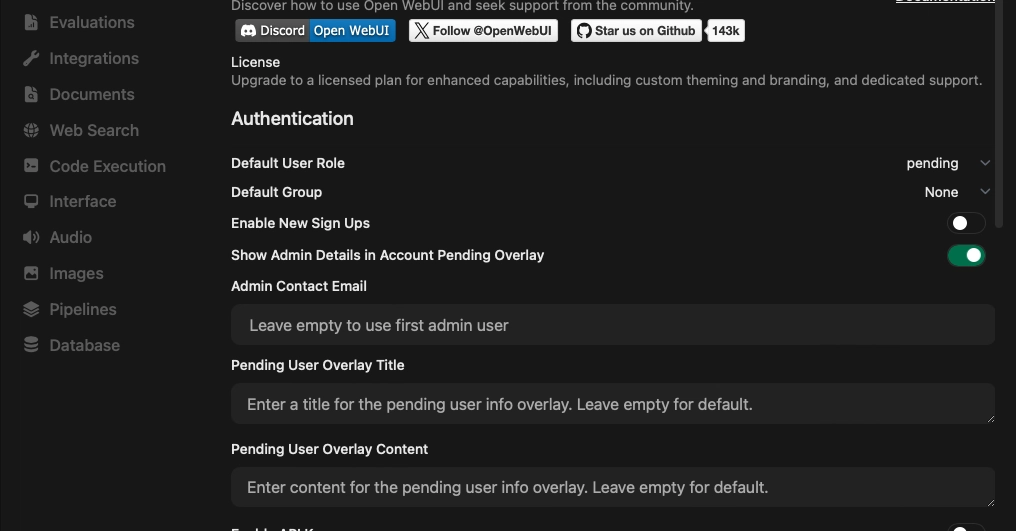
Open WebUI: User Settings Deep Dive
Open WebUI has rapidly evolved from a simple Ollama interface to a feature-rich platform supporting any OpenAI API-compatible endpoint. This guide details the user-facing settings available in version 0.9.6, offering a comprehensive look at customization options for model interaction, agent creation, and the user interface itself.
The core of Open WebUI's flexibility lies in its user settings, which allow for granular control over how you interact with Large Language Models (LLMs). These settings are crucial for tailoring the experience to specific workflows, from rapid prototyping in the model playground to deploying sophisticated agents with custom behaviors.
Custom Model Definition
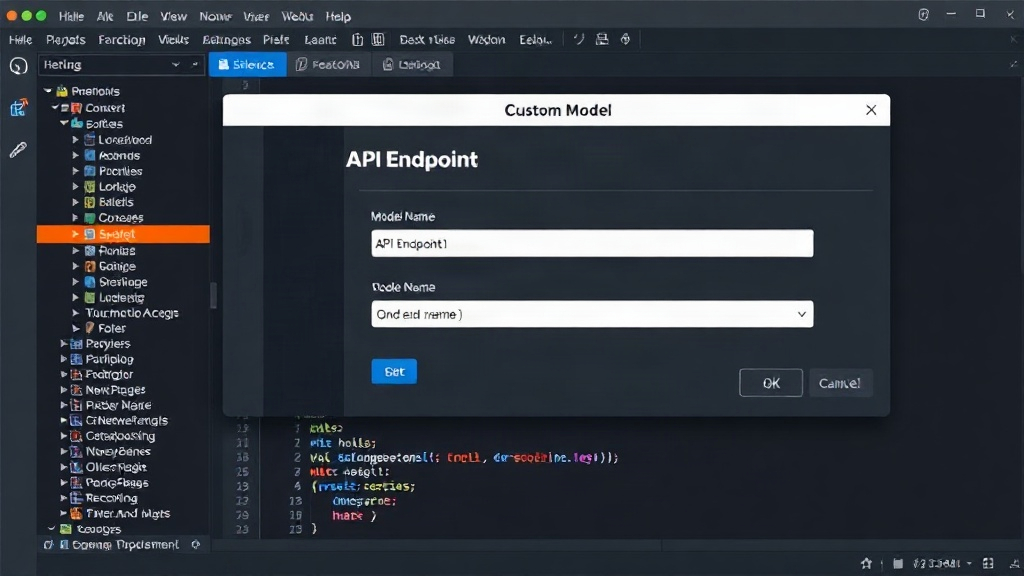
One of the most powerful features is the ability to define custom models. This goes beyond simply selecting a pre-configured model from a list. Users can specify parameters that dictate the model's behavior, including its base URL, API key, and specific model name. This is essential for integrating with private or specialized LLM deployments that might not be exposed through standard cloud services. The custom model definition screen allows you to input the API endpoint, a unique model name, and optionally, an API key. This level of control means you can connect to anything from a locally hosted Mistral model via Ollama to a fine-tuned GPT-4 variant hosted on a private cloud.
Model Playground and Parameters
The Model Playground serves as a sandbox for testing and refining LLM prompts and parameters. Here, users can experiment with various settings that influence the model's output. Key parameters include:
- Temperature: Controls the randomness of the output. Lower values produce more deterministic, focused responses, while higher values increase creativity and diversity. A temperature of 0.7 is often a good starting point for creative tasks.
- Top P (Nucleus Sampling): An alternative to temperature, it selects from the smallest set of tokens whose cumulative probability exceeds a threshold P.
- Max Tokens: Limits the length of the generated response, preventing overly verbose or runaway output.
- Presence Penalty: Discourages the model from repeating itself by penalizing tokens that have already appeared in the response.
- Frequency Penalty: Similar to presence penalty, but penalizes tokens based on how frequently they appear in the text.
- Stop Sequences: Defines specific strings that, when generated, will cause the model to stop generating further output. This is useful for controlling structured output or preventing the model from continuing past a certain point.
Mastering these parameters is key to eliciting the desired behavior from an LLM. For instance, when generating code, a lower temperature and appropriate max tokens might be preferred, whereas for brainstorming ideas, a higher temperature could be beneficial.
Automations and Skills
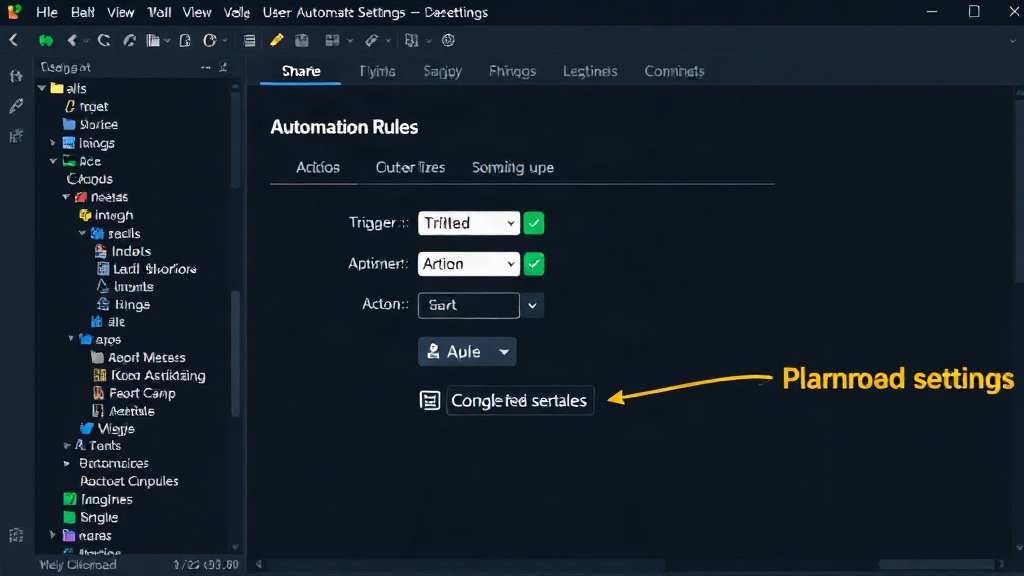
Open WebUI's agent capabilities are significantly enhanced by its automation and skills features. Automations allow users to define triggers and actions, enabling the LLM to perform tasks proactively or in response to specific events. Skills, on the other hand, are pre-defined tools or functions that an agent can call upon to extend its capabilities. This could include web searching, executing code, or accessing external APIs. The configuration for these involves defining the skill's name, description, and the parameters it accepts, allowing the LLM to understand when and how to use it. This is akin to giving your AI assistant a toolbox and teaching it which tool to use for which job.
GUI and Interface Settings
Beyond model interaction, Open WebUI offers a range of settings to customize the graphical user interface. These include options for theme selection (light/dark mode), font size adjustments, and chat display preferences. Users can also configure default behaviors, such as the default model to use when starting a new chat or the preferred response format. These seemingly minor settings contribute significantly to user comfort and productivity, especially for those who spend extended periods interacting with the system.
The ability to manage multiple user profiles within a single instance also adds a layer of organization, allowing different users to maintain their own settings and chat histories. This is particularly useful in shared environments or for users who manage distinct projects or personas.
Memory Management
Effective LLM interaction often relies on maintaining context. Open WebUI's memory settings allow users to control how much past conversation is retained and considered by the model. Options typically include different memory types (e.g., short-term, long-term) and configurable limits on the amount of context stored. This is crucial for maintaining coherent conversations and ensuring the LLM can reference previous points accurately without becoming overwhelmed by excessive historical data. The settings allow for a trade-off between conversational depth and computational load.
Code Execution and Terminal Connection
A notable advancement is the ability to execute code directly through a terminal connection. This feature, when enabled, allows agents to run scripts and commands on the host system. This opens up possibilities for automated data processing, system administration tasks, and complex computational workflows directly within the chat interface. Security considerations are paramount here, and users are typically prompted to explicitly grant permission for code execution, often with clear warnings about the potential risks. The configuration involves enabling the feature and potentially setting up user permissions for the execution environment.
This capability transforms Open WebUI from a mere chat interface into a powerful command-and-control environment for AI-driven tasks. It’s like having a programmable robot that you can direct through natural language, but with the added safety of explicit command confirmation.
Conclusion
Open WebUI's extensive user settings provide a robust framework for customizing LLM interactions. From defining custom models and tuning playground parameters to setting up complex automations and enabling code execution, the platform offers deep control. By understanding and leveraging these settings, users can unlock the full potential of their LLM deployments, whether for personal experimentation, development, or sophisticated AI agent applications.