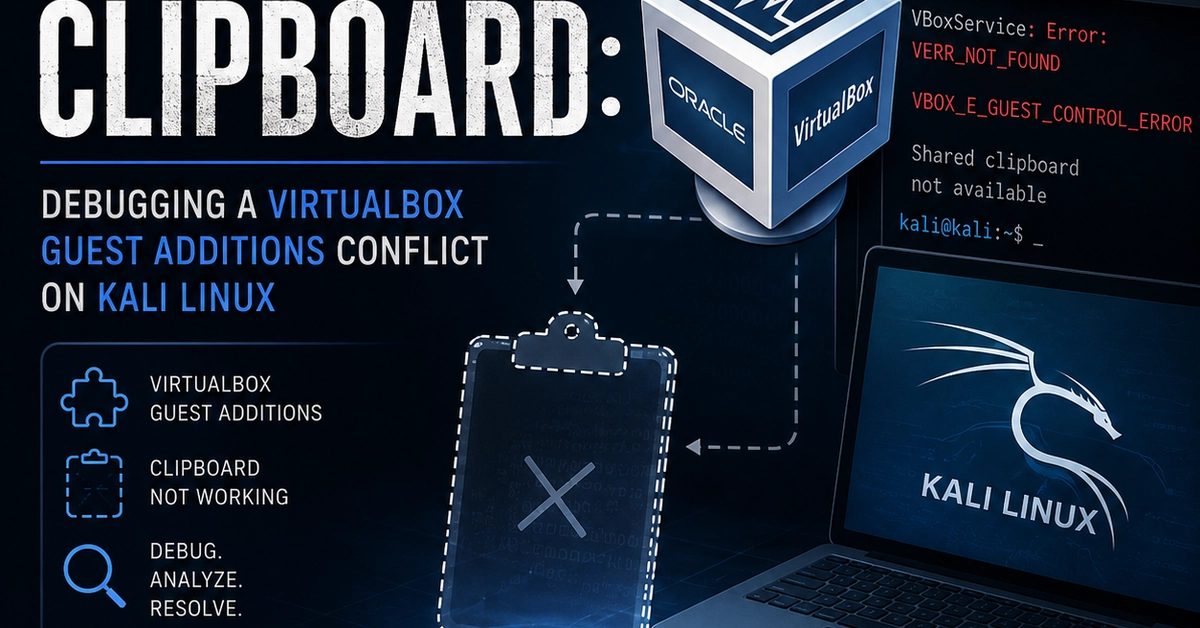
The Problem: A Silent Clipboard Failure
Running a Kali Linux virtual machine within VirtualBox is a common setup for security professionals and developers practicing infrastructure and security tooling. However, a frustrating issue can arise: the shared clipboard between the host and the guest simply stops working. This isn't a dramatic system crash, but a subtle, insidious failure that breaks a core convenience feature. Users might initially suspect a simple `apt update && apt upgrade` on the Kali guest. This common step, while essential for keeping regular packages current, is precisely where the problem often begins. The critical detail is that standard package upgrades do not automatically rebuild or reinstall VirtualBox Guest Additions. These additions are essential kernel modules and services that bridge the host and guest operating systems, enabling features like shared clipboard, dynamic screen resizing, and shared folders. When the Linux kernel updates, the Guest Additions, which are compiled against a specific kernel version, can become incompatible.
Diagnosing the Conflict: Beyond the Obvious
The author’s experience highlights a typical debugging path. After an `apt upgrade` on Kali, the shared clipboard vanished. The immediate assumption might be a misconfiguration or a simple service restart. However, the real culprit lies deeper. The VirtualBox Guest Additions consist of several components, including kernel modules that must be loaded for functionality. When the kernel itself is updated, the existing Guest Additions kernel modules are no longer compatible with the new kernel. Without a rebuild, they cannot be loaded correctly, or worse, they might load partially, leading to unpredictable behavior. This is akin to trying to plug a USB 3.0 device into a USB 1.0 port – the connection might physically fit, but it won't function as intended, if at all. The system might present errors related to kernel modules being “in use” or services failing to start, often logging these failures without any user-facing alerts.
The key insight is that VirtualBox Guest Additions are not managed by the standard package manager in a way that triggers automatic recompilation upon kernel updates. They often require a manual reinstallation or a specific command to rebuild them against the currently running kernel. This disconnect between kernel updates and Guest Additions maintenance is the root cause of the vanishing clipboard. The systemd service responsible for managing the clipboard integration might fail silently on boot, leaving the user with no shared clipboard functionality and no immediate indication of why.
The Fix: Rebuilding the Guest Additions
Resolving this conflict requires a targeted approach: reinstalling or rebuilding the VirtualBox Guest Additions to align with the updated Kali Linux kernel. The process typically involves several steps:
- Identify the running kernel: Ensure you know which kernel version Kali is currently booted into. This is usually visible in the system’s boot messages or can be checked with `uname -r`.
- Mount the Guest Additions ISO: VirtualBox provides an ISO image containing the Guest Additions installer. This can be mounted within the Kali VM via the VirtualBox menu (Devices -> Insert Guest Additions CD image...).
- Run the installer: Navigate to the mounted CD-ROM in the Kali VM (often at `/media/cdrom0` or similar) and execute the installation script, typically named `VBoxLinuxAdditions.run`. This script will detect the current kernel and attempt to compile and install the necessary modules.
- Handle potential errors: The installation script might require development tools and kernel headers. If these are not present, the script will likely fail. You may need to install them using `sudo apt update && sudo apt install build-essential linux-headers-$(uname -r) dkms`. The `dkms` package is crucial as it helps manage kernel module builds and can automate rebuilding Guest Additions when new kernels are installed in the future.
- Reboot the VM: After a successful installation, rebooting the Kali VM is essential for the new kernel modules and services to load correctly.
Preventing Future Occurrences
The recurring nature of this problem stems from the manual nature of Guest Additions maintenance relative to automatic kernel updates. To mitigate this, ensuring `dkms` is installed and configured correctly is key. DKMS (Dynamic Kernel Module Support) is designed to automatically rebuild kernel modules, including VirtualBox Guest Additions, whenever a new kernel is installed. This proactive approach prevents the Guest Additions from becoming outdated and incompatible with newer kernels. If DKMS is properly set up, subsequent kernel upgrades should automatically trigger a rebuild of the Guest Additions modules, maintaining clipboard functionality without manual intervention. Regularly checking the status of the VirtualBox guest services and ensuring they start on boot can also help catch issues before they become major annoyances. The surprising detail here is not the complexity of the fix, but how a standard system update can silently break a core feature, often leaving users bewildered without understanding the kernel-module interdependency.
The Unanswered Question: Broader Implications
While reinstalling Guest Additions is a straightforward fix for an individual user, what remains unaddressed is the systemic issue for users who rely on VirtualBox for critical workflows. How many security auditors, penetration testers, or developers have lost hours to this exact problem? Is there a more robust integration strategy that VirtualBox could employ, perhaps through tighter OS integration or a more intelligent update mechanism for Guest Additions, that doesn't require manual intervention after every kernel patch? The current state feels like a workaround for a problem that shouldn't exist in a mature virtualization platform.