The Problem: Merging Without Knowing
You're staring down a long-running feature branch. It’s been weeks, maybe months, since it diverged from main. Now comes the moment of truth: merging it back. The standard approach involves running git merge feature-branch. If you're lucky, it’s a clean merge. If not, you’re presented with a mess of <<<<<<<, =======, and >>>>>>> markers scattered across your codebase. This isn't just inconvenient; it can derail your entire day. You've already committed to the merge, and now you must untangle the conflicts, potentially introducing new bugs in the process.
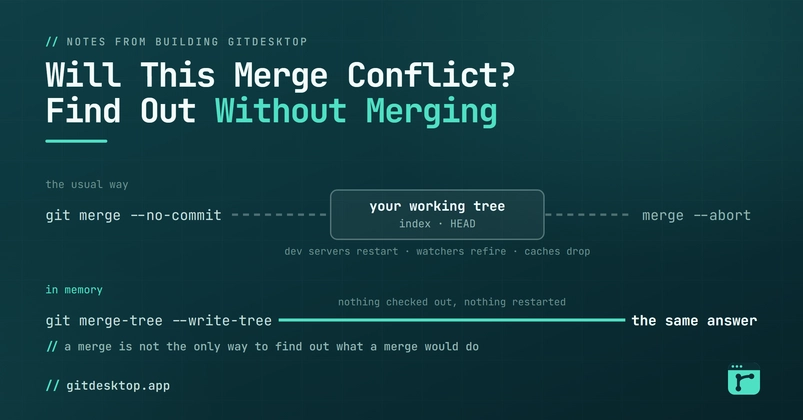
The core issue is that git merge, by default, attempts to create a new commit. It resolves what it can and flags what it can't. But this process pollutes your working tree and your Git history with an incomplete, broken state. You’re forced to fix the conflicts *after* they’ve already impacted your local environment. Git, however, has always had the answer to the question, "Will this merge conflict?" It just doesn't present it in the way most developers expect or use.
The Standard (and Risky) Approach: Merge Without Commit
Many developers resort to a variation of the standard merge: git merge --no-commit --no-ff feature-branch. This command tells Git to perform the merge but stop before creating a commit. It will then show you the results of the auto-merge, including any conflicts. This is better than a full commit, as it doesn't finalize the merge. However, it still modifies your working tree and the staging area. If you have uncommitted changes in your working directory, this command can lead to unexpected and difficult-to-recover states. It's a common workaround, but it’s far from ideal and can still lead to data loss or significant rework if not handled with extreme care.
The output of this command looks like this:
Auto-merging shared.txt
CONFLICT (content): Merge conflict in shared.txt
Automatic merge failed; fix conflicts and then commit the result.
This output confirms a conflict exists, but it leaves your working directory in a conflicted state. You still need to resolve these conflicts manually. While it prevents a broken commit, it doesn’t give you a clean preview before altering your current work.
Git's Secret Weapon: The Merge Strategy Option
The real power lies in Git's ability to simulate a merge without touching your working tree. Git has a sophisticated merge engine that can analyze the proposed merge and predict its outcome. The key is to leverage Git's internal mechanisms that are usually hidden behind the default merge commands. Instead of letting Git attempt the merge and show you the wreckage, you can ask it to simply report whether a merge would result in conflicts.
The command you need is git merge-file, but used in a specific, indirect way. This command is typically used for merging specific files, but its underlying logic can be invoked to test an entire branch merge. The trick is to use Git's plumbing commands, which are lower-level and offer more granular control than the standard porcelain commands like git merge.
The Non-Destructive Preview Command
To preview merge conflicts without altering your working tree, you can use a combination of git diff and git merge-base. The core idea is to compare the state of your current branch against the common ancestor of your branch and the branch you intend to merge. This comparison highlights the changes that would be introduced by the merge.
Here’s the command sequence:
- Find the common ancestor:
git merge-base HEAD feature-branch. This command outputs the commit hash of the most recent common ancestor between your current branch (HEAD) and the `feature-branch`. - Generate a diff:
git diff HEAD...feature-branch. This command shows the differences between the common ancestor and the `feature-branch`. It effectively shows you all the changes that `feature-branch` has introduced since it diverged.
While this diff shows you the changes in the feature branch, it doesn't directly tell you about conflicts. Conflicts arise when the *same lines* in the *same files* are modified differently in both branches relative to the common ancestor. To detect this, we need to compare the changes introduced by the feature branch against the changes introduced by your current branch (since it diverged from the common ancestor).
A More Direct Approach: Simulating the Merge Internally
A more accurate way to preview conflicts without destructive merges involves using Git's internal merge machinery more directly, but still in a read-only fashion. While there isn't a single, simple command that perfectly replicates the output of a conflicted merge without touching the working tree, we can simulate the process by examining the diffs carefully.
Consider this sequence:
- Identify the merge base:
MERGE_BASE=$(git merge-base HEAD feature-branch) - Get changes in the feature branch since the merge base:
git diff --name-status $MERGE_BASE HEAD -- feature-branch - Get changes in the current branch since the merge base:
git diff --name-status $MERGE_BASE HEAD
Now, compare the outputs of steps 2 and 3. If a file appears in both lists (meaning it was modified in both branches since they diverged), there's a high probability of a conflict. To be certain, you would need to examine the specific line changes within those files. Git's internal diff algorithms are complex, and simply looking at file names isn't foolproof. However, for most practical scenarios, identifying files modified in both branches is a strong indicator of potential conflicts.
The True Preview: Leveraging `git log` and `git diff`
The most robust method, often overlooked, involves understanding how Git resolves merges. A conflict occurs when Git cannot automatically decide which version of a line (or block of lines) to keep. This happens when the same lines are modified differently in both branches.
You can achieve a non-destructive preview by comparing the diffs introduced by each branch relative to their common ancestor. The command git diff feature-branch...HEAD (note the three dots) shows the cumulative diff of the changes on HEAD since the merge base with feature-branch. Similarly, git diff HEAD...feature-branch shows the cumulative diff of changes on feature-branch since the merge base with HEAD. A conflict is likely if the same files are modified in both diffs.
To make this more concrete, let's consider a file named `config.yaml`. If `config.yaml` is modified in the commits that make up `feature-branch` since the merge base, and it's *also* modified in the commits that make up `HEAD` since the merge base, you have a high likelihood of a conflict in `config.yaml`. You can script this by iterating through the files changed in one branch and checking if they were also changed in the other, relative to the merge base.
Here’s a practical scripting approach:
MERGE_BASE=$(git merge-base HEAD feature-branch)

CHANGED_FILES_FEATURE=$(git diff --name-only $MERGE_BASE feature-branch)
CHANGED_FILES_HEAD=$(git diff --name-only $MERGE_BASE HEAD)

echo "Potential conflicts in:"
comm -12 <(echo "$CHANGED_FILES_FEATURE" | sort) <(echo "$CHANGED_FILES_HEAD" | sort)
This script identifies files that have been modified in both branches since their common ancestor. The comm -12 command finds lines common to both sorted inputs, effectively listing files present in both change lists. This gives you a clear, actionable list of files that *might* conflict, allowing you to investigate them proactively without ever touching your working tree or staging area.
Why This Matters
This non-destructive preview is crucial for maintaining a clean and efficient development workflow. It allows developers and teams to anticipate merge issues, allocate time for conflict resolution, and avoid the stressful, time-consuming process of untangling conflicts after an attempted merge. By understanding and utilizing these Git capabilities, you can merge with confidence, knowing you've assessed the risks beforehand.
What nobody has addressed yet is the integration of this preview into CI/CD pipelines. While manual inspection is possible, automating this conflict detection before a pull request is merged could save countless hours across large development teams.