
The Problem: Clone Proliferation
Developers often find themselves managing multiple copies of the same Git repository. This happens when working on different features, bug fixes, or even different versions of the same project simultaneously. The typical outcome is a sprawling directory structure with nearly identical project folders, each a separate clone. Imagine this:
~/src/project-feature-a
~/src/project-feature-b
~/src/project-hotfix-x
~/src/project-staging
~/src/project-experimental
Each of these directories is a complete, independent clone of the main repository. Managing them becomes a chore. Keeping them updated, switching between them, and ensuring consistency across all of them is time-consuming and error-prone. Merging changes from one clone to another, or even just keeping track of which clone is which, can quickly descend into chaos. This approach is inefficient and clutters your filesystem.
Introducing Git Worktrees
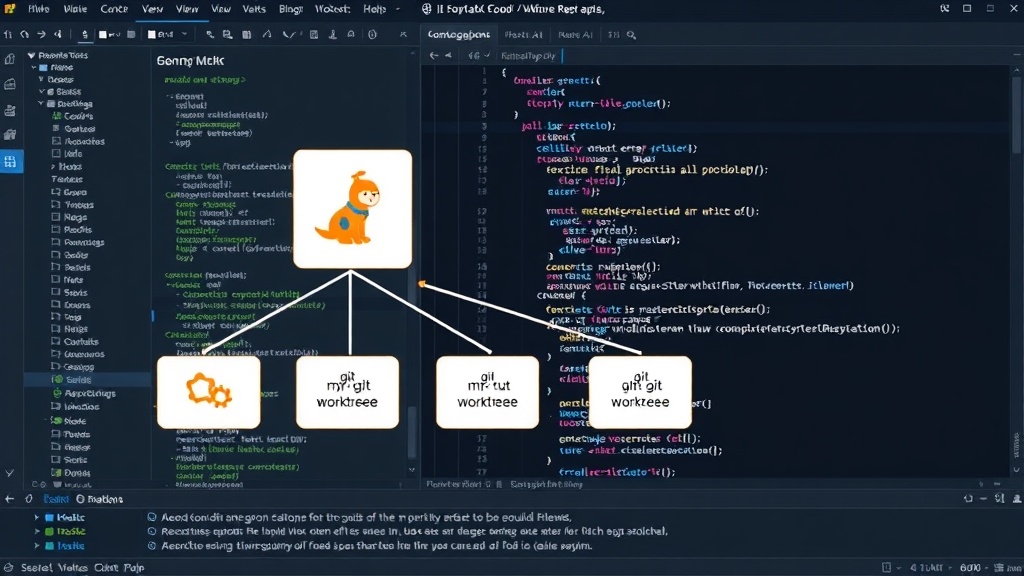
Git worktrees offer a cleaner, more integrated solution. A worktree allows you to have multiple working directories associated with a single Git repository. Each working directory can be checked out to a different branch, while all sharing the same underlying Git history and objects. Think of it less like having separate copies of your project, and more like having multiple doors into the same house, each leading to a different room you're currently working in.
Instead of cloning the repository multiple times, you create worktrees that live in separate directories but are all linked to the same .git directory of your canonical repository. This means each worktree is a lightweight checkout of a specific branch, sharing the same commit history, configuration, and object database. This dramatically reduces disk space usage and simplifies management.
Why Worktrees Trump Multiple Clones
The advantages of using worktrees over traditional cloning are significant:
- Disk Space Efficiency: Each worktree is essentially a directory containing only the checked-out files for a specific branch, plus a small Git directory. The bulk of the repository's history (the object database) is shared. This is a stark contrast to multiple clones, where each clone duplicates the entire history, consuming far more disk space.
- Faster Branch Switching: Switching branches within a single clone can be slow, especially for large repositories, as Git needs to update many files. With worktrees, switching between them is instantaneous because each worktree is already a complete checkout of its assigned branch. You simply change directories.
- Simplified Workflow: Instead of navigating between different cloned directories, you can keep worktrees for different tasks in logically organized locations. For example, you might have a main repository clone in
~/projects/my-repoand worktrees for specific features in~/worktrees/my-repo/feature-x,~/worktrees/my-repo/bugfix-y, etc. - Consistent Configuration: All worktrees share the same repository configuration, ensuring consistency in Git settings, hooks, and remotes.
Practical Directory Convention
A common and effective convention is to keep your primary repository clone in a standard location (e.g., ~/projects/my-repo) and create worktrees for different branches in a dedicated subdirectory, often named after the branch or the task. For instance:
~/projects/my-repo/ (main clone, potentially on 'main' or 'develop' branch)
~/worktrees/my-repo/feature-login/
~/worktrees/my-repo/bugfix-auth/
~/worktrees/my-repo/experimental-ui/
This structure clearly separates your main working copy from your feature-specific checkouts, making it easy to find and manage each environment.
Everyday Git Worktree Commands
The primary commands for managing worktrees are straightforward:
git worktree add <path> <branch>: Creates a new worktree at the specified<path>, checking out the given<branch>. If no branch is specified, it defaults to the current branch.git worktree list: Lists all current worktrees, showing their paths and the branch they are checked out to.git worktree remove <path>: Removes a worktree. It's crucial to ensure the branch is merged or stashed first.git worktree prune: Cleans up any stale worktree directories that are no longer linked correctly. This is useful if a worktree directory was deleted manually without proper Git cleanup.git worktree lock <path>: Prevents operations on a worktree that could interfere with ongoing tasks, like a long-running build or test.
Consolidating Existing Clones
If you're currently drowning in clones, the process of consolidating them into worktrees involves a few phases:
Phase 1: Inventory Your Clones
First, identify all your existing clones for the project. List their directory paths and note which branch each clone is currently on. This step is critical for understanding your current state.
Phase 2: Choose the Canonical Repository
Select one of your existing clones to serve as the primary or “canonical” repository. This will be the directory that holds the main .git folder. All other clones will be converted into worktrees linked to this canonical repository.
Phase 3: Decide What Each Clone Should Become
For each of the other clones, determine which branch it should represent as a worktree. If a clone is on a specific feature branch, that branch will be checked out in its new worktree. If it’s on a staging branch, the worktree will reflect that.
Phase 4: Convert Clones to Worktrees
This is the core migration step. For each clone you want to convert (excluding your chosen canonical repository):
- Navigate to your canonical repository:
cd ~/projects/my-repo - Add a new worktree: Use
git worktree add ../worktrees/my-repo/branch-name branch-name. Replace../worktrees/my-repo/branch-namewith your desired path for the new worktree andbranch-namewith the branch that the old clone was on. - Verify the worktree: Check
git worktree listto ensure the new worktree is registered. - Copy data (if necessary): If the old clone had uncommitted changes or local configurations you need, you might need to carefully copy them over to the new worktree *before* it’s fully set up, or commit them to the branch first.
- Remove the old clone: Once you are confident the worktree is correctly set up and contains the necessary data, you can safely delete the old cloned directory.
Repeat this process for every clone you wish to consolidate. This phased approach minimizes disruption and allows you to migrate incrementally.
Safety Rules and Best Practices
Before embarking on a worktree migration, consider these safety measures:
- Ensure branches are merged or stashed: Any work in an old clone should ideally be committed and pushed, or at least stashed, before you start converting it to a worktree. Uncommitted changes can be tricky to migrate.
- Backup critical data: While Git is robust, it's always wise to have a backup of your project directories before performing significant structural changes.
- Understand worktree locks: Use
git worktree lockfor directories where long-running processes (like CI builds or automated tests) are active, to prevent accidental cleanup or removal. - Use
git worktree prunejudiciously: This command is for cleaning up stale directories. Ensure you know which directories are stale before running it.
When Should a Worktree Be Locked?
A worktree should be locked when it's actively being used by an external process that shouldn't be interrupted by Git's maintenance commands. This includes:
- Long-running build processes.
- Automated test suites.
- Any script or application that is actively reading from or writing to the worktree's files.
Locking a worktree prevents commands like git worktree prune from removing it and signals to other Git operations that this directory is in use.
Final Validation
After converting your clones, take time to validate your new setup. Ensure all branches are accessible via their respective worktrees, that you can commit and push changes normally, and that disk space usage has decreased as expected. The goal is a streamlined development environment where managing multiple concurrent tasks within a single repository is effortless.
Closing Thoughts
Git worktrees are a powerful feature that can significantly improve a developer's workflow by eliminating the need for multiple repository clones. By adopting a structured approach to managing worktrees, you can reclaim disk space, speed up your operations, and bring order to your project directories.