
Understanding Git Rebase -I
Git rebase, particularly its interactive mode (`git rebase -i`), is often perceived as a complex and potentially dangerous operation. Many developers shy away from it, fearing they might corrupt their repository or lose work. However, understanding its core functionality reveals it to be an indispensable tool for crafting a clean, readable, and maintainable commit history. Interactive rebase allows you to rewrite your commit history before sharing it, making it easier for collaborators to understand your changes and for you to manage your own work.
At its heart, `git rebase -i` isn't about creating new commits; it's about reordering, editing, squashing, splitting, or dropping existing ones. Think of it less like surgery and more like a highly precise editor for your commit log. Instead of appending new commits to fix mistakes or clarify intent, you can go back and polish the commits that led to the current state. This is particularly useful when you've made several small, incremental commits that don't add much value individually or when you've forgotten to include a file in an earlier commit.
The command itself is simple: `git rebase -i
Key Operations in Interactive Rebase
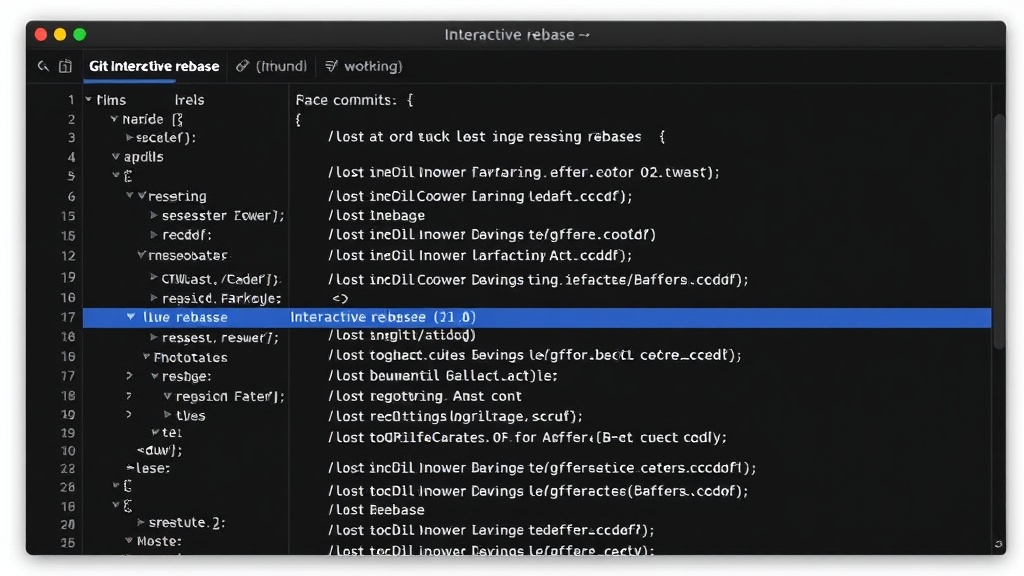
Once you run the command, Git opens your default editor with a list of commits. Each line represents a commit, starting with an action verb. The most common actions are:
pick(p): Use the commit as is. This is the default action.reword(r): Use the commit, but edit the commit message. Useful for clarifying or correcting commit messages.edit(e): Use the commit, but stop for amending. This allows you to modify the commit's content (e.g., add forgotten files, change code) and then recommit.squash(s): Use the commit, but meld it into the previous commit. Git will prompt you to combine the commit messages. Ideal for merging small, related commits into a single, more meaningful one.fixup(f): Likesquash, but discard this commit's log message entirely. Git will use only the message from the preceding commit. This is perfect for commits that were just for fixing a typo or a minor bug that's already captured in another commit.drop(d): Remove the commit entirely. Use with caution, as this permanently deletes the commit.reorder: Simply change the order of the lines to change the order of the commits.
Let's walk through a common scenario: cleaning up a messy feature branch before merging. Suppose you've made several commits, some of which are just quick fixes or experiments. Your history might look like this:
feat: Implement user authentication
fix: Correct typo in auth form
feat: Add basic user profile display
test: Add unit tests for auth service
chore: Update dependencies
You can use `git rebase -i HEAD~5` to bring up the editor. You might want to combine the `fix: Correct typo in auth form` into the `feat: Implement user authentication` commit, and perhaps squash `test: Add unit tests for auth service` into `feat: Add basic user profile display` if they are closely related. The `chore: Update dependencies` might be best kept separate or squashed if it was done as part of a larger refactor.
The process involves changing the action verbs in the editor. For example, to squash the typo fix into the first commit and keep the rest, you might change the file to:
pick feat: Implement user authentication
fix  fix: Correct typo in auth form
pick feat: Add basic user profile display
pick test: Add unit tests for auth service
pick chore: Update dependencies
After saving and closing the editor, Git will apply these changes. It will first apply the `feat: Implement user authentication` commit. Then, it will encounter the `fix` action for the typo commit. It will automatically combine this commit's changes and prompt you to edit the commit message for the combined commit. You'd then edit the message to reflect the full scope of user authentication implementation, including the correction. Git then proceeds with the remaining `pick` actions.
Handling Conflicts During Rebase
Conflicts are common during rebasing, especially if the commits you're modifying touch the same lines of code as commits that have already been applied. When a conflict occurs, Git pauses the rebase process and tells you which files have conflicts. You must resolve these conflicts manually by editing the affected files, removing the conflict markers (<<<<<<<, =======, >>>>>>>), and then staging the resolved files using git add <file>. After resolving all conflicts for a given commit, you continue the rebase with git rebase --continue. If you decide that you don't want to proceed with the rebase at all, you can abort it with git rebase --abort, which will return your branch to its state before the rebase began.
It's crucial to remember that rebasing rewrites history. This means that if you've already pushed the commits you are rebasing to a shared remote repository, you should generally avoid rebasing them. Doing so can cause significant problems for collaborators who have already based their work on your original commits. If you absolutely must rebase shared history (e.g., to fix a critical security vulnerability in a public commit), you will need to force-push (`git push --force-with-lease`) and ensure all collaborators are aware and know how to recover their work. The `--force-with-lease` option is safer than a plain `--force` as it checks if someone else has pushed new commits to the branch since your last pull, preventing accidental overwrites of their work.
When to Use Interactive Rebase
Interactive rebase is your best friend for:
- Cleaning up local history: Before sharing your feature branch, use it to squash small, unfinished commits into larger, logical units.
- Correcting commit messages: Fix typos or add clarity to messages using
rewordorfixup. - Reordering commits: Sometimes, committing files in a slightly different order makes more sense logically.
- Removing accidental commits: If you committed sensitive information or simply a mistake,
dropcan remove it. - Splitting large commits: If a commit does too much, you can use
editto break it down into smaller, more focused commits.
The primary rule of thumb is: never rebase commits that have already been pushed and shared, unless you have a very good reason and coordinate carefully with your team. For your local work in progress, however, `git rebase -i` is an incredibly powerful and safe tool when used with understanding. It transforms your commit history from a messy trail of breadcrumbs into a clear, concise narrative of your development process.
What nobody has addressed yet is the optimal strategy for teams when a critical bug fix *must* be applied to a previously pushed commit. While `git revert` is the safe default, rebase offers a cleaner history. This tension highlights the ongoing debate between historical clarity and collaborative safety in Git workflows.