Understanding Disk I/O on macOS
Macs, like all modern computers, rely heavily on disk input/output (I/O) operations to function. Every time an application needs to read data from or write data to the storage drive, it generates disk I/O. While this is a fundamental aspect of computing, certain applications or processes can become excessively demanding, leading to a sluggish system, reduced performance, and increased wear on the storage hardware, especially Solid State Drives (SSDs) which have a finite number of write cycles.
Identifying the culprits behind high disk activity can be challenging. macOS's built-in Activity Monitor provides some insight into disk usage, but it often presents data in aggregate or requires users to sift through numerous processes. For users who aren't deeply familiar with system internals, pinpointing the exact application or service consuming the most disk resources can be a time-consuming and frustrating task. This is where specialized tools become invaluable.
Introducing FindDiskKiller
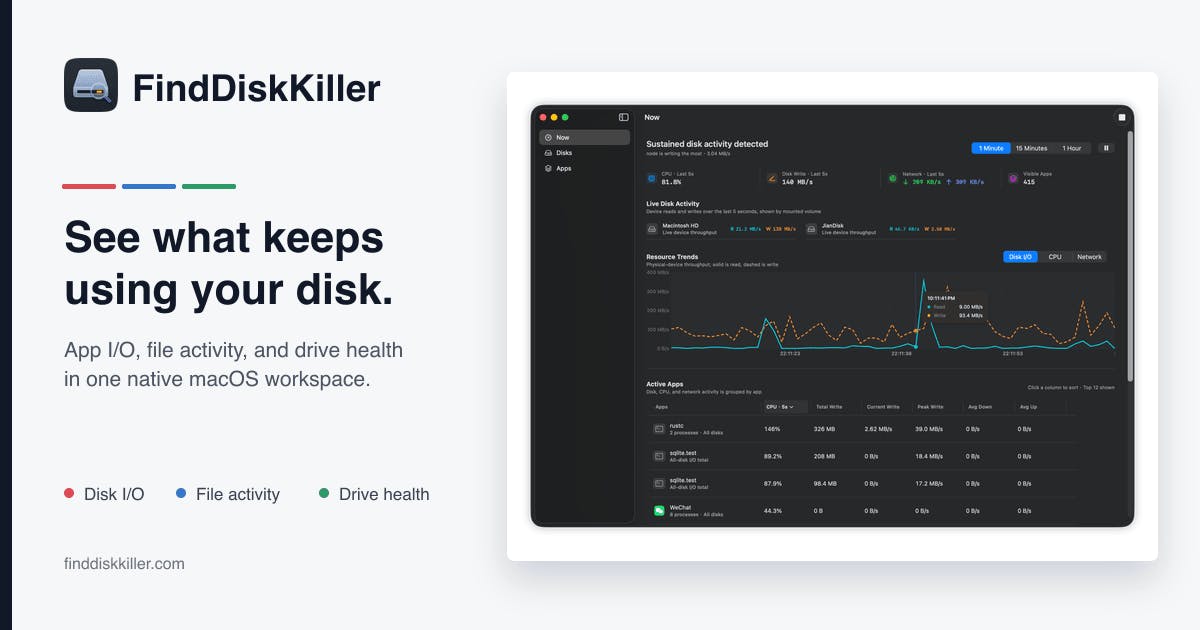
FindDiskKiller emerges as a dedicated solution to this common performance bottleneck. Developed to offer a clear, actionable view of disk activity, the application aims to simplify the process of identifying resource-intensive processes. Its primary function is to provide users with a straightforward way to see which applications are generating the most disk traffic, allowing for swift diagnosis and remediation of performance issues.
The tool is designed with user experience in mind, targeting a broad audience from casual users experiencing slowdowns to power users and developers who need granular control over their system's performance. By presenting disk I/O metrics in an easily digestible format, FindDiskKiller empowers users to make informed decisions about managing their running applications.
How FindDiskKiller Works
At its core, FindDiskKiller monitors the system's disk I/O operations in real-time. It aggregates these operations by application or process, providing a ranked list of the most active disk users. This allows users to quickly identify applications that might be causing system lag, beachballing, or general unresponsiveness. The utility likely leverages macOS's underlying system monitoring frameworks to gather this data without requiring extensive privileges for basic operation, though advanced features might necessitate elevated permissions.
The key differentiator for FindDiskKiller is its focus specifically on disk I/O, unlike more general system monitors. This specialized approach means the information presented is highly relevant to users experiencing disk-related performance problems. For instance, a background backup process, a cloud synchronization service, or even a misbehaving application could be identified as the primary cause of a disk-bound system. Once identified, users can choose to quit the offending application, investigate its settings, or seek updates if it's a known bug.
Potential Use Cases and Benefits
The benefits of using a tool like FindDiskKiller are numerous:
- Performance Improvement: By identifying and managing disk-hungry applications, users can significantly improve their Mac's overall responsiveness and speed. This is particularly useful for older machines or those with slower mechanical hard drives.
- Troubleshooting: When a Mac starts to slow down unexpectedly, FindDiskKiller can serve as a first-line diagnostic tool, pointing directly to the source of the problem.
- Resource Management: For users who run multiple demanding applications simultaneously, understanding their collective disk impact can help in optimizing workflows and preventing system overload.
- Hardware Longevity: While modern SSDs are robust, constant, high-intensity write operations can theoretically contribute to reduced lifespan. Identifying and mitigating excessive writes, if present, could offer a marginal benefit in hardware longevity.
Consider a scenario where your Mac suddenly becomes sluggish. You open Activity Monitor and see high CPU usage, but it doesn't quite explain the lag. You then open FindDiskKiller and immediately see that a seemingly innocuous application, which you assumed was idle, is actually performing millions of read/write operations per second. This clarity allows you to take targeted action, such as force-quitting that specific app, rather than guessing or rebooting the entire system.
The Broader Context of System Monitoring
FindDiskKiller fits into a growing ecosystem of specialized macOS utilities designed to give users deeper insights into their system's performance. As applications become more complex and background processes proliferate, the need for tools that can dissect system resource usage becomes more pronounced. While Apple provides robust built-in tools like Activity Monitor, third-party applications often excel by offering more focused functionality, intuitive interfaces, or real-time data visualization tailored to specific pain points.
The development of such tools also reflects a broader trend in the tech industry: the democratization of system diagnostics. Previously, deep system analysis was often the domain of IT professionals or advanced users. Now, with applications like FindDiskKiller, even less technical users can gain a better understanding of what their computer is doing under the hood. This empowers users to be more proactive about their system's health and performance, rather than passively experiencing slowdowns.
What Remains Unanswered
While FindDiskKiller promises to illuminate disk-intensive applications, what remains unaddressed is the underlying reason *why* these applications are behaving that way. Is it a bug in the application itself? Is it a configuration issue? Or is it simply the nature of the task the user is asking the application to perform? For users who discover a disk-hogging application, the next step often involves further investigation beyond just quitting the process. Understanding the root cause could lead to more permanent solutions, such as optimizing settings, reporting bugs to developers, or choosing alternative software. FindDiskKiller excels at the 'what,' but the 'why' still requires user-driven detective work.
Furthermore, the long-term impact of such utilities on system stability and user behavior is yet to be fully understood. Will users become overly reliant on these tools, leading to a constant urge to 'kill' processes without understanding their essential functions? Or will it foster a more informed approach to managing system resources? The balance between proactive optimization and potential system disruption is a delicate one.
Conclusion
FindDiskKiller offers a valuable service to Mac users grappling with performance issues stemming from excessive disk I/O. By providing a clear, focused view of which applications are most active on the disk, it simplifies troubleshooting and empowers users to reclaim system responsiveness. As the complexity of software continues to grow, tools that offer specialized insights into system performance will remain essential for maintaining optimal user experience.