
Build a QR Code Generator with Python
Imagine walking into a coffee shop, holding your phone up to a tiny square on the counter, and instantly pulling up your order history without typing a single character. That magic isn’t reserved for big tech companies with millions in R&D; you can build that exact same capability in your own Python script this afternoon. QR codes have evolved from clunky marketing tools into essential bridges between the physical and digital worlds, and Python is the perfect language to bridge them yourself.
This tutorial guides you through building a functional QR code generator that takes user input, creates a scannable image, and saves it to your disk. No complex frameworks, no cloud APIs—just pure, local Python.
Setting Up Your Environment
Before writing a single line of logic, you need the right tools. The primary library we’ll use for generating QR codes is qrcode. This library is robust and handles the complex encoding and error correction required for QR codes.
To install it, open your terminal or command prompt and run:
pip install qrcode[pil]The [pil] part is crucial. It ensures that the Python Imaging Library (PIL), now known as Pillow, is also installed. Pillow is necessary for the qrcode library to create and save image files. If you already have Pillow installed, this command will simply ensure it’s up to date for compatibility.
For basic QR code generation, this is all you need. The library abstracts away the intricate details of QR code standards, allowing you to focus on the input and output.
Core Logic: Generating the QR Code
The heart of our QR code generator is straightforward. We need to import the necessary library, define the data to be encoded, and then generate the QR code image. The qrcode library makes this remarkably simple.
Here’s the basic structure of the Python script:
import qrcode

# Data to be encoded
data = "https://www.example.com"

# Create QR code instance
qr = qrcode.QRCode(
    version=1,
    error_correction=qrcode.constants.ERROR_CORRECT_L,
    box_size=10,
    border=4,
)

# Add data to the QR code
qr.add_data(data)
qr.make(fit=True)

# Create an image from the QR Code instance
img = qr.make_image(fill_color="black", back_color="white")

# Save the image
img.save("example.png")
Let’s break down the key parameters in qrcode.QRCode:
version: This parameter controls the size and data capacity of the QR code. Version 1 is the smallest, with a 21x21 matrix. Higher versions increase the size.fit=Trueinqr.make()automatically determines the smallest version that can hold your data.error_correction: QR codes have built-in error correction. This allows them to be read even if parts of the code are damaged or obscured. The levels are:ERROR_CORRECT_L(Low): About 7% or less errors can be corrected.ERROR_CORRECT_M(Medium): About 15% or less errors can be corrected. This is the default.ERROR_CORRECT_Q(Quartile): About 25% or less errors can be corrected.ERROR_CORRECT_H(High): About 30% or less errors can be corrected.box_size: This determines how many pixels each “box” (or module) of the QR code is. A largerbox_sizeresults in a larger image.border: This specifies the thickness of the white border around the QR code, measured in modules. The default is 4, which is standard.
The make_image() method creates the actual image object. You can specify the fill color (the dark modules) and the background color (the light modules). Finally, img.save() writes the image to a file. We’ve chosen PNG as it’s a lossless format suitable for this purpose.
Adding User Input for Dynamic Generation
To make this generator truly useful, we need to allow users to specify the data they want to encode. We can achieve this using Python’s built-in input() function. We also need to handle potential errors, such as the user entering an empty string.
Here's an enhanced version of the script that prompts the user:
import qrcode
import sys

def generate_qr_code(data, filename="qrcode.png"):
    if not data:
        print("Error: Data cannot be empty.")
        return

    qr = qrcode.QRCode(
        version=1,
        error_correction=qrcode.constants.ERROR_CORRECT_L,
        box_size=10,
        border=4,
    )
    qr.add_data(data)
    qr.make(fit=True)

    img = qr.make_image(fill_color="black", back_color="white")
    try:
        img.save(filename)
        print(f"QR code saved successfully as {filename}")
    except Exception as e:
        print(f"Error saving file: {e}")

if __name__ == "__main__":
    user_data = input("Enter the data to encode in the QR code: ")
    output_filename = input("Enter the desired filename for the QR code image (e.g., my_qr.png): ")

    if not output_filename:
        output_filename = "qrcode.png" # Default filename
    elif not output_filename.lower().endswith(('.png', '.jpg', '.jpeg')):
        print("Warning: Filename does not have a standard image extension. Appending .png.")
        output_filename += ".png"

    generate_qr_code(user_data, output_filename)
In this improved script:
- We’ve encapsulated the QR code generation logic into a function,
generate_qr_code, making the code reusable and cleaner. - The script now prompts the user for both the data to encode and the desired filename.
- Basic validation checks if the data is empty.
- It also attempts to ensure the filename has a common image extension, defaulting to
.pngif none is provided or recognized. - Error handling is added for the file saving process.
This makes the generator interactive and more user-friendly. You can now easily create QR codes for URLs, text messages, contact information, or any other string data directly from your terminal.
Customization and Advanced Options
The qrcode library offers further customization beyond basic color and size. You can adjust the error correction level based on how robust you need the QR code to be. For instance, if you anticipate the QR code might be printed on a textured surface or partially obscured, you would opt for a higher error correction level like ERROR_CORRECT_H.
Consider the version parameter more closely. While fit=True is convenient, you might want to enforce a specific QR code version if you have strict layout requirements or need to pre-allocate space. However, be mindful that choosing a version too small for your data will result in an error.
For more complex applications, you might integrate this script into a web application using frameworks like Flask or Django, or use it within a larger data processing pipeline. The generated images can be served directly or embedded in reports and documents.
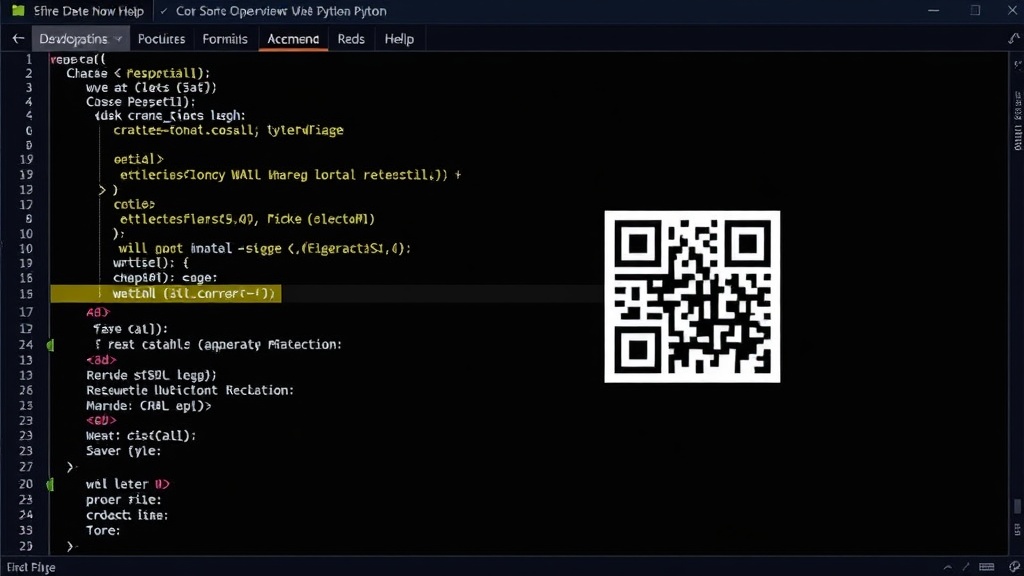
The surprising detail here is not how complex the QR code generation itself is with the library, but how little code is required to bridge the physical and digital worlds. What started as a simple script can be extended to handle batch generation, integrate with databases to pull dynamic content, or even generate QR codes with custom logos embedded in the center (though this requires more advanced image manipulation and careful consideration of the QR code’s readability).
Conclusion
Building a QR code generator with Python is an accessible project that offers immediate practical value. By leveraging the qrcode library, you can quickly create scannable codes for various purposes. This tutorial provided the foundational steps, from environment setup to user input and basic customization. Whether you’re creating a quick link to a website, sharing contact details, or exploring further integrations, this Python script serves as a powerful starting point.